 Snappixify




In the digital age, video is king. Whether you are a content creator, a student, or just someone who loves capturing memories, you likely encounter MP4 files daily. While MP4 is the "universal language" of video, there are still many moments when you need something different.
In this guide, we’ll explore why MP4 converters are essential, how to choose the right one, and the best practices for maintaining high video quality.
Why Do You Need an MP4 Converter?
While MP4 is widely supported, it's not always the best fit. Here are three key reasons people turn to an MP4 converter:
Device Compatibility
Older devices, such as certain smart TVs or car media players, may only support formats like AVI or WMV. Converting MP4 ensures smoother playback on these devices.
Professional Video Editing
For high-quality editing, formats like MOV or ProRes are preferred, as they retain every detail during heavy post-production, unlike the compressed MP4 format.
Storage & Sharing
High-resolution MP4 files can be large, making them difficult to store or share. Converting them to more compressed formats allows for easier storage and smoother sharing, especially over email or social media.
The Pros and Cons of the MP4 Format
Before you hit "convert," it helps to understand what you're working with.
Pros
-
High Quality: Excellent balance between file size and visual fidelity.
-
Universal Support: Plays on almost every smartphone, browser, and OS.
-
Efficiency: Uses H.264 or H.265 (HEVC) compression to keep files manageable.
Cons
-
File Size: 4K MP4 files can still be quite large and fill up hard drives quickly.
-
Generation Loss: Every time you convert an MP4 to another compressed format, you risk losing a bit of clarity.
How to Choose the Best MP4 Converter
Not all converters are created equal. When hunting for the right tool, look for these four pillars:
Format Support
It should handle everything from MP4 and MOV to MKV and GIF.
Speed
Look for tools that offer hardware acceleration (using your GPU) to speed up the process.
Batch Processing
Converting multiple files one by one is a nightmare; ensure your tool can handle them all at once.
No Ads/Watermarks
A good tool shouldn't ruin your video with a giant logo in the middle.
Recommended MP4 Converter Tools by Platform
Online Converters (Quick & Convenient)
Snappixify shines for fast and easy conversions, making it the ideal choice for those who need reliable results without any downloads or installations. Perfect for handling both small and large files with a simple, ad-free, and user-friendly interface.
Desktop Software (For Advanced Users)
If you're dealing with large files and need more control over the conversion process, desktop software could be a better fit. These tools offer more customization options but require installation and are typically suited for power users who need to handle complex tasks.
Mobile Apps (On-the-Go Conversions)
For those converting files while traveling or on social media, mobile apps like Video Converter for iOS/Android are convenient. While they may not offer the same batch processing capabilities as online tools, they’re great for quick, small conversions directly from your phone.
|
Feature |
Online Converters |
Desktop Software |
Mobile Apps |
|
Installation |
No installation required |
installation required |
installation required |
|
File Size Limit |
Typically under 2GB |
No limit |
Usually limited to small files |
|
Internet Required |
Yes, requires internet connection |
Works offline |
Requires internet for cloud features |
|
Privacy |
Files uploaded to a server |
Files stay on your PC |
Files may be processed on the app's servers |
|
Best For |
Quick conversions, smaller files, up to 100 files |
Advanced users, large files, batch processing |
On-the-go conversions, social media uploads |
In summary, Snappixify stands out for its balance of convenience and powerful features for online conversions, making it an excellent choice for users who want to skip the setup and get straight to the task at hand.
How to Use an MP4 Converter (Step-by-Step)
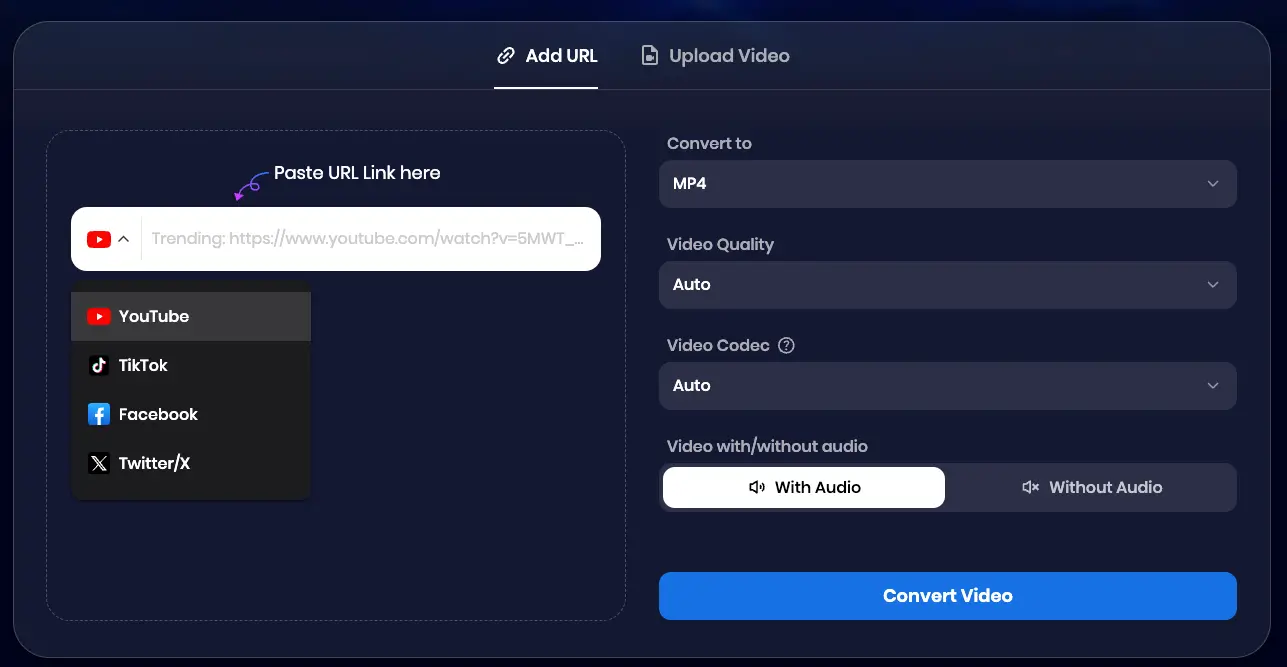
Method 1: Convert by Copying a Link (YouTube, TikTok, Facebook, X, etc.)
-
Copy the Link:
-
Go to the video you want to convert (YouTube, TikTok, Facebook, X, or any supported platform).
-
Right-click on the video or find the share button and copy the URL of the video.
-
-
Paste the Link:
-
Visit the MP4 converter website (e.g., Snappixify).
-
Paste the copied video URL into the provided field on the converter page.
-
-
Choose Output Settings:
-
Select the MP4 format.
-
Choose the resolution or quality you prefer for the converted video.
-
-
Start the Conversion:
-
Click the "Convert Video" button to begin the conversion process. Wait for the video to be processed.
-
-
Download the MP4:
-
Click the "Download" button to begin the conversion process.
-
Once the download is complete, you can access the file on your device.
-
Method 2: Convert by Uploading a File
-
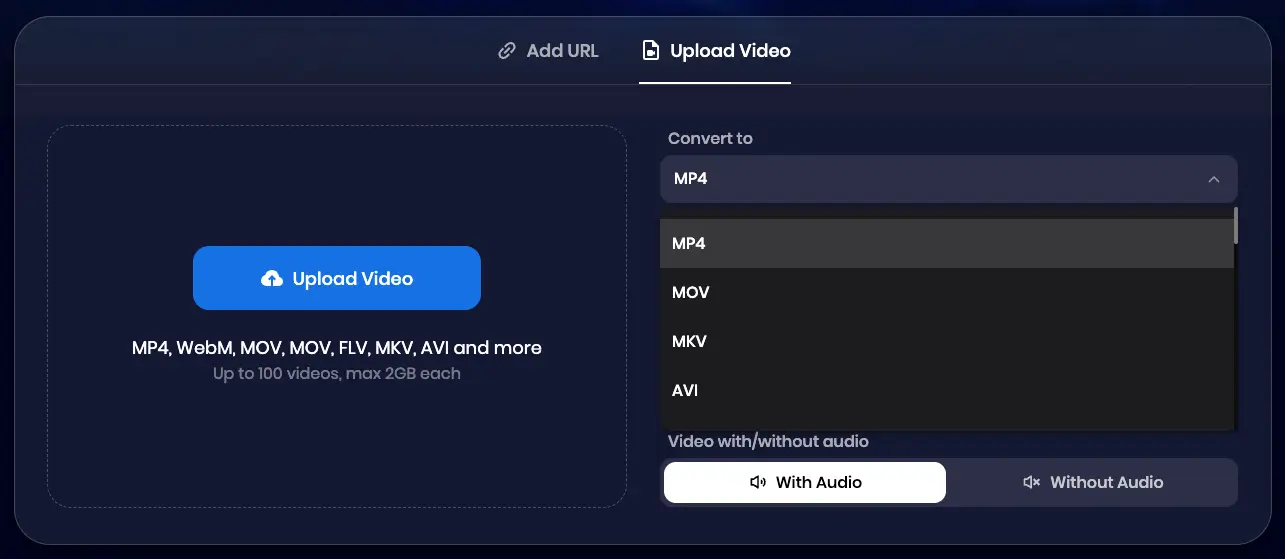
Select the File:
-
Open the MP4 converter website (e.g., Snappixify).
-
Look for an "Upload Video" button.
-
Click it and select the video file you want to convert from your device.
-
-
Choose Output Settings:
-
Select the MP4 format (if not already selected).
-
Pick your desired video quality or resolution.
-
-
Start the Conversion:
-
Click the "Download" button to begin the conversion process.
-
Once the download is complete, you can access the file on your device.
-
Frequently Asked Questions (FAQ)
1. How can I convert video to MP4 without losing quality?
Maintaining high visual fidelity is the biggest challenge during conversion. With Snappixify, you can utilize our "Lossless Encoding" feature. By selecting the optimal bitrate and codecs (such as H.264), Snappixify ensures that your output video remains crisp and clear, providing a high-quality MP4 conversion that looks identical to the original.
2. Is there a reliable MP4 converter for Mac and Windows?
Yes! Since Snappixify is a web-based platform, it functions as a cross-platform MP4 converter. Whether you are running macOS, Windows, or even Linux, you don't need to install heavy software. Just open your browser, upload your file, and let our cloud servers handle the rest.
3. How to convert large MP4 files for free?
Many online tools cap file sizes at 50MB, which is frustrating for long videos. Snappixify is designed to be a large file video converter, allowing you to upload and process significant file sizes without the typical "file too large" errors. It’s the perfect solution for converting full-length movies or long webinars.
4. What is the best MP4 converter for iPhone and Android?
If you need to convert MOV to MP4 on iPhone or handle Android-specific formats on the go, Snappixify is your best bet. Our mobile-optimized interface allows you to transform videos directly from your phone’s camera roll and save them in a universal format compatible with all social media apps.
5. Why is my MP4 file not playing on my TV or older devices?
This is usually due to an unsupported codec. To fix this, use Snappixify to re-encode your video. Select the MP4 (H.264 + AAC) preset; this is the most compatible video format for smart TVs, gaming consoles, and legacy media players.
6. Is it safe to use an online MP4 converter?
Privacy is our priority. Unlike many "free" tools that store your data, Snappixify uses SSL encryption to protect your uploads. Furthermore, all files are automatically deleted from our servers within 24 hours, ensuring your personal content stays private and secure.
Conclusion
An MP4 converter is a must-have tool in any digital toolkit. Whether you're trying to save space, fix a compatibility issue, or prep a video for editing, choosing the right tool like Snappixify makes the job effortless.


