Background
Free online video converter.

Blazing-Fast Batch Video Converter, including MP4, AVI, MKV, MOV and HEVIC – 120X Speed for 4K, HEVC, MP4 & 200+ Formats, Perfect for Phones, Social Media & More

Video Converter
Add URL
Upload Video
Paste URL Link here
    MP4, WebM, MOV, MOV, FLV, MKV, AVI and more
    Up to 100 videos, max 2GB each
    Convert to
    MP4
    • MP4
    Video Quality
    Auto
    • Auto
    Video Codec
    What is a Video Codec?
    • A video codec is a technology or algorithm used to compress and decompress digital video files.
    • Common video codecs include H.265 (HEVC), AV1, H.264 (AVC)
    • For example, an .mp4 file might contain H.264 video and AAC audio.
    Auto
    • Auto
    Video with/without audio
    With Audio
    Without Audio
    Convert Video
    Paste Link
    Files to be converted
    Keep the same settings for all files
    Remove All
    Convert All
    Convert More
    Stop All
    Download All
    Remove All
    Download All

    How to Convert Videos?

    Add URL or Upload Video
    1. Add URL or Upload Video

    Add URL or Upload Video

    Upload your video file from your device, or paste a video URL directly into the box to start the conversion

    Set Your Preferences
    2. Set Your Preferences

    Set Your Preferences

    Choose your preferred format, set the video quality and codec, and decide whether to keep the audio.

    Convert & Save
    3. Convert & Save

    Convert & Save

    Click on the Convert Video button and the video will be saved to your device in your preferred settings.

    Free Online Video Converter: Works with Any Formats

    Looking for a free video converter online that works with all formats? Try this fast, easy-to-use tool to change any video format in seconds—no installs needed! We support all major formats, including MP4, AVI, MKV, WMV, MOV, FLV, and more. Plus, we support converting video to audio (like MP3) or video to GIF. Try this all-format video converter for free now!

    Works with Any Formats

    Supported video formats

    3G2 Converter
    3GP Converter
    3GPP Converter
    AVI Converter
    CAVS Converter
    DV Converter
    DVR Converter
    FLV Converter
    GIF Converter
    M2TS Converter
    M4V Converter
    MKV Converter
    MOD Converter
    MOV Converter
    MP4 Converter
    MPEG Converter
    MPG Converter
    MTS Converter
    MXF Converter
    OGG Converter
    RM Converter
    RMVB Converter
    SWF Converter
    TS Converter
    VOB Converter
    WEBM Converter
    WMV Converter
    WTV Converter
    Convert Videos From All Platforms

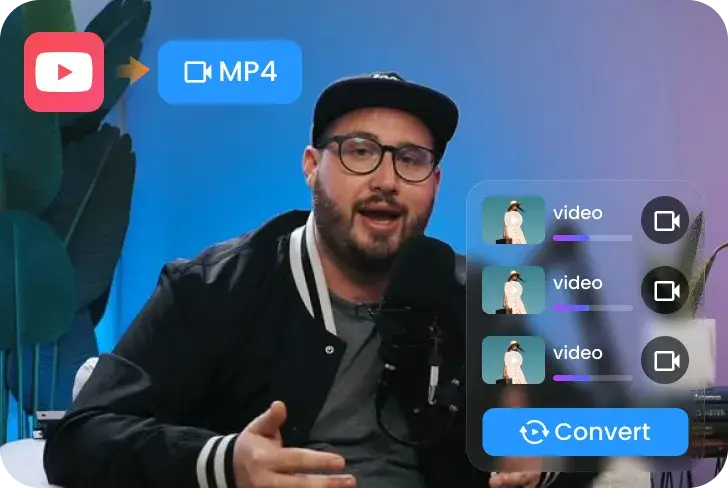
    Best YouTube Video Converter Easily Convert Videos From All Platforms

    • Flawlessly convert MP4 and many other formats with one click
    • Works on any browser – Chrome, Safari, Edge, or Firefox
    • Fully compatible with Windows, PC, Mac, Andriod and iPhone devices
    • Not just YouTube – also supports X/Twitter, TikTok, Instagram, Facebook and more
    • Extract Audio from Video: Easily Convert YouTube video to MP3 and other formats

    Video Conversion Made Simple: Easy Tools for Everyone, from Novice to Pro

    We deliver a comprehensive conversion and optimization solution that helps you shatter compatibility barriers, achieve true HD viewing freedom, and transform every single share into a high-impact, viral hit.

    • Content Creators
      Turn Videos into Shareable Hits

      Content Creators

      Different platforms prefer different file types, and converting your clips to MP4 and other formats, lets you post and share without compatibility issues.

    • Video Editors
      Customize Videos As You Go

      Video Editors

      Set video’s format, quality, codec, and audio preferences in seconds. Convert and optimize videos for any platform with full control at your fingertips.

    • Video Lovers
      HD Viewing On Any Device Anywhere

      Video Lovers

      Immerse in true HD viewing anytime, anywhere. As the ultimate 4K video converter, it supports batch lossless conversion, ensuring your content plays on any device.

    • Social Media Enthusiast
      Convert & Compress: Zero Quality Loss

      Social Media Enthusiast

      Easily convert and compress your videos to meet any platform's size and format requirements. It's simple to use, yet our advanced technology guarantees no loss of clarity.

    Features

    Stop Waiting. Start Converting.

    The Ultimate 4K Video Converter for PC & Mac You'll Ever Needed (Lightning Fast). Snappixify delivers uncompromising quality, universal compatibility, and unmatched conversion speed, all wrapped in a sleek, user-friendly interface.
    Icon: 100X Speed

    100X GPU-Accelerated Speed

    Break the Clock: Leverage full hardware acceleration to convert hours of 4K, HEVC (H.265) & HD video in minutes, not hours. Save time and energy.

    Icon: 500+ Formats

    500+ Formats Support

    Universal Compatibility: Instantly convert videos for any device (iPhone, PS5, Xbox, Smart TV, Android). Supports every major and obscure format: MP4, MOV, AVI, MKV, WMV, WebM, and more.

    Icon:4K & UHD Quality

    True Lossless 4K & UHD Quality

    No Compromise: Maintain 100% of the original visual quality when converting formats like MKV to MP4 or MOV to AVI. Get perfect, high-fidelity results every time.

    Icon: Audio Extraction

    Intelligent Audio Extraction

    Audio Freedom: Easily and cleanly strip the audio track from any video file (e.g., MP4 to MP3). Perfect for creating playlists from concerts, podcasts, or lectures.

    Icon: Batch Conversion

    Batch Conversion for Max Efficiency

    Snappixify offers hassle-free batch processing, allowing users to convert multiple videos at once. This time-saving feature boosts productivity by allowing you to convert entire video libraries in one go.

    Icon: Cloud-Based and Secure

    Cloud-Based and Secure

    Snappixify uses secure cloud-based conversion, ensuring your files are encrypted and accessible from any device, anywhere. Your data is kept safe and never stored longer than necessary.

    Icon: 100X Speed
    100X GPU-Accelerated Speed
    Icon:4K & UHD Quality
    True Lossless 4K & UHD Quality
    Icon: Batch Conversion
    Batch Conversion for Max Efficiency

    Break the Clock: Leverage full hardware acceleration to convert hours of 4K, HEVC (H.265) & HD video in minutes, not hours. Save time and energy.

    No Compromise: Maintain 100% of the original visual quality when converting formats like MKV to MP4 or MOV to AVI. Get perfect, high-fidelity results every time.

    Snappixify offers hassle-free batch processing, allowing users to convert multiple videos at once. This time-saving feature boosts productivity by allowing you to convert entire video libraries in one go.

    Icon: 500+ Formats
    500+ Formats Support
    Icon: Audio Extraction
    Intelligent Audio Extraction
    Icon: Cloud-Based and Secure
    Cloud-Based and Secure

    Universal Compatibility: Instantly convert videos for any device (iPhone, PS5, Xbox, Smart TV, Android). Supports every major and obscure format: MP4, MOV, AVI, MKV, WMV, WebM, and more.

    Audio Freedom: Easily and cleanly strip the audio track from any video file (e.g., MP4 to MP3). Perfect for creating playlists from concerts, podcasts, or lectures.

    Snappixify uses secure cloud-based conversion, ensuring your files are encrypted and accessible from any device, anywhere. Your data is kept safe and never stored longer than necessary.

    Efficiency Meets Excellence: What Our Users Are Saying

    Trusted by a diverse group of professionals. Read how we help them save time, maintain full video quality, and streamline their workflow across all platforms
    Easily convert videos to any format and platform while keeping full quality—saving me time every step.
    I can batch compress and convert videos without losing quality. The interface is intuitive, making my workflow more efficient.
    I can convert movies and clips into any format for my blog and reviews. The tool is fast and keeps every detail crisp.
    It helps me quickly convert videos into platform-friendly formats. Perfect for someone like me who posts frequently.
    Converting and optimizing teaching videos is so easy. The quality stays clear, giving students a better viewing experience.
    Creating promo videos is fast and convenient. Compressed files are smaller, making it easier to share with clients.

    Frequently Asked Question

    Frequently Asked Questions

    How to convert video to audio?

    Converting a video to audio means extracting the soundtrack from a video file. This is useful for listening to lectures, podcasts, or music on the go. You can use a free online converter like Snappixify for advanced settings and large files. Steps to convert a video to audio: 1. Upload video file or paste video url to Snappixify online converter. 2. Select preferred audio format as the output. 3. Click Convert and wait for the process to finish. 4. Download your audio file once the conversion is complete.

    How to convert video to MP3?

    The easiest way for most users is to use a free online converter — it's the fastest way to convert a file without installing any software. Follow these steps: 1. Visit the Snappixify official website. 2. Click Add URL or Upload File to select your video. 3. Set the output format to MP3. 4. Click Convert. 5. Once the process is complete, click "Download" to save the MP3 file to your device.

    How to convert video to MP4?

    Converting a video to MP4 is simple and helps make your file compatible with most devices and platforms. You can use a free online video converter to do this in a few steps: 1. Upload your video – Choose a file from your computer or paste a video link from YouTube or other platforms. 2. Select MP4 as the output format – MP4 offers excellent quality and smaller file size. 3. Start the conversion – Click Convert to begin the process. 4. Download the MP4 file – Once finished, save your converted video to your device.

    How to convert mkv video to MP4?

    Converting an MKV video to MP4 lets you play it on more devices and platforms since MP4 is more widely supported. You can easily do this online video converter like Snappixify. Here's how: 1. Go to Snappixify Video Converter page. 2. Click Upload File or Add URL to add your MKV file. 3. Select MP4 as the target format. 4. Click Convert and then Download the resulting MP4 file.

    How do I convert a video on my phone into an MP4?

    This is a good option if you only need to convert a video occasionally and don't want to install an app. Search online like Snappixify Video Converter. Process: 1. Go to Snappixify website in your phone's browser. 2. Upload the video file from your phone's storage or just paste the url into the enter box 3. Select MP4 as the desired output format. 4. Click Convert. 5. Download the newly created MP4 file back to your phone.

    What is the best free MP4 video converter?

    Choosing the best free MP4 video converter depends on your specific needs, such as HD quality, fast conversion speed, supported formats, website compatibility, batch conversion, and playback on any device. Among the many options available, Snappixify stands out, especially for users seeking a simple and reliable solution.

    How to convert videos for TikTok?

    To make sure your videos are ready for TikTok, you can use a video converter tool like Snappixify to adjust the format and resolution. Here's how: 1. Upload Your Video – Open your video converter and upload the video you want to convert. 2. Choose the Right Format – TikTok recommends .mp4, but Snappixify support other common formats too. 3. Set Resolution & Quality – For best results, choose high resolution like 1080p, 1440p, or 4K. 4. Check File Size & Duration – TikTok allows videos up to 30 GB and 60 minutes. Make sure your converted video meets these limits. 5. Convert & Download – Start conversion, then download the video without any watermark. Your video is now ready to upload to TikTok.

    How to convert videos with vcl player?

    VLC Player is a free, open-source media player that can play almost any video format and also convert videos. To convert a video in VLC: 1. Open VLC and go to Media > Convert / Save. 2. Add your video and click Convert / Save. 3. Choose an output format like MP4 and select the save location. 4. Click Start to convert. For an easier online solution without downloading any software, try Snappixify – a free online video converter that lets you convert videos directly in your browser.

    Discover even more

    A free, easy-to-use, online video to MP4 converter

    Convert Now
    5025 Boardwalk Dr Ste 100, Colorado Springs, CO, 80919 Copyright © 2025 ANGELO NETWORK TECHNOLOGY LTD
    back to top