 Snappixify


The simplest way to convert MP4 to MOV online. Get stunning 4K results on any device—iPhone, Android, or Desktop. No apps to download, just instant, secure conversion right in your browser.
- MP4
- Auto
- A video codec is a technology or algorithm used to compress and decompress digital video files.
- Common video codecs include H.265 (HEVC), AV1, H.264 (AVC)
- For example, an .mp4 file might contain H.264 video and AAC audio.
- Auto

Convert MP4 to MOV Instantly with Zero Quality Loss
-
Convert MP4 to MOV online—no downloads, plugins, or extra software needed.
-
Optimized for QuickTime, macOS, and iOS for smooth Apple playback.
-
Import into Final Cut, Resolve, or Premiere without codec errors.
-
Keep original 4K or HD quality with H.264 or ProRes encoding.
-
Fast cloud processing converts large files in seconds.
-
256-bit SSL encryption keeps files secure and auto-deletes after use.
-
![MP4 to MOV for Apple devices]()
Universal MP4 to MOV for Apple devices
Snappixify works on Windows, Mac, and Linux to deliver MOV files that are natively optimized for the Apple ecosystem. You can convert your media on any platform and enjoy flawless playback on iPhone, iPad, and QuickTime.
Transform MP4 to MOV -
![MP4 to MOV in 4K quality]()
Lossless MP4 to MOV in 4K quality
Our AI-driven technology handles 1080P, 2K, and 4K video with zero quality loss. We ensure that every frame remains crisp and professional during the MP4 to MOV transition, preserving the high-resolution detail of your original footage.
Lossless MP4 to MOV -
![MP4 to MOV for macOS editors]()
Pro MP4 to MOV for macOS editors
Generate stable MOV files designed specifically for professional macOS editing software like Final Cut Pro and DaVinci Resolve. These files eliminate common import errors and playback lag to provide a smooth, responsive editing experience.
Change MP4 to MOV


Professional MP4 to MOV Converter for Seamless Workflows
Elevate your post-production. Convert MP4 to high-fidelity MOV to unlock ProRes capabilities, preserve alpha channels, and meet strict industry delivery standards—all within your browser.
-
![Mac Video Editors]() Seamless editing
Seamless editingMac Video Editors
Tired of laggy timelines? Converting MP4 to MOV (ProRes) optimizes playback in Final Cut Pro. Streamline your workflow, reduce CPU spikes, and enjoy a butter-smooth scrubbing experience on your Mac while avoiding frequent rendering.
-
![Motion Graphics Designers]() Alpha-Ready Video Output
Alpha-Ready Video OutputMotion Graphics Designers
MP4 doesn’t support Alpha channels, making transparent overlays impossible. By using our MP4 to MOV conversion, you can wrap motion graphics in a container that supports transparency, ready for use in any professional compositing software.
-
![Photographers]() Consistent Color Grading Control
Consistent Color Grading ControlPhotographers
MP4 compression can lead to banding during grading. Converting to MOV allows you to handle high bit-depth data and maintain a consistent color space, ensuring your final look stays true from set to screen with much better stability.
-
![Ad Producers]() Meet ProRes Delivery Standards
Meet ProRes Delivery StandardsAd Producers
Most US ad agencies reject MP4 as a delivery format. Don't let your project fail QC. Convert your MP4 to MOV to meet professional ProRes master requirements and ensure your submission passes the technical review on the very first try.
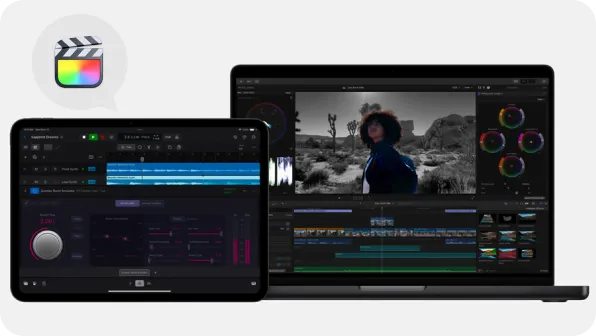



Why Snappixify MP4 to MOV Converter?

Native Apple Compatibility
Convert MP4 to high-quality MOV for seamless playback on macOS and iOS. Enjoy native Apple integration and smoother device performance.

Seamless Editor Integration
Snappixify optimizes MOV for Final Cut Pro and QuickTime. No more format errors—just drag, drop, and start editing on your Mac instantly.

ProRes Alpha Support
Convert overlays into MOV with ProRes 4444 Alpha. The pro choice for motion graphics and transparent layers without losing visual quality.

Professional Editing Bridge
Bridge the gap between compressed MP4 and pro editing. Convert to ProRes MOV to eliminate lag and CPU strain during your post-production.

AI-Enhanced Fidelity
Our AI Engine ensures MOV conversion preserves every detail. We optimize bitrate to maintain 4K clarity for demanding professional projects.

Secure Batch Processing
Use GPU acceleration for lightning-fast MP4 to MOV batch processing. Your media stays encrypted and private throughout the entire process.
Convert MP4 to high-quality MOV for seamless playback on macOS and iOS. Enjoy native Apple integration and smoother device performance.
Convert overlays into MOV with ProRes 4444 Alpha. The pro choice for motion graphics and transparent layers without losing visual quality.
Our AI Engine ensures MOV conversion preserves every detail. We optimize bitrate to maintain 4K clarity for demanding professional projects.
Snappixify optimizes MOV for Final Cut Pro and QuickTime. No more format errors—just drag, drop, and start editing on your Mac instantly.
Bridge the gap between compressed MP4 and pro editing. Convert to ProRes MOV to eliminate lag and CPU strain during your post-production.
Use GPU acceleration for lightning-fast MP4 to MOV batch processing. Your media stays encrypted and private throughout the entire process.
MP4 vs. MOV: What is the Difference?

What’s MP4?
MPEG-4 Part 14
.MP4
File extension

What’s MOV?
QuickTime File Format
.MOV
File extension
When to Use MP4 vs. MOV
Convert MP4 to MOV, AVI, WMV, MKV, and more – all your video conversion needs in one tool
Use to MP4

- When you need universal compatibility for playback on iPhones, Android devices, and smart TVs without file errors.
- When you are uploading content to social media like Instagram, TikTok, or LinkedIn for maximum reach and stability.
- When you want to minimize file size for easy sharing or storage while maintaining high-definition visual quality.
Use to MOV

- When working in professional Apple-based editors like Final Cut Pro to ensure a smooth, native editing workflow.
- When you need to preserve maximum video fidelity and alpha channel transparency for motion graphics and overlays.
- When preparing a high-quality master file for broadcast, cinematic display, or playback on macOS systems.
Key Differences Between MP4 and MOV
How to Convert MP4 to MOV
-
![Paste Link or Upload MP4]()
Paste Link or Upload MP4
1. Paste Link or Upload MP4Paste a video URL or drag and drop your MP4 file to start the conversion instantly -
![MOV Settings]()
MOV Settings
2. MOV SettingsChoose MOV as the output format. Adjust resolution, codec, or audio settings based on your editing needs -
![Convert and Download]()
Convert and Download
3. Convert and DownloadClick Convert to process your file, then download your high-quality MOV video to your device


Convert Any Video or Audio - 500+ Formats Supported
Convert MP4 to MOV online with Snappixify – fast, secure, and optimized for smooth playback and editing on Mac, iPhone, and professional video software.


Popular MP4 & MOV Converter Tools
MP4 to MOV Made Easy — Snappixify converts MP4 videos into high-quality, Apple-compatible MOV files for seamless editing in Final Cut Pro, smooth playback in QuickTime, and professional use across macOS workflows


Why Millions Trust Us for MP4 to MOV Conversion


Frequently Asked Questions
How to convert MP4 to MOV?
Why does Apple use MOV instead of MP4?
Is MP4 or MOV better for Facebook?
Does TikTok prefer MOV or MP4?
Is MOV better quality than MP4?
What are the disadvantages of MP4?
Do you lose quality converting MP4 to MOV?
How do I convert MP4 to MOV on Mac for free?


