 Snappixify


Common Reasons to Convert a Video File to Another Format
· The video won’t play on your device
You download a video, but your iPhone can’t play it, your Android shows a black screen, or your TV doesn’t recognize the file. Many devices support MP4 only, even if they don’t clearly say so.
· Your editing software won’t open the file
When you import a video into Final Cut Pro, CapCut, or Premiere Pro, it may show an error, lose audio, or crash. The issue is usually the format or codec, not the video itself.
· The platform only accepts MP4 uploads
Many websites and social platforms reject files with messages like “unsupported format” or “only MP4 allowed.” Converting the video format avoids upload failures.
· The file size is too large
Some formats create very large files that are slow to upload and hard to store. Changing the format can reduce file size without noticeable quality loss.
· You need one format that works everywhere
Different devices and apps support different formats. Converting videos to MP4 ensures they play, edit, and upload smoothly across platforms.
In short: changing a video format isn’t about technical settings—it’s about making your video usable.
What Does Changing a Video Format Actually Mean
Before you start converting files, it’s helpful to understand what a "video format" really is. Think of it as a two-part system:
1. The Container (The Box)
A container is what you see in the file extension, such as: MP4, MOV, MKV, AVI, or MPG.
-
Think of it as a "box." Its job is to hold the video, audio tracks, subtitles, and metadata together in one package.
-
Different devices (like iPhones, TVs, or Windows PCs) prefer different types of "boxes."
2. The Codec (The Stuffing)
Inside that box is the Codec (e.g., H.264 or H.265).
-
Think of it as the "compression technology." It determines how the video data is shrunk down to save space and how it’s "unfolded" when you hit play.
When someone says they want to "change the format of a video," they are usually looking to swap the box.
In short: Changing a format ensures your video works perfectly on the specific device or platform you want to use.
Understanding Video Formats Before Converting
Video files come in many formats, but not all of them work well across devices, editors, or platforms. That’s why many users end up searching for ways to change their video formats.
Common Video Format Questions Users Ask
-
How do I convert a video to MP4?
-
How can I change a video from MOV to MP4?
-
How do I convert AVI to MP4?
-
How can I turn an MKV file into MP4?
These conversions aren’t just about preference — they’re about ensuring your videos are easy to play, edit, and share across different devices and platforms.
Video Format Comparison: MP4 vs MOV vs AVI vs MKV
|
Format |
Best For |
Pros |
Cons |
|
MP4 |
Everyday use |
Widely supported, small file size |
Limited advanced features |
|
MOV |
Apple devices & editing |
High quality, great for Final Cut |
Poor compatibility outside Apple |
|
AVI |
Legacy systems |
Simple structure |
Large files, poor compression |
|
MKV |
High-quality archives |
Multiple audio/subtitle tracks |
Limited device support |
How to Change Video File Format
Snappixify – Best Online Video Format Converter
For users who prefer not to install extra software, an online converter is often the fastest and easiest choice such as Snappixify.
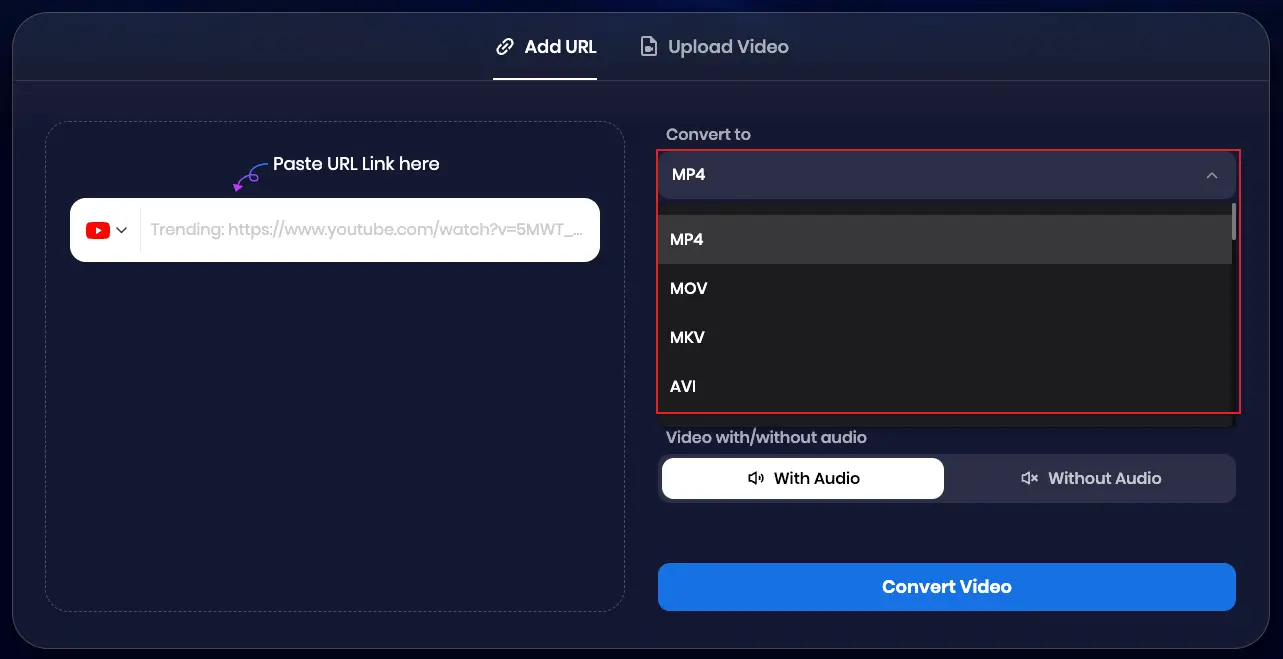
Key Features:
Ultra-Fast GPU-Powered Conversion
Harness full GPU acceleration to process 4K, HEVC (H.265), and HD videos at blazing speed. What used to take hours now finishes in minutes—saving both time and power.
True Lossless 4K & UHD Output
Preserve every detail. Snappixify keeps the original visual quality intact when converting formats like MKV to MP4 or MOV to AVI—no quality loss, ever.
Batch Processing Made Simple
Convert multiple videos in one go with effortless batch processing. Perfect for handling large video libraries quickly and efficiently.
500+ Video & Audio Formats Supported
Enjoy seamless compatibility across devices and platforms. Convert videos for iPhone, PS5, Xbox, Smart TVs, and Android, with support for MP4, MOV, AVI, MKV, WMV, WebM, and more.
Smart Audio Extraction
Extract high-quality audio from any video file in just a few clicks. Ideal for turning videos into MP3s for music, podcasts, lectures, or playlists.
Secure Cloud-Based Conversion
All conversions run in a secure cloud environment. Files are encrypted, accessible from any device, and automatically deleted after processing to protect your privacy.
VLC Media Player – Best Desktop All-in-One Tool
VLC is one of those tools that has stood the test of time. Most people recognize it as a media player, but its capabilities go far beyond simple playback. With a bit of exploration, you’ll find it can handle video format conversion, disc ripping, and even media streaming.
While its interface feels dated and hasn’t changed much over the years, that simplicity is also its strength. VLC focuses on function over form—and it delivers. One of its biggest advantages is unmatched format support. Even obscure or outdated video files that fail to open elsewhere usually run smoothly in VLC.
It’s free, open-source, works across nearly all platforms, and reliably handles almost any media file you throw at it. For many users, VLC is less a choice and more a basic necessity.
Pros
-
Works on all major platforms
-
Supports almost every video and audio format
-
Highly customizable conversion settings
Cons
-
Advanced features are buried in menus and not very intuitive
FFmpeg – Best for Power Users (Command Line Tool)
FFmpeg was easily the most challenging tool I tested—and also the most capable. There’s no graphical interface at all; everything happens in the command line, which can feel overwhelming at first. In the beginning, I was pasting commands from search results without fully understanding them. But once the logic clicked, FFmpeg opened up a whole new level of control.
I could convert full-length movies, cut precise clips, remove audio tracks, and do it all noticeably faster than with any GUI-based app. It’s lightweight, extremely powerful, and surprisingly flexible once you push past the initial learning curve. This isn’t a tool for absolute beginners, but for users willing to invest some time, it’s hard to beat.
Pros
-
Supports an enormous range of formats
-
Extremely versatile
-
Completely free and open-source
Cons
-
Very steep learning curve
Tips for Retaining Quality During Video Conversion
Changing video formats doesn’t have to mean sacrificing quality. With the right settings, your video can stay clear and detailed—whether it’s 240p or 8K.
Quality (From 240p to 8K)
Video quality can range from low-resolution clips to ultra-high-definition footage. When converting formats, make sure the output resolution matches your original file to avoid unnecessary quality loss.
Choose the Right Codec
-
H.264: The best balance of quality, file size, and compatibility. Works well on almost all devices and platforms.
-
H.265 (HEVC): Delivers smaller file sizes at similar quality levels, but isn’t supported by all devices or editors.
Conclusion
In this article, we tested three popular video conversion options: Snappixify, VLC Media Player, and FFmpeg. Each tool has its strengths.
However, for most users who simply want to convert videos quickly, correctly, and without a learning curve, Snappixify Online Video Converter stands out. It works directly in the browser, requires no installation, and handles common format conversions smoothly with just a few clicks.
If you’re looking for a fast, beginner-friendly solution that gets the job done without extra complexity, Snappixify is the easiest option to start with.
FAQs About Changing Video Formats
How do you change video formats in Windows 10?
On Windows 10, you can convert video formats using tools like Snappixify. Just upload your video, choose the format you need (such as MP4, MOV, or AVI), and convert it in a few clicks—no software installation or complicated settings required. It’s especially useful if you just want a quick, reliable format change.
Can I set the default video format on Android to something other than MP4?
No. Android doesn’t allow you to change the system-wide default recording format—most devices record in MP4 by default. If you need a different format for editing, uploading, or sharing, the easiest solution is to convert the video afterward. With Snappixify, you can upload your Android video and convert it to the required format online, without touching any system settings.
Why can’t Final Cut Pro read my MP4 files?
Even though MP4 is a common format, some MP4 files use codecs that Final Cut Pro doesn’t support. This often results in import errors, missing audio, or failed playback. Re-encoding the video usually solves the problem. Using Snappixify, you can convert the file into a Final Cut–friendly MP4 or MOV format, ensuring smoother imports and more stable editing.


