 Snappixify


If you’re working with video files on Windows, chances are you’ve run into this problem: you have a MOV video, but you only need the audio. Maybe it’s a podcast recording, a lecture, background music, or a voice track you want to reuse. Converting MOV to MP3 sounds simple—but Windows doesn’t make it obvious.
Many users try Windows Media Player, only to discover there’s no option to extract audio. Others turn to random online converters and worry about privacy, security, or audio quality.
In this guide, we’ll walk through the best ways to convert MOV to MP3 on Mac, Windows, Iphone, and Andriod, and show you safe, easy options like Snappixify that won’t degrade your audio.
What Is MOV?
MOV is a multimedia container format developed by Apple, commonly used to store video and audio together. While MOV files are often associated with high-quality video, they almost always include an audio track—such as music, voice, or background sound.
In short:
MOV = video + audio in one file
MP3 = audio-only, smaller size, widely supported
MOV to MP3 = extracting the audio track from a MOV video
Converting MOV to MP3 makes the file easier to share, store, and play on phones, music players, and audio apps—without needing video playback support.
Convert MOV to MP3 on Windows and Mac
If you want a method that’s simple, free, and beginner-friendly, an online converter like Snappixify is one of the easiest options—especially if you don’t want to install software on your PC.
Why Snappixify Works Well
-
Free online MOV to MP3 converter
-
No software installation required
-
Supports high-quality audio output up to 320 kbps
-
Works on Windows, macOS, iPhone, and Android
-
Clean interface with no complicated settings
Snappixify extracts the audio track directly from your MOV file, so the sound quality depends on the original video—not on aggressive re-encoding.
How to Convert MOV to MP3 with Snappixify
1. Open the Snappixify MOV to MP3 converter in your browser
2. Select MP3 as the output format
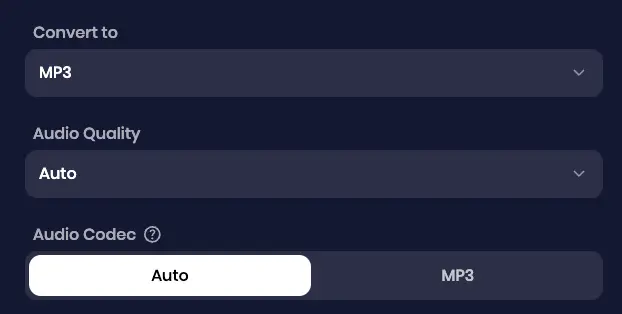
3. Upload your MOV video file and start the conversion
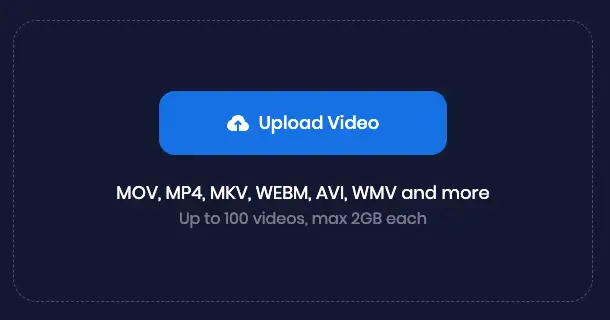
4. Download the MP3 audio file
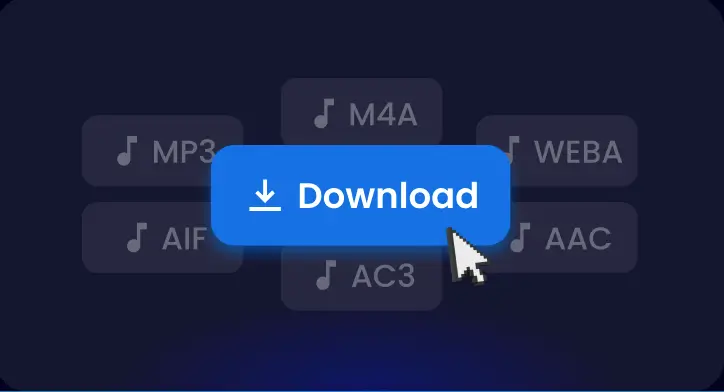
That’s it. No technical knowledge required.
How to Convert MOV to MP3 on iPhone and Android
Converting MOV videos to MP3 audio is super easy on your mobile device—whether you’re using an iPhone or an Android phone. The best part? You don’t need to install any app! Snappixify works perfectly on all major mobile browsers, including Safari, Firefox, Google Chrome, and even Internet Explorer.
Why Snappixify is Perfect for Mobile Use
-
Fully compatible with all popular mobile browsers like Safari, Firefox, Chrome, and more
-
No app downloads or installations required
-
Clean, simple interface designed for easy use on small screens
-
Fast conversion speed even on mobile networks
Step-by-Step Guide: Using Snappixify Online Converter on Mobile
1. Open Your Preferred Mobile Browser
Whether it’s Safari on iPhone, or Chrome or Firefox on Android, simply launch your browser and go to Snappixify’s website.
2. Upload Your MOV File
Tap the upload button and select the MOV video stored on your phone. Snappixify supports quick and smooth uploads on mobile devices.
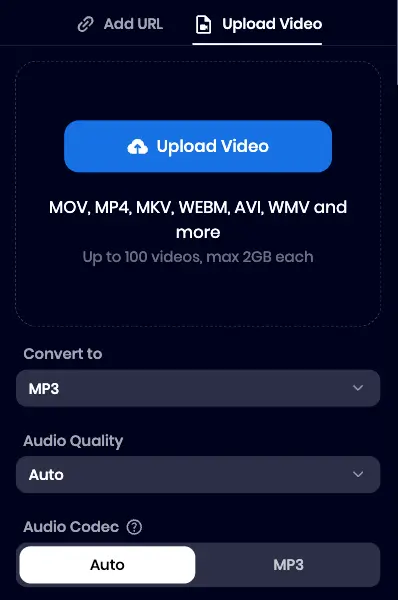
3. Choose MP3 as the Output Format
Select MP3 as the desired output format, then hit the convert button. The process runs fast and efficiently on mobile devices.
4. Download the MP3 File
Once the conversion is complete, download the MP3 audio directly to your phone. It’s ready to play or share instantly.
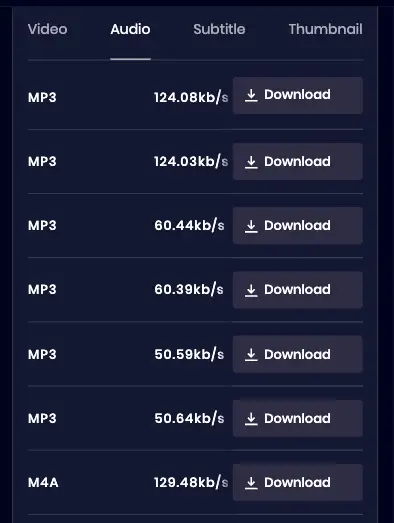
Enjoy converting your MOV videos to MP3 anytime, anywhere, right from your phone!
Are Online MOV to MP3 Converters Safe?
Online converters are convenient, but it’s smart to be cautious.
Pros
-
No installation
-
Fast for small files
-
Works on any device
Potential Risks
-
Unclear file retention policies
-
Ads or misleading download buttons
-
Not suitable for sensitive or private videos
If you’re converting personal recordings or work-related files, choose a tool with a clean interface and minimal distractions. For casual use, online tools like Snappixify strike a good balance between speed, simplicity, and quality.
FAQs About Converting MOV to MP3
Can I Convert MOV to MP3 on iPhone with Shortcuts?
Yes, it’s possible to convert MOV files to MP3 using the Shortcuts app on iPhone. However, this method can be complicated for beginners and isn’t ideal for frequent or large-scale conversions. Snappixify is more straight forward and easy to use.
How Can I Convert MOV to MP3 with No Limit?
-
Command-line tools like FFmpeg allow unlimited conversions but require technical skills.
-
Online converters are easier to use, but some may limit the number of conversions per day.
-
For most users, an easy and unlimited option is using an online converter like Snappixify, which supports multiple formats and devices without restrictions.
Will Converting MOV to MP3 Reduce Audio Quality?
Not if you select a high bitrate such as 256 kbps or 320 kbps. The final audio quality depends mainly on the original audio track within the MOV file.
How to Convert MOV to MP3 on Mac with QuickTime?
QuickTime is primarily a media player and does not export MP3 audio directly. To convert MOV to MP3 on a Mac:
-
Start with the original MOV video file.
-
Download the resulting MP3 file for playback or editing.
How to Convert MOV to MP3 with iTunes?
iTunes does not support converting MOV to MP3 directly. Instead, you need to extract audio using a separate tool or converter. Snappixify offers a fast, browser-based way to convert MOV files to MP3 without installing software, making it ideal for iTunes users wanting audio files.
Conclusion
Your personal computer doesn’t provide a built-in way to convert MOV to MP3, but the process is still straightforward with the right tool. If you want a free, easy, and secure method without installing software, an online converter like Snappixify is a great place to start—especially for extracting high-quality audio from video files quickly.


