 Snappixify


Short-form video has changed how people watch, scroll, and engage. It is reported that short-form and vertical videos are easier to catch the audience's attention.
This content is for creators who want to convert horizontal videos to vertical and earn more visits. This guide explains how to convert videos into 9:16 on Canva. If you need other vertical aspects, the guide is universal.
TL;DR – Convert Horizontal Videos to Vertical on Canva
-
Vertical videos offer a better experience for mobile users and hence catch the attention.
-
Before changing the video aspect ratio, consider using Snappixify to download MP4 content online.
-
To convert videos into 9:16 on Canva, upload your downloaded video to a new design and adjust the aspect ratio.
Why You Should Convert Horizontal Videos to Vertical
Vertical video vs horizontal video: key differences
Horizontal video (16:9) was designed for TVs and desktops. Vertical video (9:16) is built for phones.
The difference isn't just orientation. Vertical video:
-
Fills the entire mobile screen
-
Reduces distractions around the content
-
Keeps the viewer focused on a single message
Horizontal videos shrink on mobile, forcing viewers to squint or rotate their phones. This will bother many users.
Why 9:16 is the standard for short-form platforms
TikTok, Instagram Reels, and YouTube Shorts all prioritize 9:16 aspect ratios for videos. Therefore, if you are a content creator aimed at these platforms, 9:16 is the best choice. Their interfaces, UI overlays, and algorithms are optimized for it.
Uploading anything else often results in:
-
Black bars
-
Cropped visuals
-
Lower completion rates
If you want native reach, 9:16 is the safest format.
Better engagement on TikTok, Reels, and Shorts
Vertical videos typically see:
-
Higher watch time
-
More replays
-
Stronger engagement signals
Platforms reward content that keeps users scrolling. A full-screen vertical video simply performs better in that environment.
When horizontal videos don’t perform well on mobile
Horizontal videos struggle when:
-
The subject is small or off-center
-
Text appears near the edges
-
Action happens across a wide frame
In these cases, converting to vertical—rather than re-recording—can extend the life of existing content.
What You Need Before Converting into Vertical Video
Before opening Canva, let's make the preparation. Let's first see whether your true requirement is 9:16, and we will show you how to download online resources that are most suitable for Canva.
Choosing the right aspect ratio: 9:16 vs 4:5 vs 1:1
While 9:16 is ideal for short-form platforms, other ratios still have use cases.
-
9:16: TikTok, Reels, Shorts (full-screen)
-
4:5: Instagram feed posts
-
1:1: Legacy feeds or cross-platform ads
Therefore, check your content and finally decide what aspect ratio you need. If short-form video is your goal, you can read the article and see how to convert videos into 9:16 on Canva.
Download the original videos (e.g., Snappixify MP4 Converter)
You'll need the highest-quality version of your video. If the resource is online, an online video converter can help you download videos in MP4 format without unnecessary compression. Moreover, Canva performs best when processing MP4 videos. If your local video is not MP4, you can also convert that video into MP4 with Snappixify.
You can use Snappixify MP4 Converter to do that.
Key features of Snappixify MP4 Converter
-
Convert video format to MP4.
-
You can upload a downloaded video or download the online video with the link.
-
The downloaded video is free from a watermark.
-
Supports MP4 output, and it is ideal for Canva uploads.
-
Free to use without logging in.
Therefore, if you need to download online horizontal videos and convert them to vertical, the easiest way is to download the online video with Snappixify, and then convert the video to 9:16 on Canva. Fortunately, you can see the step-by-step guide in the following sections.
How to use Snappixify MP4 Converter step by step
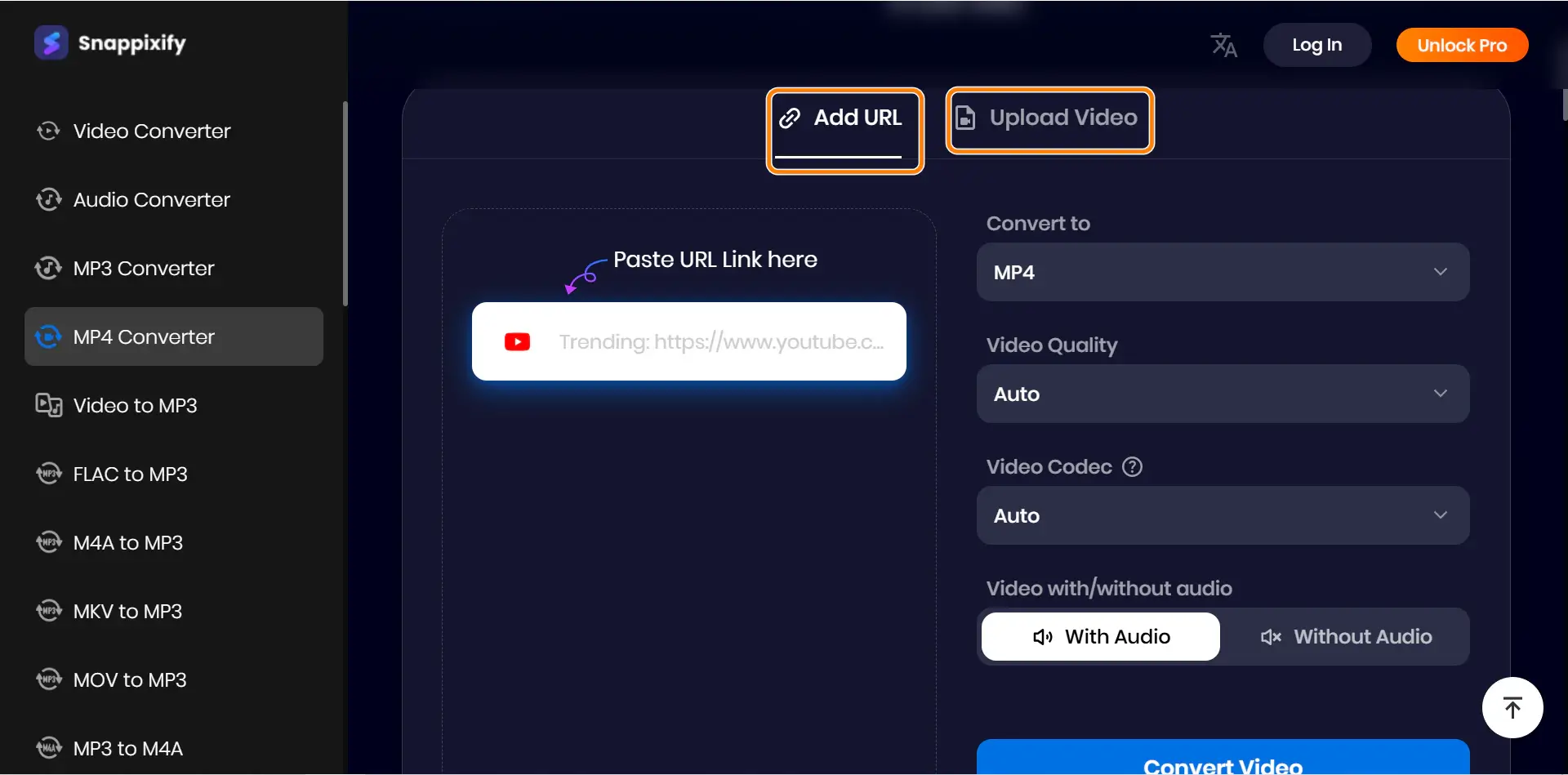
Step 1. Visit Snappixify MP4 Converter. Paste the online video link in the link area. It can be from TikTok, Instagram, YouTube, X, or any social media platform. Alternatively, you can simply upload the video resource you have.
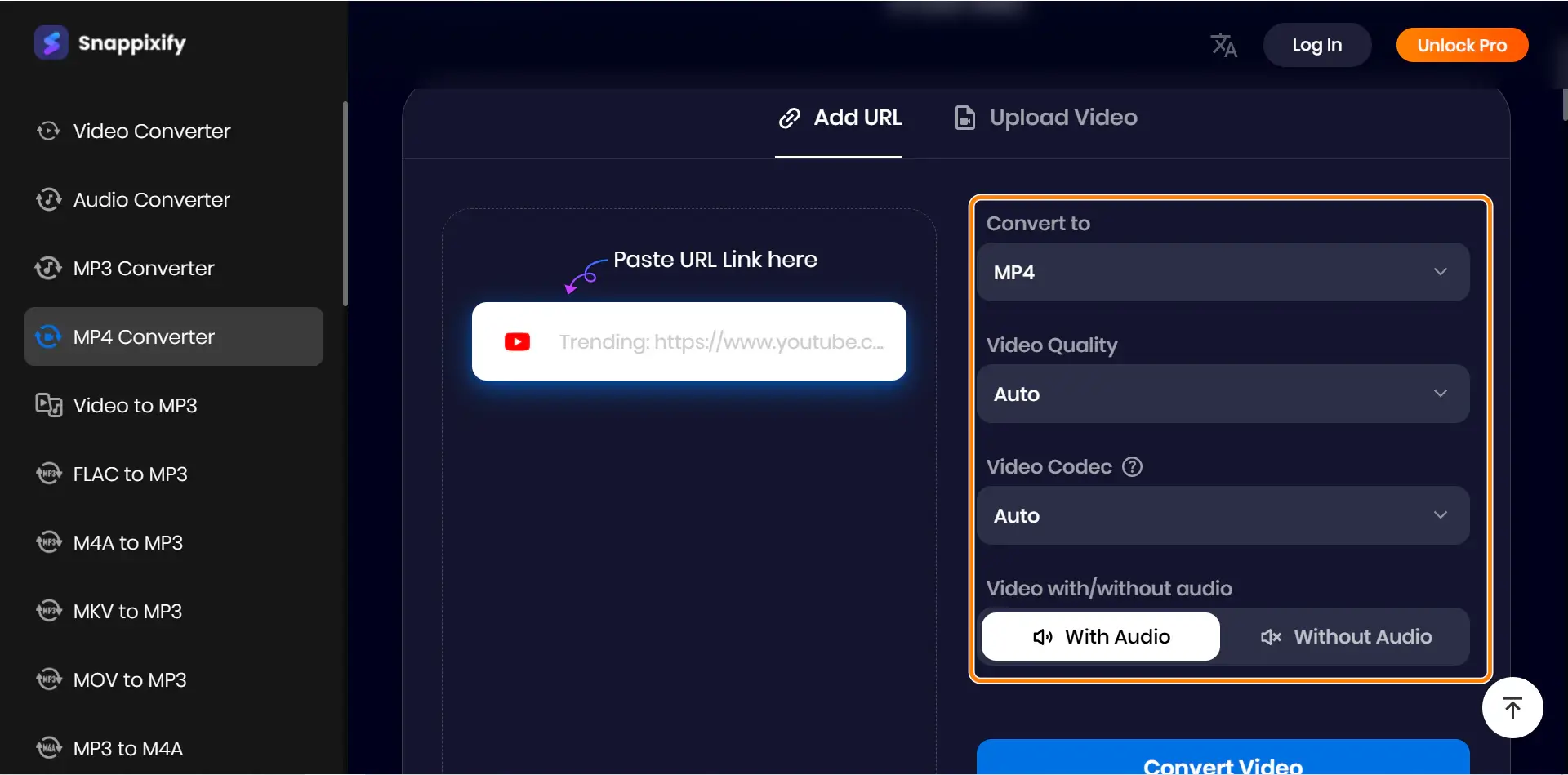
Step 2. Select the output format (MP4 by default). You can also customize the video quality and video codec. Or even download the video with/without the sound.
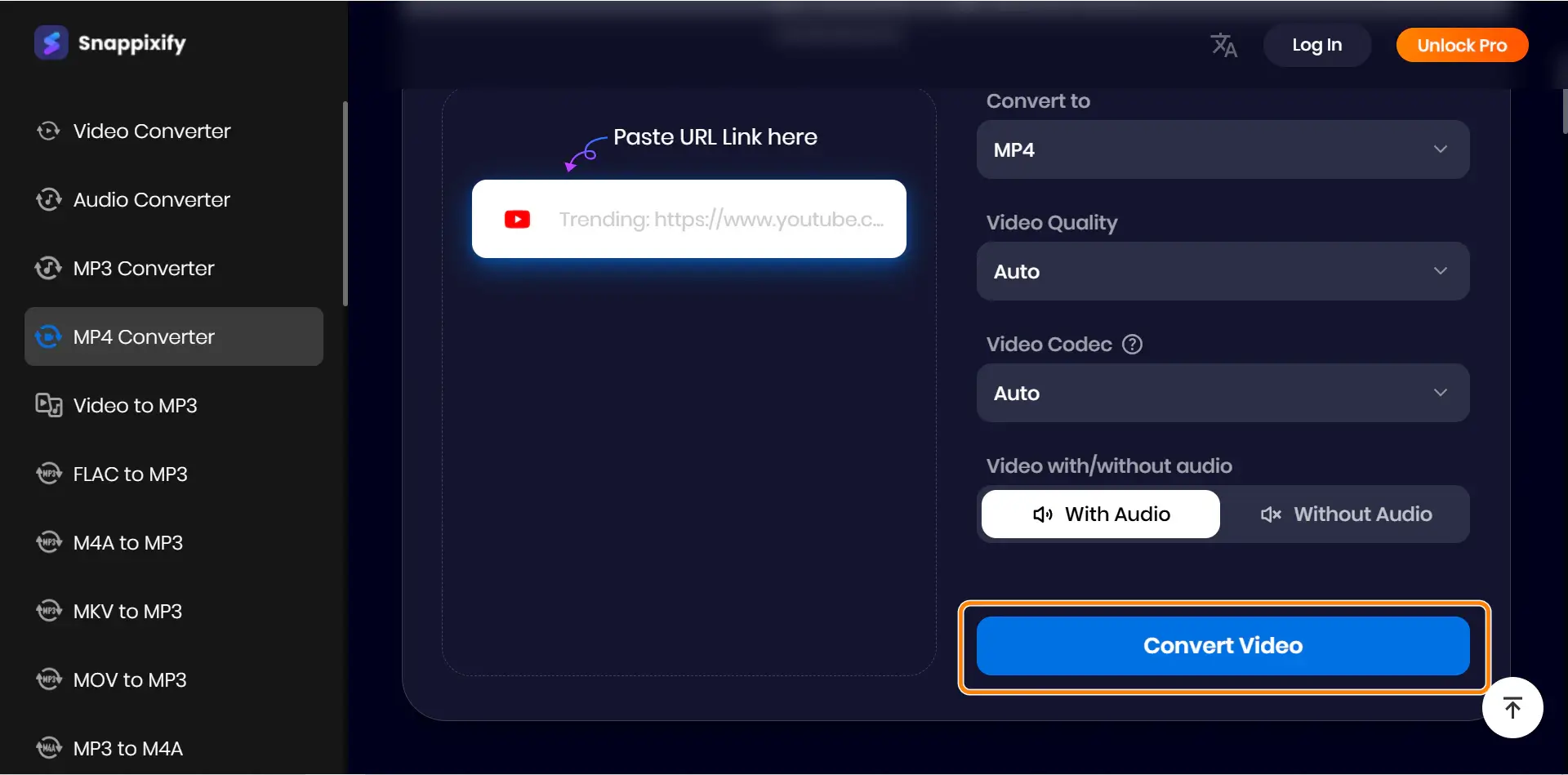
Step 3. Click the Convert Video button and download the MP4 format file.
Guide to Converting Videos from Horizontal to Vertical
Now, it's time to see how to convert videos into 9:16 on Canva. You can also do some easy video editing on it.
Create a new project on Canva
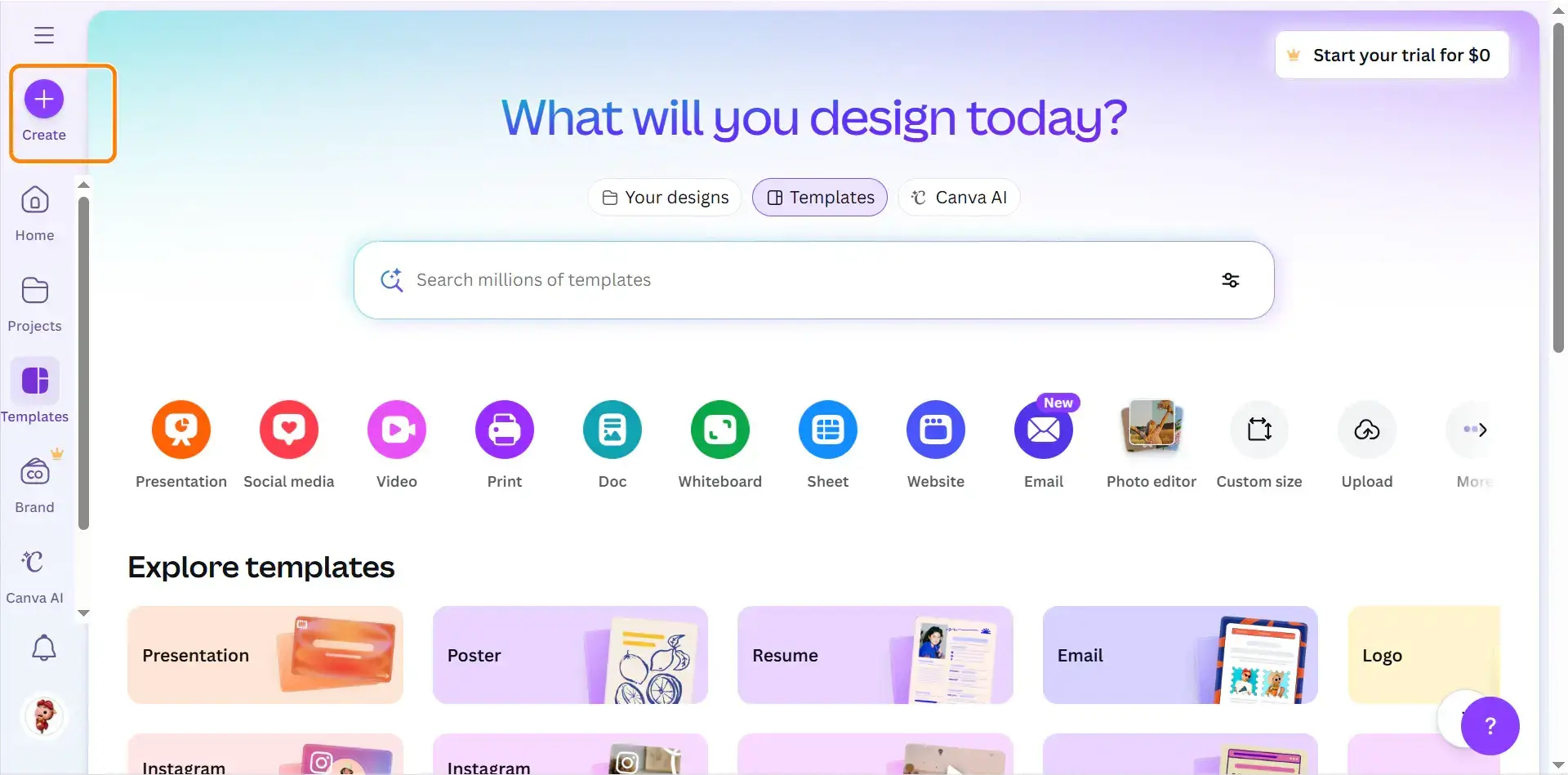
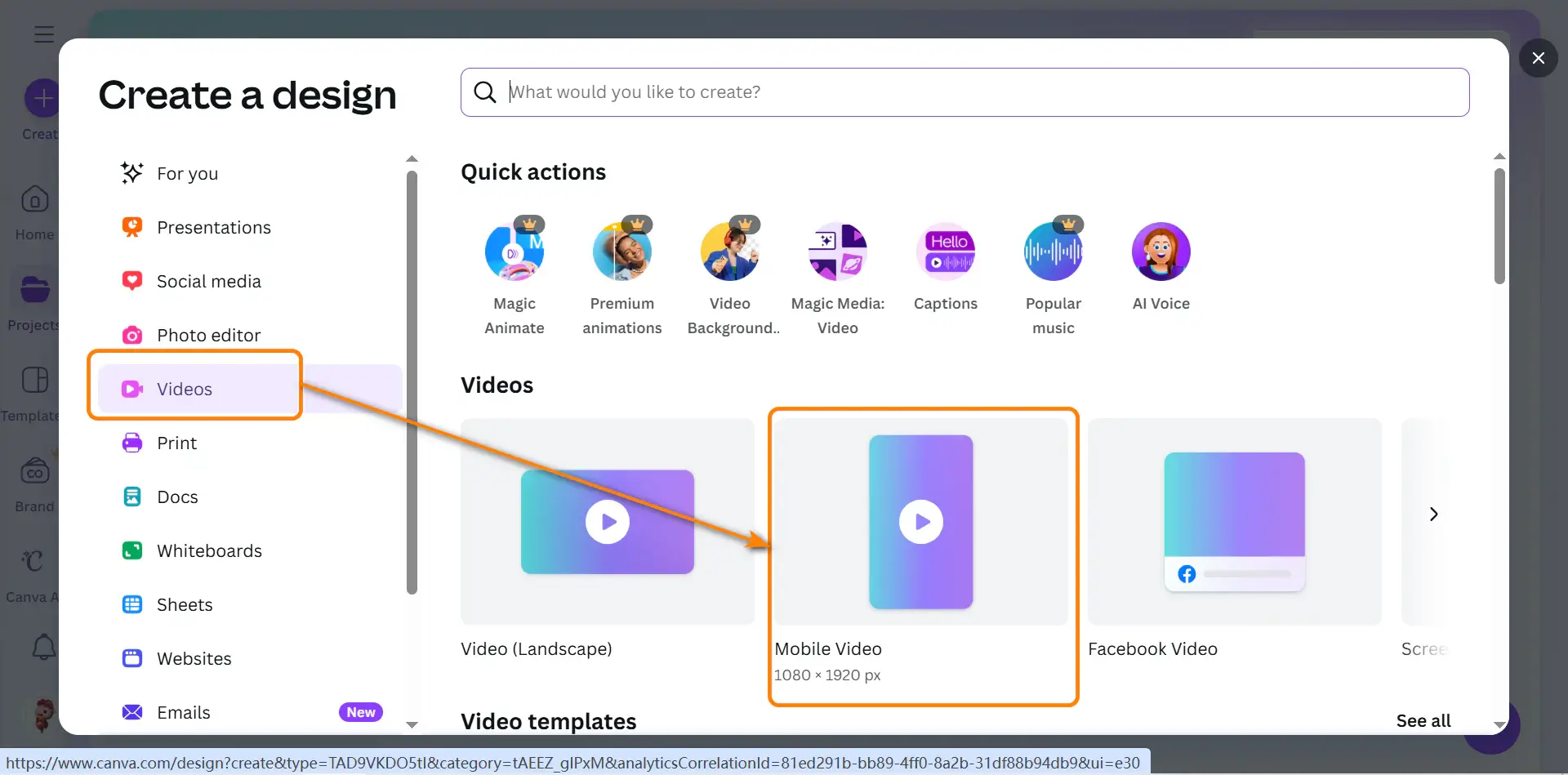
Go to the Canva home page and click Create on the left.
Choose the 9:16 aspect ratio
You will see a Create a design pop-up window. Select Videos ➡️ Mobile Video. It is 1080*1920, which is the most common 9:16 aspect ratio.
Upload the horizontal video
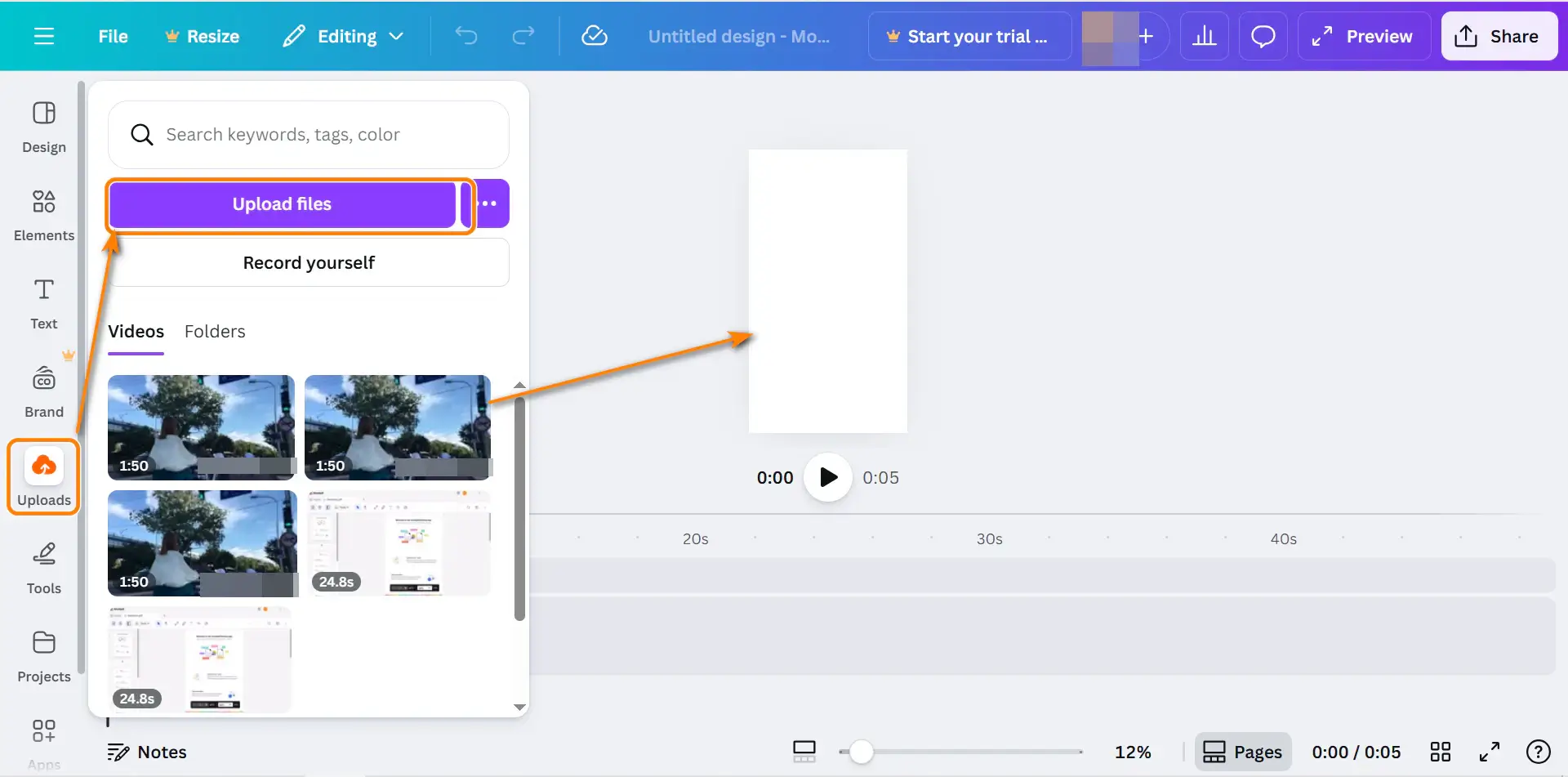
You will be led to the design page. Click the Uploads button on the left and then upload the horizontal video on your computer, or just drag the uploaded video to the default page.
Adding background blur or a solid color for the vertical format
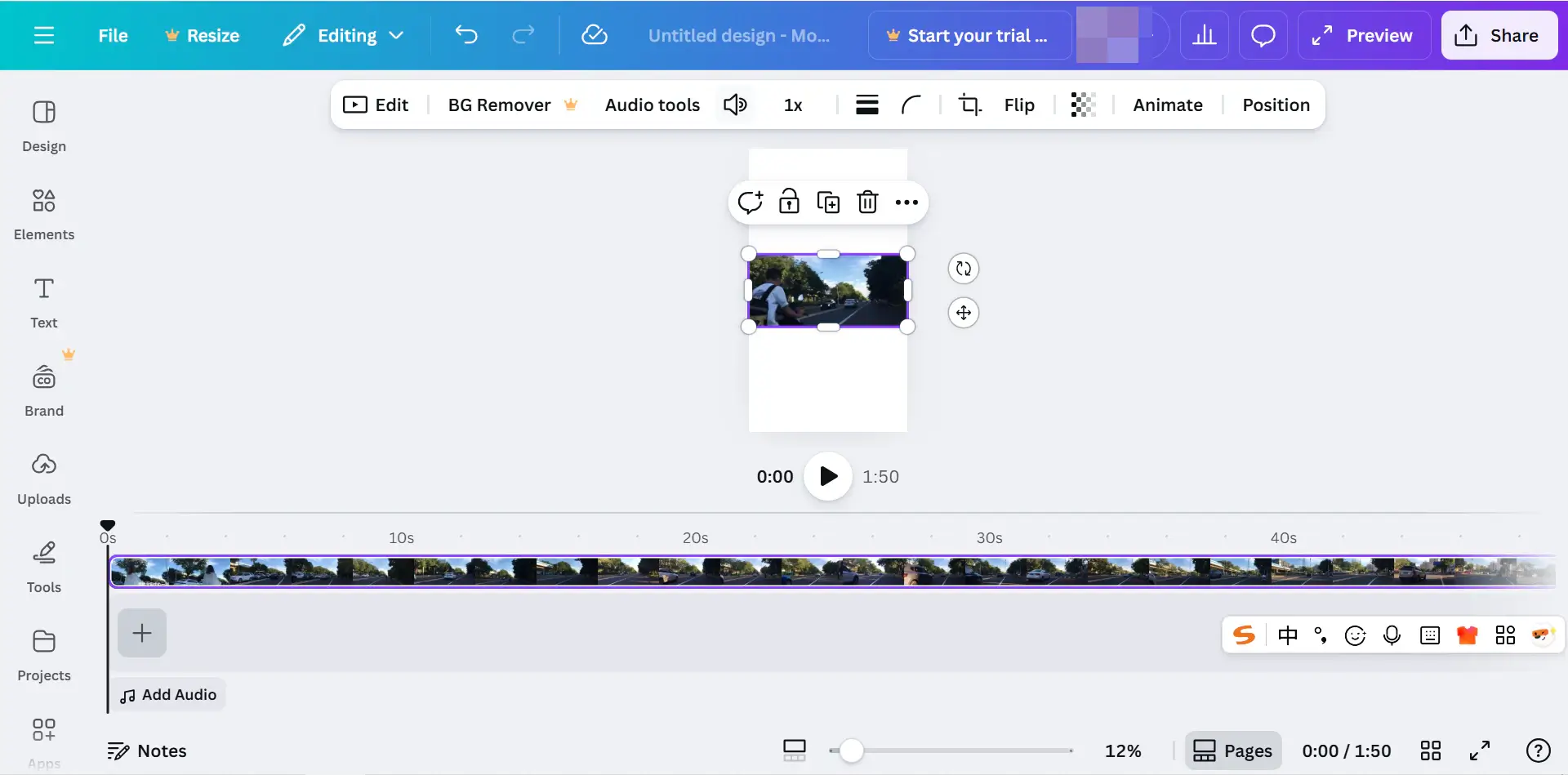
Adjust the sides of the video and make sure it is in the middle of the page. You can also add some text or a background color to the empty area of the page.
Export settings for vertical videos (MP4, resolution, FPS)
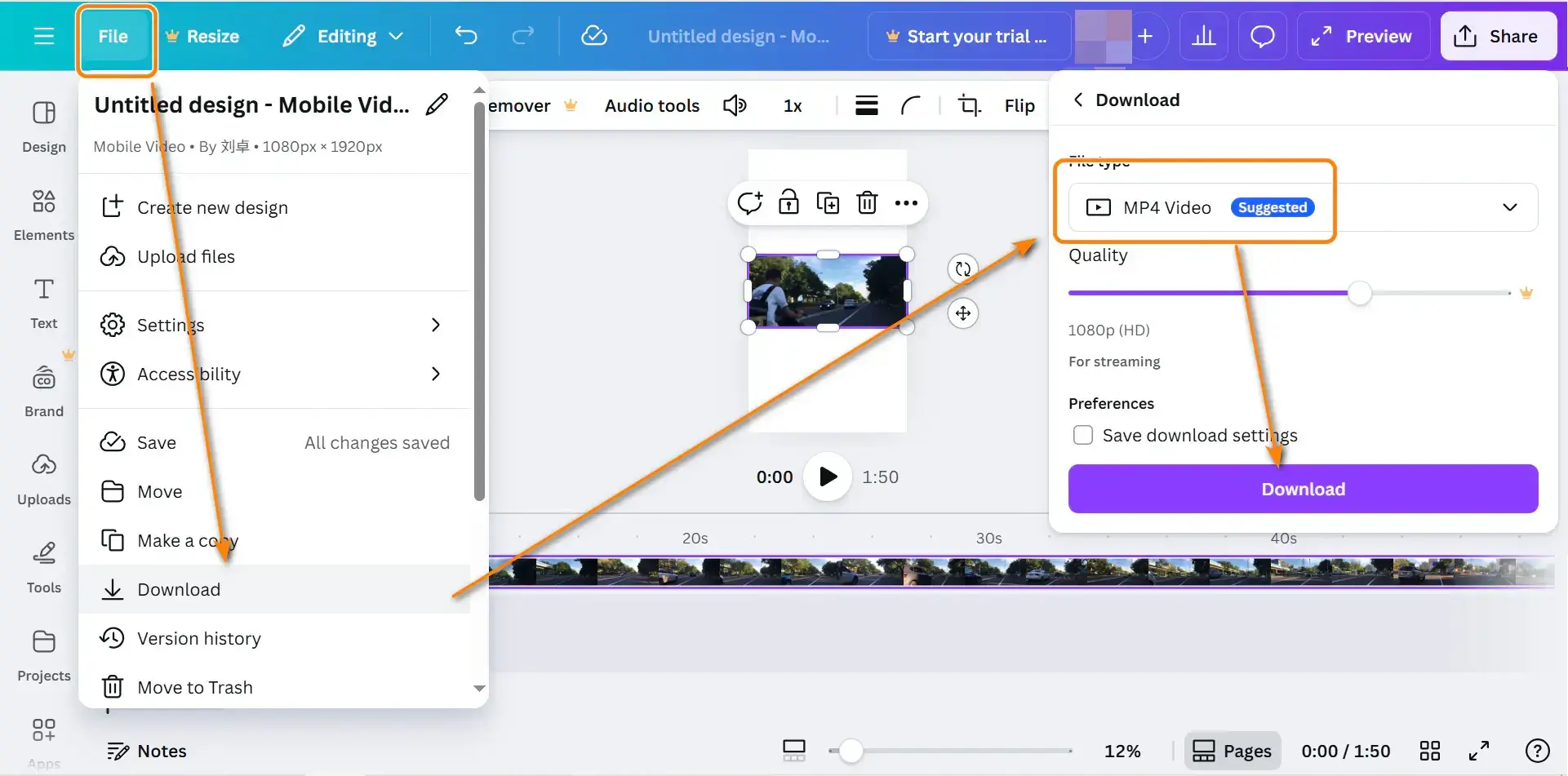
When all edits are done, click File ➡️ Download. Then, choose the output format and other settings. Finally, click the Download button.
Who Can Benefit from Converting Videos into Vertical Format
Content creators and influencers
Converting horizontal clips into vertical formats matches the mobile-using audience's habits. Since more users watch social media users use mobiles more often, a vertical video generally increases reach across platforms.
Online educators and course creators
Short vertical clips work well for previews, tips, and promotional snippets. Potential students can set the point easily and are willing to learn more about the longer lessons. That is to say, short videos can help drive traffic to the longer lessons.
Small businesses and eCommerce sellers
It's hard to drive the audience's attention if they have to turn their phone to see a product introduction. Product demos and testimonials perform better when they fill the screen and feel native to mobile feeds.
Tips and Tricks for Vertical Video Creation
Keep the main subject centered for 9:16
Make sure the video is in the middle of the screen – not on the top or the bottom. Otherwise, the video may be covered when you finally upload the vertical video to social media.
Use safe zones to avoid UI overlap
Vertical video has a much narrower viewing area than horizontal formats. Therefore, to avoid cropping or missed details, don't use the video resize feature of Canva. It will crop your video frame and cut a large area. The former guide is the right method that shows you how to convert videos into 9:16 on Canva.
Add captions for mobile-first viewing
After converting horizontal video to 9:16, the frame will be smaller. And, many viewers watch without sound. Therefore, captions can help users watch the vertical video and improve retention and accessibility, especially on short clips.
Conclusion
Knowing how to convert video into 9:16 on Canva gives you more value from every piece of content you create. Instead of re-shooting or abandoning older videos, you can adapt them to how people actually watch today. With a clean source file, the right tools, and thoughtful framing, Canva makes vertical conversion straightforward - and effective.
We also introduce a partner of Canva, Snappixify MP4 Converter. It can convert online social media links / local videos to MP4 format, which performs better on Canva.
FAQs About Converting Video to Vertical Video
Can I convert videos to vertical format for free?
Yes. Canva offers free video resizing options, though some advanced features may require a paid plan. Downloading source videos depends on the tool you use.
Will converting to 9:16 reduce video quality?
Quality loss usually comes from poor source files or excessive scaling. Starting with a high-resolution MP4 minimizes this risk.
What is the best resolution for vertical videos?
1080 × 1920 pixels is the most widely accepted standard. It balances quality and compatibility across platforms.


