 Snappixify



Many users want to extract audio from videos to save it separately for easier playback on different devices. Whether it's converting a YouTube video into a music file, saving a favorite podcast, or extracting background music from personal videos, these needs are common in everyday life.
Whether you’re an iPhone user struggling to find an easy way to pull audio from video or an Android user looking for a hassle-free method, Snappixify provides a quick and straightforward solution. With just a few simple steps, you can extract high-quality audio from any video without needing to install bulky apps or deal with confusing settings.
In this guide, we will walk you through how to pull audio from a video on both iPhone and Android, along with tips to ensure the best audio quality. You'll have the knowledge to easily extract and convert your video files into the perfect audio format, making your content more accessible and convenient for everyday use.
What is Pulling Audio from Video?
Audio extraction is a process that involves isolating the audio track from a video file and converting it into a standalone audio format. This is particularly useful when you only need the sound from a video—whether it's a podcast, music, or dialogue—and don't want to deal with the video content itself. The audio can be saved in popular formats such as MP3, WAV, or AAC.
With Snappixify, this process becomes incredibly simple and efficient. Instead of having to watch the entire video just to access the audio, you can quickly extract the sound and save it in your preferred format.
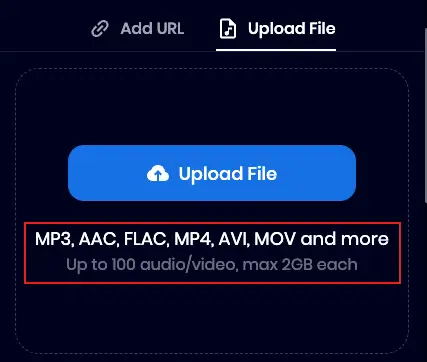
Snappixify supports a wide range of video formats as input, so whether you’re working with MP4, AVI, MOV, or another format, you can rely on the tool to deliver the audio with high clarity and fidelity.
Why Should You Pull Audio from Video?
Extracting audio from video—often called "audio ripping"—is a powerful way to repurpose content. Whether you are a student, a professional, or a creator, separating the soundtrack from the visuals offers several strategic advantages:
1. Drastic Storage Optimization
Video files are notoriously heavy because they must store high-resolution visual data for every second of footage. By stripping away the video track and converting it to a compressed format like MP3 or AAC, you can:
-
Save up to 90% of disk space: An hour-long 1080p video might take up 2GB, whereas the high-quality audio version is often less than 100MB.
-
Streamline backups: Smaller files mean faster uploads to the cloud and less strain on your external hard drives.
2. Enhanced Portability and Multitasking
Video demands your full attention—both your eyes and your hands. Audio, however, is the ultimate "passive" medium.
-
Background Playback: Mobile operating systems often stop video playback when the screen is locked. Audio files allow you to listen while your phone is in your pocket.
-
Battery Efficiency: Decoding video and powering a high-brightness screen drains battery rapidly. Listening to an audio file preserves your device's life for much longer.
3. Creative Freedom for Content Pro-sumers
For editors, sound designers, and social media creators, pulling audio is the first step in the creative workflow.
-
Sampling & Remixing: Producers can extract specific sound bites, ambient noises, or dialogue to use in new projects without the "dead weight" of the video file.
-
Clean-up and Restoration: It is much easier to run a standalone audio file through AI-powered noise reduction or EQ software to achieve a professional-grade podcast or voiceover.
4. Maximized Learning and Productivity
Extracting audio turns stationary screen time into flexible learning time.
-
Reclaiming "Dead Time": Students can convert long-form lectures or webinars into audio tracks to listen during commutes, gym sessions, or household chores.
-
Reduced Digital Fatigue: "Screen exhaustion" is real. Switching to an audio-only format allows you to absorb information without the eye strain associated with staring at a monitor for hours.
5. Universal Compatibility
While certain video codecs (like HEVC or MKV) might not play on every device, audio formats like MP3 are universally recognized.
-
Legacy Support: Extracted audio ensures your content can be played on everything from high-end car stereos to older MP3 players and smart speakers.
How to Pull Audio from Video on iPhone & Android
Snappixify is a web-based platform, meaning it works perfectly on both iOS and Android without requiring any App Store or Play Store downloads. Whether you are using an iPhone or a Samsung, the process is the same.
Choose Your Method
You can extract audio using either a saved file or a web link:
Method 1: Upload a Video File
-
Step 1: Open your mobile browser (Safari, Chrome, or Samsung Internet) and go to Snappixify.
-
Step 2: Tap "Upload File" and select a file from your Photos (iOS) or Gallery (Android).
-
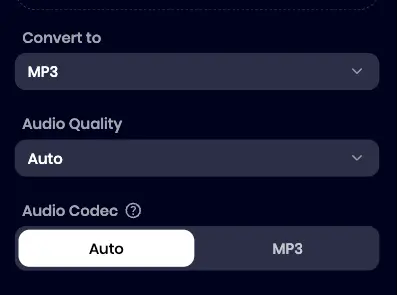
Step 3: Select MP3 (or your preferred audio format), preferred audio quality, and audio codec as the output.
-
Step 4: Tap "Convert All", after completing conversion, click "Download All" to save the file directly to your device's Files folder.
Method 2: Paste a Video Link
-
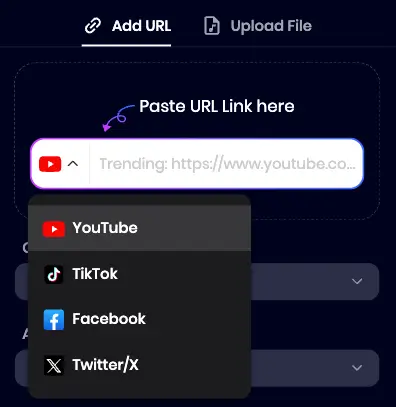
Step 1: Copy the URL of the video you want to convert (e.g., from YouTube or other social media platform).
-
Step 3: Paste the link into the provided URL field.
-
Step 4: Choose your desired audio settings, hit "Convert Audio," and download the resulting audio file to your device.
Pro Tip:
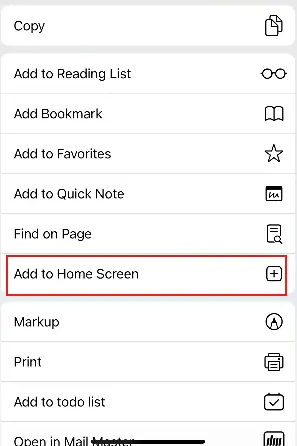
To access Snappixify even faster, you can "Add to Home Screen" from your browser menu. This will allow you to use Snappixify just like a native app.
Here are the steps (using an iPhone as an example):
-
Open Safari and go to the Snappixify website.
-
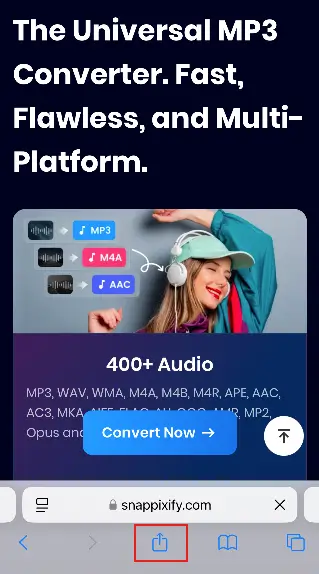
Tap the Share button (the square icon with an upward arrow at the bottom of the screen).
-
In the pop-up menu, select "Add to Home Screen."
-
Name the shortcut and tap "Add" in the top-right corner.
 |
 |
This will add an icon to your home screen, and you can simply tap it to open Snappixify like a regular app.
Get Better Sound When Pull Audio from Video
To ensure your extracted audio sounds professional, follow these four rules:
|
Feature |
Detailed Recommendation |
Why It Matters |
Pro Tip |
|
Source Quality |
4K/1080p(AAC/AC3 at 256kbps+) |
The extraction process is "subtractive." You cannot regain data lost in a blurry, low-bitrate video. |
Always check the source's "Stats for Nerds" or metadata to ensure the audio wasn't already crushed. |
|
Audio Format |
WAV (Lossless) or MP3 (Lame) |
WAV captures every detail for editing. MP3 uses "perceptual coding" to shrink files by removing "unheard" data. |
Use WAV (24-bit) if you plan to EQ or add effects; use MP3 only for the final delivery. |
|
Bitrate |
320kbps (CBR) or V0 (VBR) |
Lower bitrates (like 128kbps) cut off high frequencies, making voices sound "underwater" or robotic. |
Use Constant Bitrate (CBR)for maximum compatibility with older playback devices. |
Frequently Asked Questions About Pull Audio from Video
Can I extract audio from a YouTube video?
Yes. Simply paste the YouTube URL into the Snappixify mp3 converter, select your format, and click convert.
What is the best audio format for quality?
For the best balance of size and quality, MP3 at 320kbps is recommended. For professional editing, choose WAV.
Is Snappixify free to use?
Snappixify offers a user-friendly experience for extracting audio online without the need for expensive software.
How do I avoid audio distortion?
Always ensure your source video has clear sound and avoid converting low-resolution (360p or lower) videos if high-quality audio is your goal.
Conclusion
Whether you are on an iPhone, Android, or PC, Snappixify simplifies the process of turning video into high-quality audio. From saving storage space to creating new content, the ability to extract audio is a powerful tool in your digital arsenal.
Ready to try it out? Head over to Snappixify now and convert your first video to audio in seconds!


