 Snappixify



Ever wondered why more creators and websites are switching to the WebM format? It’s lightweight, open-source, and built for the modern web, offering smooth playback and faster uploads.
In this post, we’ll cover everything you need to know about converting videos to WebM: its key advantages, the must-have features of online converters like Snappixify, and a simple step-by-step guide. You’ll also find quick explanations of common terms, real-world use cases, and tips to fix conversion issues along the way.
Key Advantages of the WebM Format
WebM is an open, royalty-free media file format designed for the web. It is a highly competitive and efficient choice for distributing video content online.
-
Open and Royalty-Free:
This is the most significant advantage. WebM is based on the open VP8/VP9 video codecs and Vorbis/Opus audio codecs.
This means anyone can use the WebM format for free without having to pay licensing fees or worry about patent restrictions, which promotes innovation and an open web environment.
-
Optimized for the Web:
WebM files are generally smaller in size while maintaining high quality, which contributes to faster loading times and lower bandwidth usage.
It is natively supported for use with HTML5 video in major web browsers, eliminating the need for plug-ins.
-
High Quality and Efficient Compression:
It utilizes the modern VP8 and the more advanced VP9 video codecs, along with the highly efficient Opus audio codec. VP9, in particular, delivers quality comparable to or better than H.264/AVC, or even HEVC (H.265), at lower bitrates.
VP9 is widely used by major platforms like YouTube for delivering high-resolution (4K and beyond) content efficiently.
- Broad Browser Support:
Compatible with all major modern browsers — Chrome, Firefox, Edge, and Opera
Supported by the Android operating system
Backed by major hardware manufacturers such as AMD, ARM, and Broadcom
Adopted by various content distribution platforms
In Summary:
WebM's main appeal is that it is open, royalty-free, and efficiently optimized for modern web video delivery.
Essential Features and Step-by-Step Guide to Online Video Conversion
-
Key Features to Look for in Online Video Converters
When selecting a reliable online video converter, the following core features and characteristics are crucial:
Key Feature
Description
Supported Formats
Must support WebM for both input and output. It should also support other major formats (like MP4, MOV, AVI) for broader utility.
Video Quality
The video's resolution and clarity should not degrade noticeably after conversion. Ideally, the tool offers basic quality settings (e.g., choosing resolution, bitrate).
Conversion Speed
The conversion should be fast and efficient, utilizing server resources to complete the task quickly.
User Interface
The interface should be clean and intuitive, making the steps for uploading, selecting the format, and downloading easy to follow.
File Size/Length Limits
Check if the maximum file size and video length limits are reasonable for free users. Some tools impose strict limitations.
Security & Privacy
Ensure the website uses SSL encryption and has a clear privacy policy guaranteeing that uploaded files are securely deleted after conversion.
-
Video Conversion Process: Video to WebM and WebM to MP4 (Online)
1. Converting Video to WebM
-
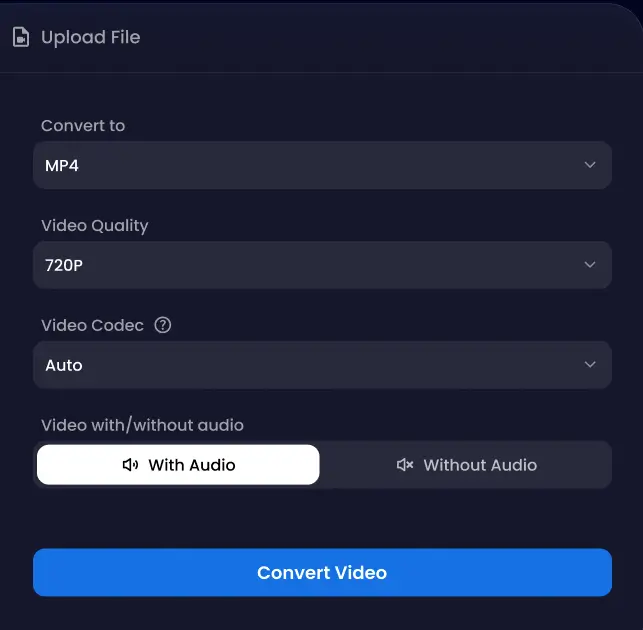
Select an Online Converter: Search for and open a website that offers free online video format conversion (e.g., Snappixify).
-
Upload the Source File: Click the "Upload" button on the website to select the original video file (e.g., an .mp4 or .mov file) from your device.
-
Choose the Target Format: In the output format dropdown menu or options, select the format you want to convert to, such as WebM.
-
Start Conversion: Click the "Convert" button. The tool will begin processing your file. This may take a few seconds to several minutes, depending on the file size and server load.
- Download the File: Once the conversion is complete, a "Download" button will appear. Click it to save the converted WebM file to your device.
2. Converting WebM to Another Format (e.g., MP4)
-
Upload the WebM File: Click the upload button and select the WebM file from your device.
-
Choose the Target Format: Select the desired output format, such as MP4.
-
Start Conversion: Click "Convert".
-
Download the File: Download the resulting file (e.g., the
.mp4file).
Breaking Down Complex WebM Terms: Understanding Key Concepts
1. What is WebM With Transparency (Alpha)?
WebM With Transparency (Alpha) is a video format that uses the VP9 or AV1 codec and supports an alpha channel, which allows parts of the video to be transparent. This feature makes it possible to use the video as an overlay on other content, such as text, images, or other videos. It is widely supported in modern web browsers like Chrome and Firefox, making it ideal for web applications, interactive media, and creative projects where layered visual effects are needed.
2. How to Verify WebM Transparency?
To verify that your video truly contains transparency, you can test it with several common tools:
-
Final Cut Pro
Drag your video onto the timeline, add a colored generator background beneath it. If the background shows through, your alpha channel is working.
-
Adobe Premiere Pro
Open the Transparency Grid from the wrench icon in the Program Monitor. Transparent areas will display a checkerboard pattern.
-
Chrome or Safari Developer Tools
Open your video in the browser, right-click and choose Inspect, then set a CSS background color (e.g., background:red). If the background color appears through the video, it has transparency.
3. Understanding WebM Video Codecs: VP8, VP9, and AV1
Video codec is a technology used to compress and decompress video data. It helps reduce file size, save bandwidth, and ensure smoother playback and transmission.
-
VP8
VP8, introduced by Google in 2010, is an open-source and royalty-free codec designed for web video. It offers decent compression efficiency and low CPU usage, making it suitable for HD content and real-time communication like video calls. Although it lacks HDR and advanced color support, VP8 is lightweight and fast, ideal for older devices and basic streaming needs.
-
VP9
Released in 2013, VP9 provides around 50% better compression than VP8 and supports resolutions up to 4K. It enables smoother streaming at lower bitrates and offers features like multi-threading and HDR support. Today, VP9 is widely used on platforms like YouTube because it balances quality, file size, and compatibility.
-
AV1
AV1, launched in 2018 by the Alliance for Open Media, is the successor to VP9 and delivers 30 – 50% better compression efficiency. It’s optimized for 4K, 8K, and HDR content while maintaining excellent visual quality at lower bitrates. Although encoding is more complex, modern devices increasingly support AV1 hardware decoding, making it the future standard for web and streaming video.
4. Exploring WebM Audio Codecs: Vorbis vs. Opus
Audio codecs are used to compress and decompress digital audio data efficiently. Two common open-source codecs are Vorbis and Opus, both developed by the Xiph.Org Foundation.
-
Vorbis is an older codec designed for general audio compression, offering good quality at medium to high bitrates. It was popular in online music streaming and gaming, but it has higher latency and is less efficient for low-bitrate or real-time audio.
-
Opus, on the other hand, is the successor to Vorbis. It supports a wider range of audio types—from clear speech to high-fidelity music—and adapts well to limited bandwidth environments. Thanks to its low latency and high efficiency, Opus is widely used for voice chat, live streaming, and online meetings.
In short, Vorbis is still decent for playback and storage, but Opus is the better choice for modern applications that require speed, flexibility, and quality.
Practical Case Study: An Online EduTech Platform
User Background
-
User Role: A large online education platform with a massive library of video courses (tens of thousands of videos, primarily 1080p screen recordings).
-
Original Video Format: The vast majority of course videos were initially recorded and stored as MP4 (H.264).
Action Taken: Conversion to WebM
The platform decided to adopt an Adaptive Streaming strategy and transcoded their course videos into multiple formats, including WebM (VP9/AV1 encoding) as their primary high-efficiency, small-file format.
Benefits Achieved
By implementing the WebM format, the education platform gained tangible benefits in the following areas:
|
Aspect |
Specific Benefits Brought by WebM |
|
Cost Savings |
Reduced Bandwidth Usage by 20% - 30%. This was the biggest financial benefit. WebM's VP9 codec typically results in significantly smaller files than H.264 for the same perceptual quality. Smaller files mean less data transferred to the user, directly cutting the platform's bandwidth costs on cloud services. |
|
Optimized User Experience |
Fewer Buffering Incidents. Due to the high file efficiency, streaming playback was smoother, even under slower network conditions. This improved the continuity of student learning, leading to higher video completion rates and user satisfaction. |
Common WebM Conversion Issues & Troubleshooting Guide
To help you troubleshoot efficiently, the table below summarizes the most frequent WebM conversion issues, their symptoms, and practical solutions.
|
Issue Category |
Common Symptom |
Concise Solution |
|
Poor Quality / Blur |
Video shows artifacts, blockiness, or lost detail. |
Increase Bitrate (e.g., 2-5 Mbps for 1080p); Use Two-Pass Encoding. |
|
Playback / Incompatibility |
Browser shows a black screen or only plays audio. |
Check for VP9/Opus support in the target environment; try using VP8 (better compatibility). |
|
A/V Desynchronization |
Audio and video tracks are misaligned or delayed. |
Ensure the source file has a Constant Frame Rate (CFR); use professional tools like Snappixify. |
Final Thoughts
WebM offers the perfect balance between quality and compression for online videos. If you’re tired of bulky files or playback issues, converting to WebM can make your videos faster, lighter, and easier to share. Try tools like Snappixify to convert your videos quickly and keep your workflow simple.
FAQs About Convert Video to WebM Format
Is WebM lossy?
Yes, WebM is a lossy format because it uses lossy compression codecs like VP8 and VP9 to reduce file sizes by discarding some data. Despite this, it is designed to maintain high-quality playback suitable for web streaming.
Can I upload WebM to YouTube and other social platform?
Yes, you can upload WebM to YouTube and most major social platforms, as it is an accepted format for many. While WebM is compatible with YouTube, TikTok, and some other sites, it is often recommended to convert your video to MP4 for the best compatibility and processing, especially on platforms that don't support WebM or have specific requirements.


