 Snappixify


In this digital age, we often need to extract content from YouTube videos for various purposes, such as offline listening, educational reference, or as material for content creation. Whether it's turning a great podcast into an MP3 file for commuting or saving the audio track of background music, converting YouTube videos to MP3 is one of the most common needs.
However, the internet is flooded with various conversion tools, many of which hide risks such as malicious ads and virus links. This guide will provide you with a safe and efficient set of methods, focusing on the steps for several powerful tools to help you easily obtain high-quality audio files.
Must-Read Before Converting
Before you begin, it is crucial to understand the following points:
-
Respect Copyright: According to YouTube's Terms of Service, downloading or copying its content is generally not permitted. Please only convert content for which you own the copyright or which belongs to the public domain or is under a Creative Commons license. Never use these tools to acquire pirated music.
-
Safety First: Many online converter websites rely on intrusive advertising for revenue. Always choose tools with a clean interface that do not trigger pop-ups and feature a secure HTTPS connection (indicated by a small lock icon in the address bar) to ensure your download is safe.
Convenient Method for Quick Conversion — Online Tools
For users who only need to convert one or two videos occasionally, online converters are undoubtedly the most convenient choice, as they require no software installation and can be operated entirely within the browser.
We primarily recommend using modern online tools like Snappixify, which prioritize user experience and safety.
Why Snappixify
An excellent online tool, such as Snappixify, should possess the following characteristics:
-
Clean Interface: Only features an input box for pasting the link and a conversion button.
-
Fast Speed: The conversion process is usually completed within seconds.
-
Safe, No Pop-ups: Will not trigger new advertising windows during the conversion process.
-
No Requirements: No need to download anything, and no registration is required.
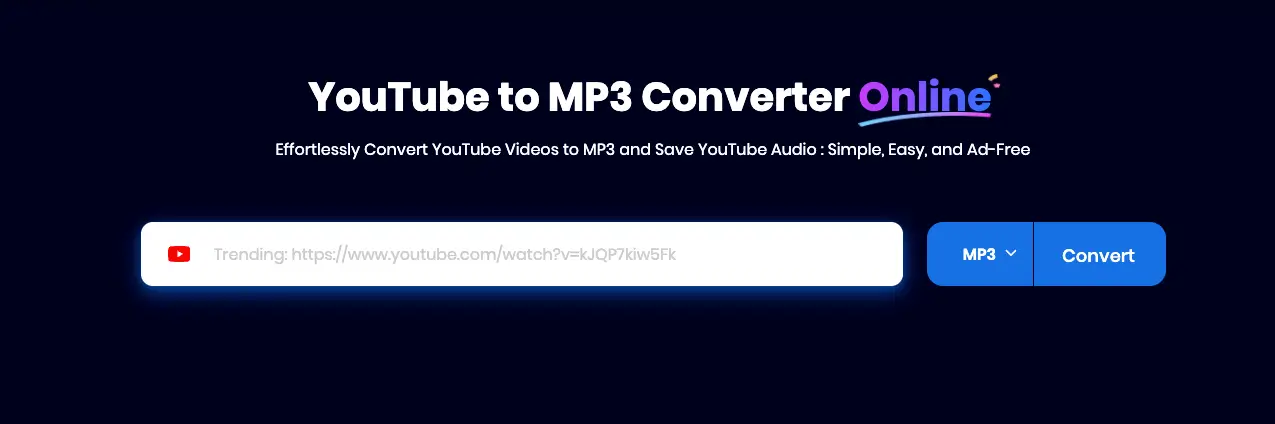
Snappixify Step-by-Step Guide: Safe Online Conversion
-
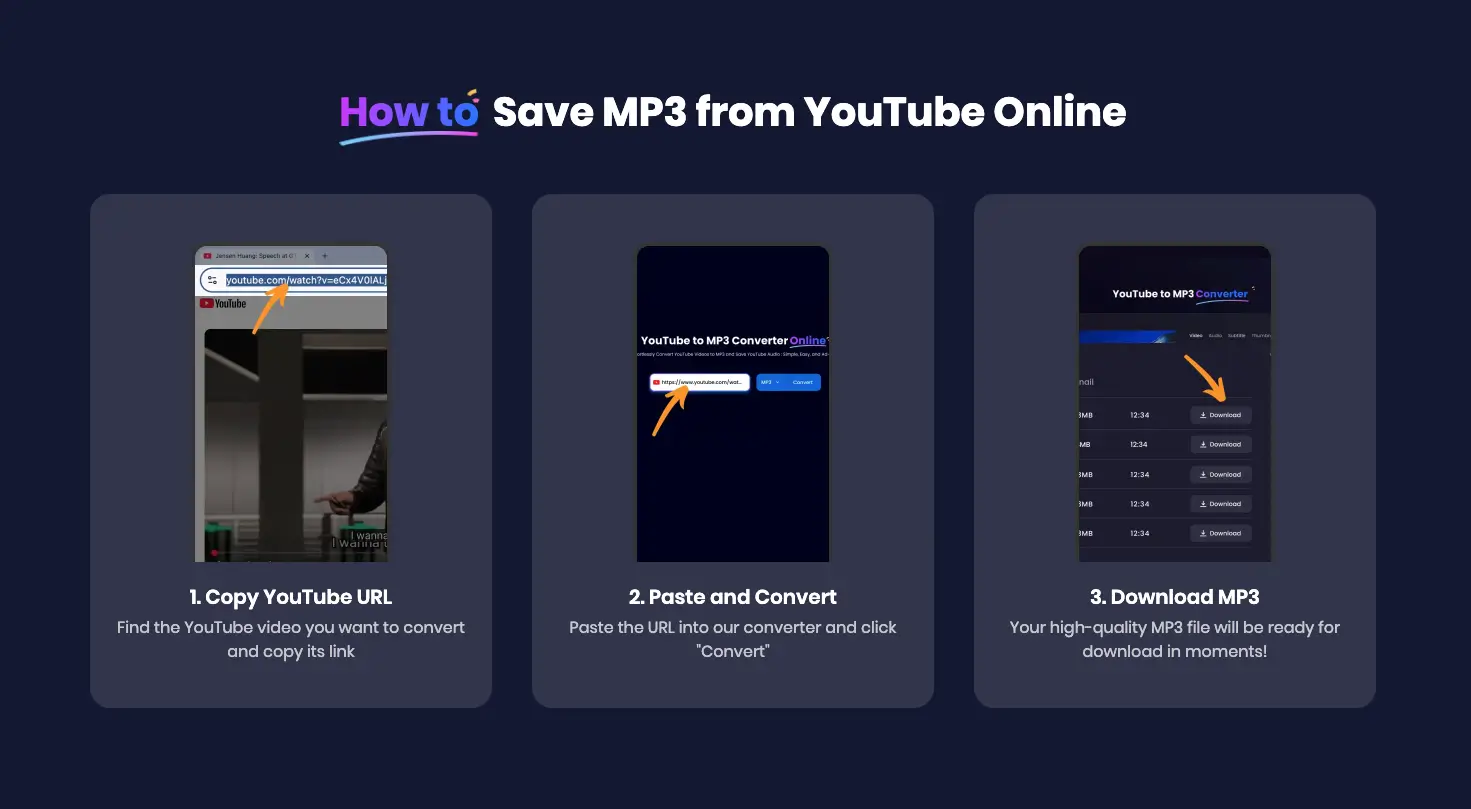
Step 1: Obtain the YouTube Video Link
-
Navigate to the YouTube video you wish to convert.
-
Click the "Share" button located beneath the video player and copy the clean, shortened URL provided.
-
-
Step 2: Paste the Link, Select Format, and Start Conversion
-
Paste the copied URL into the input box, select the format as MP3, and then click the Convertbutton.
-
Step 3: Choose Quality and Download
-
After clicking Convert, the page will redirect to the next step.
-
On the new page, you can select the desired kbps quality based on your needs (e.g., 320kbps for music, 128kbps for podcasts).
-
Once the selection is complete, click the final Download button to safely retrieve your MP3 file.
-
Warning: Before downloading, ensure that clicking the button prompts you to save a file with the
.mp3extension. If any pop-up ads appear or software installation is demanded, close the page immediately.
-
High-Efficiency, High-Quality Desktop Software Solutions
If you need to perform batch conversions regularly or frequently deal with extra-long videos, dedicated desktop software offers greater stability and more powerful features.
Advantages of Desktop Software
The advantages of desktop tools (such as 4K Video Downloader or VLC Media Player) include:
-
High Stability: Does not rely on the browser and is less prone to timeouts when converting long videos.
-
Powerful Features: Supports downloading entire playlists and offers advanced functions like ID3 tag editing.
-
Faster Speed: Some tools are more efficient when handling large tasks.
For instance, the well-known VLC Media Player, a multimedia tool, can also be used to convert video files you have already downloaded to the MP3 format, providing a reliable fallback option.
yt-dlp Command-Line Tool Configuration and Use
For users and developers seeking ultimate efficiency and maximum flexibility, yt-dlp is widely regarded as the "Swiss Army knife." It is free, open-source, and possesses unmatched powerful functionality.
Why Choose yt-dlp?
The greatest advantage of yt-dlp lies in its high customizability. You can precisely control the download format, quality, naming rules, and even automate tasks.
Step 1: Installing yt-dlp and FFmpeg
-
Install
yt-dlp: Download the latest version from its official GitHub repository (usually an executable file). -
Install FFmpeg:
yt-dlprelies on FFmpeg to perform post-processing tasks, such as extracting audio from the downloaded raw video stream and converting it to the MP3 format. You need to ensure both are installed on your computer.
Step 2: Basic Command-Line Conversion
Open your terminal (Command Prompt/PowerShell for Windows, Terminal for Linux/Mac) and run the following command:
yt-dlp -x --audio-format mp3 "YouTube Video Link"
-
-x: This flag tellsyt-dlpto only extract the audio. -
--audio-format mp3: This flag specifies the final output format as MP3.
Step 3 (Advanced): Achieving Two-Click Downloads with a Browser Extension
As you are aware and wish to mention in the article, while yt-dlp is powerful, typing commands every time can be cumbersome. Combining it with a browser extension allows for automation, achieving the convenience of a "two-click download":
-
Install the Extension: Use a browser extension like External Application Launcher.
-
Configure the Path: In the extension settings, point the program path to the
yt-dlpexecutable file on your computer. -
Set the Parameters Field: In the extension's "Parameters" field, input the command options you wish to execute, for example:
-
-x --audio-format mp3 %url -
This way, when you click the extension button, it automatically passes the current page's URL (
%url) toyt-dlpand executes the task of extracting the MP3.
-
Audio Quality and Format Selection
Bitrate (kbps) Guide: Choosing the Right Quality
Audio quality is typically determined by the bitrate (measured in kbps). Selecting the appropriate bitrate is key to achieving high-quality conversion.
|
Scenario |
Recommended Bitrate |
File Size |
Sound Fidelity |
|
Music Enthusiasts |
320kbps |
Larger |
Extremely high, near CD quality |
|
Balance |
256kbps |
Moderate |
Excellent, suitable for most music playback |
|
Podcasts/Lectures |
128kbps |
Smaller |
Perfectly clear, saves space |
Formats: More Than Just MP3
While MP3 is the most common format, some advanced tools (like yt-dlp) and online converters (like Snappixify) support multiple formats.
Snappixify allows you to select different formats for download during conversion, such as: AAC, FLAC, OGG, OPUS, WAV, and WMA.
-
MP3: Best for universal compatibility, works on all devices.
-
AAC (m4a): Often provides slightly better quality than MP3 at the same bitrate, a common and efficient format in the Apple ecosystem.
-
FLAC / WAV: Lossless formats offering extremely high quality. If the original YouTube upload supports it, they provide the highest fidelity, but file sizes are significantly larger.
-
OGG / OPUS: Excellent open-source audio formats, often used for streaming, maintaining better quality even at lower bitrates.
-
WMA: Windows Media Audio format, a common lossy or lossless format in the Microsoft ecosystem.
Conclusion: How to Choose the Best Download Tool for You
Choosing the right tool depends on your specific needs. Here is a comparison of the three main methods:
|
Method |
Pros |
Cons |
Recommended User |
|
Online Tool (e.g., Snappixify) |
Most convenient, no installation, no registration |
Converting extra-long videos may require payment (purchasing service) |
All users who do not require extra-long video downloads |
|
Desktop Software |
Batch processing, rich features, stable handling of long videos |
Requires installation, occupies disk space |
Frequent downloaders, users handling extra-long videos |
|
|
Open-source, highly flexible, automatable |
Requires terminal skills, has a learning curve |
Advanced users, users needing customized workflows |


