 Snappixify



If your favorite songs or podcasts (often in the M4A format) refuse to play on an older car stereo, a portable MP3 player, or professional mixing software, you’ve hit a compatibility roadblock. The digital world still primarily relies on MP3 as the universal standard. This guide is your definitive roadmap to overcoming this challenge. We will explore the most efficient methods for converting M4A to MP3 across every major device, highlighting the critical difference between Mac's easy, built-in tools and the external software required by Windows and mobile users.
Why You Need to Convert M4A to MP3
For decades, MP3 has reigned supreme as the most universally accepted digital audio format. It is the default language for car stereos, older portable players, and virtually all professional mixing software.
However, many modern streaming and download services—especially Apple's ecosystem—default to the M4A format (using the AAC codec). While M4A often offers superior sound quality at smaller file sizes, its fundamental limitation is compatibility. When you encounter legacy devices, specialized software, or non-Apple hardware, M4A files frequently refuse to play.
The necessity of converting M4A to MP3 isn't about quality—it's about ensuring your cherished audio library can be accessed seamlessly, anywhere, anytime.
Snappixify: All-In-One Online Tool
For the fastest, most device-agnostic conversion method, online web services are the clear winner. Tools like Snappixify offer a zero-installation approach that works equally well whether you are on a Mac, Windows PC, iPhone, or Android device, as they operate entirely within your web browser.
Furthermore, many dedicated online converters support batch conversion, making them highly efficient for migrating entire music folders at once.
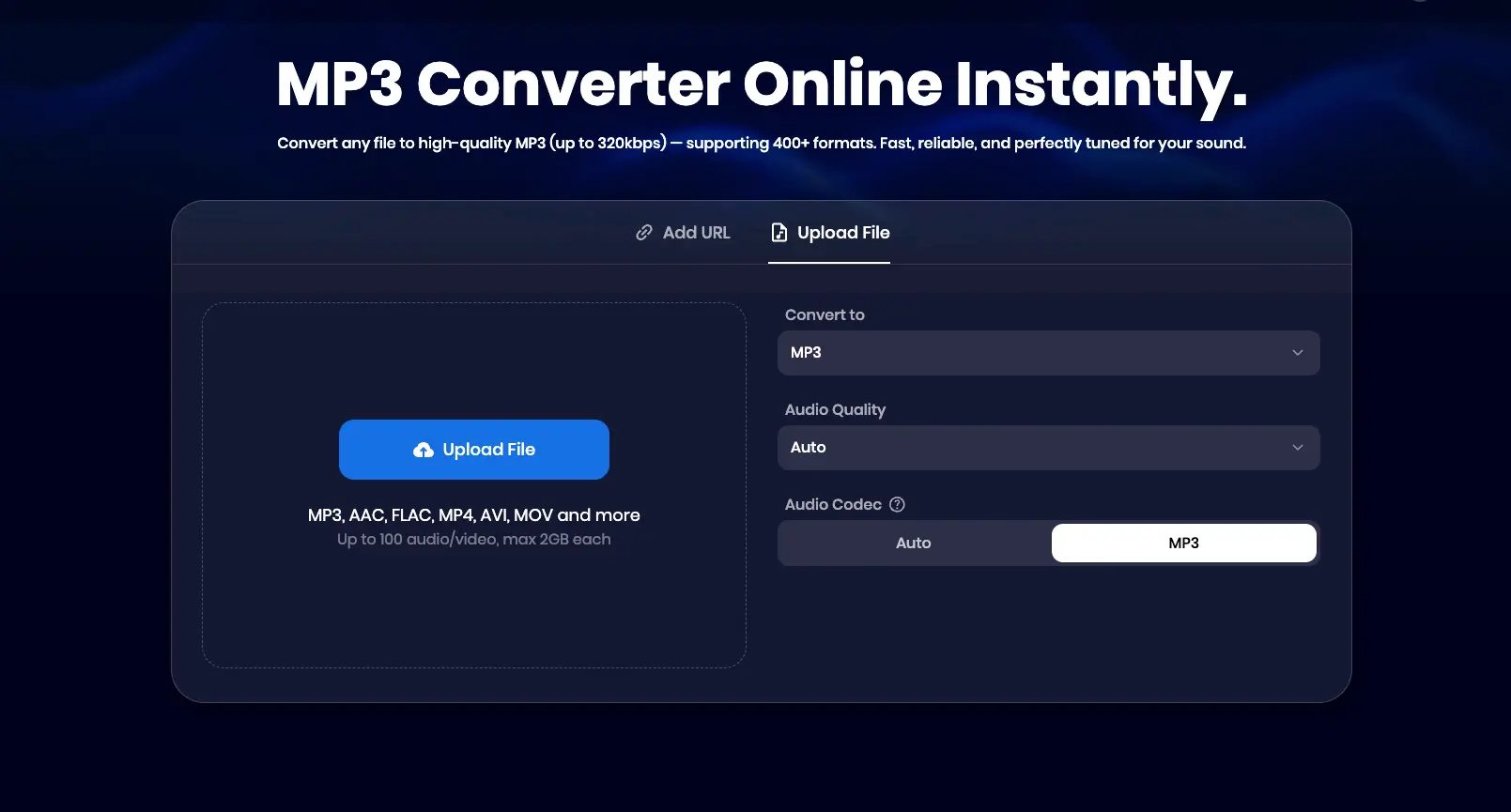
How to Convert Step-by-Step Using a Web Tool (e.g., Snappixify)
-
Select Output Settings: Before uploading, first specify the desired output format as MP3. Then, choose the audio quality (often up to 320kbps) and ensure the audio codec is set to MP3.
-
Upload the File(s): Click the "Upload File" button and select the M4A audio you wish to convert. Drag-and-drop functionality is often supported.
-
Process and Convert: Once uploaded, navigate to the conversion page and click Convert All. The service will process your files on its server.
-
Download: After the conversion completes, simply click Download to save the new MP3 file(s) directly to your device.
Device-Specific Conversion Strategies: Your M4A to MP3 Playbook
Different devices require different approaches. Here is a breakdown of the most effective conversion methods, categorized by the hardware you are using.
1. Mac Computers: Utilizing Native and Built-in Tools
Mac users benefit from Apple's operating system, which provides powerful, free audio conversion capabilities without needing any third-party downloads.
A. The Apple Music App Method (Quick and Easy)
The Music application (previously iTunes) is the default utility for converting M4A to MP3 by simply changing its file handling preferences.
-
Adjust the Encoder: Navigate to the Menu Bar and select
Music-Settings(orPreferences). Go to the Filestab, click Import Settings, and choose MP3 Encoder from the "Import Using" menu. -
Select and Convert: Add your M4A file to your Music Library. Select the track, then choose
File-Convert-Create MP3 Version. -
The new MP3 file will be instantly generated and saved alongside the original M4A in your library.
B. The GarageBand Alternative (For Quality Control)
GarageBand, the free music creation studio, can also export existing audio tracks to MP3 with high-level quality control.
-
Import the Track: Create a new, empty project in GarageBand. Drag your M4A file into the track area.
-
Export as MP3: Go to
Share-Export Song to Disk. In the export window, select MP3 as the format and choose your desired quality settings.
2. iPhone: Conversion Requires a Dedicated App
Unlike the Mac, the iPhone's operating system (iOS) does not have a native M4A-to-MP3 conversion feature built into its core apps. Therefore, an application from the App Store is essential.
Using a Third-Party Converter App (e.g., MP3 Converter - Audio Extractor)
-
Install the App: Download and install a reliable conversion application from the App Store.
-
Load the File: Open the converter app and import your M4A file from your iPhone's files (or iCloud storage).
-
Set Output: Select MP3 as the target format and set the desired quality.
-
Convert and Save: Tap the Convert or Export button. The app will process the file, saving the new MP3 directly to your device's local storage for sharing or listening.
3. Windows Computers: Relying on External Desktop Tools
Windows users must rely on installing specialized desktop programs or utilizing browser-based solutions, as the operating system lacks native conversion software.
Options for Windows Users:
-
Desktop Software: Install a reputable free desktop program, such as VLC Media Player or Audacity. These applications include powerful export and conversion features that allow you to load an M4A file and output a new MP3 file after adjusting the codec settings.
-
Online Converters: A simple, installation-free alternative is to use a web-based service (like Zamzar or similar) via your browser. You upload the M4A file, select MP3, and then download the resulting converted file.
4. Android Devices: Mobile Apps or Web Access
Android devices, like the iPhone, require external solutions, primarily relying on the Google Play Store or web tools.
Options for Android Users:
-
Mobile Converter Apps: Search the Google Play Store for a dedicated M4A-to-MP3 conversion app. These apps generally allow you to select a file from your device storage, choose MP3, and save the converted track back to a designated folder.
-
Online Converters: For a quick, one-off conversion, open any mobile web browser (like Chrome) and use an online converter website. Upload the M4A file, wait for processing, and download the finished MP3 directly to your Android device.
Conversion Efficiency Optimization
When converting M4A to MP3, two factors are key for a successful, high-quality library migration:
-
Prioritize Bitrate: M4A (AAC) files often start at a high quality. To preserve this, always set the output MP3 bitrate to the maximum available, which is typically 320kbps. Since MP3 is a lossy format, converting from M4A to MP3 will inherently lose some data, but 320kbps ensures the file is virtually indistinguishable from the source for most listeners.
-
Utilize Batch Conversion: If you have dozens of files, manually converting them one-by-one is inefficient. Professional desktop software or advanced online tools such as snappixify often support batch conversion. Always choose a tool that allows you to upload an entire folder or list, select your settings once, and process them all simultaneously.
Summary
The process of converting M4A to MP3 ultimately boils down to your device and willingness to install software:
|
Platform |
Conversion Method |
Tool Type |
Status |
|
Mac (macOS) |
Music App / GarageBand |
Native / Built-in |
Easiest, Free |
|
iPhone (iOS) |
Dedicated App or Web Service |
External |
Requires Download / Web Access |
|
Windows |
VLC, Audacity, or Web Service |
External |
Requires Download / Web Access |
|
Any Device |
Snappixify (Online) |
External / Web-based |
Universal, No Install Required |
By understanding these device-specific methods, you gain the "audio format freedom" to ensure your music is truly playable on any device, everywhere.


