 Snappixify


Adding subtitles to your MP4 videos is a great way to enhance accessibility, engage a wider audience, and improve viewer experience. There are two main types of subtitles: soft subtitles, which can be toggled on or off, and hard subtitles, which are permanently embedded in the video.
In this guide, we'll show you how to easily add SRT subtitles to your MP4 videos, using tools like Snappixify for automatic transcription and translation. Whether you're looking to reach a global audience or simply improve content accessibility, adding subtitles is an essential step for every creator.
Why You Need SRT Subtitles for Your MP4 Videos?
When adding subtitles to MP4 videos, it’s important to understand the difference between soft subtitles and hard subtitles.
-
Soft Subtitles are separate files (like
.srt) that can be turned on or off by the viewer. They are more flexible because viewers can choose to enable or disable them based on their preferences. Soft subtitles also allow viewers to adjust settings like font size or color, making the experience more personalized. -
Hard Subtitles, on the other hand, are permanently embedded into the video. They cannot be turned off, making them less flexible.
Why Soft Subtitles are Better:
Soft subtitles are generally the better option because they offer more flexibility and personalization. Viewers can choose to turn them on or off and adjust settings to suit their needs, making the content more accessible and inclusive. This adaptability is ideal for reaching a global audience with varying preferences.
How toConvert MP4 to SRT (Step-by-Step Guide)
Converting MP4 videos to SRT subtitles is easy with Snappixify. Just follow these simple steps:
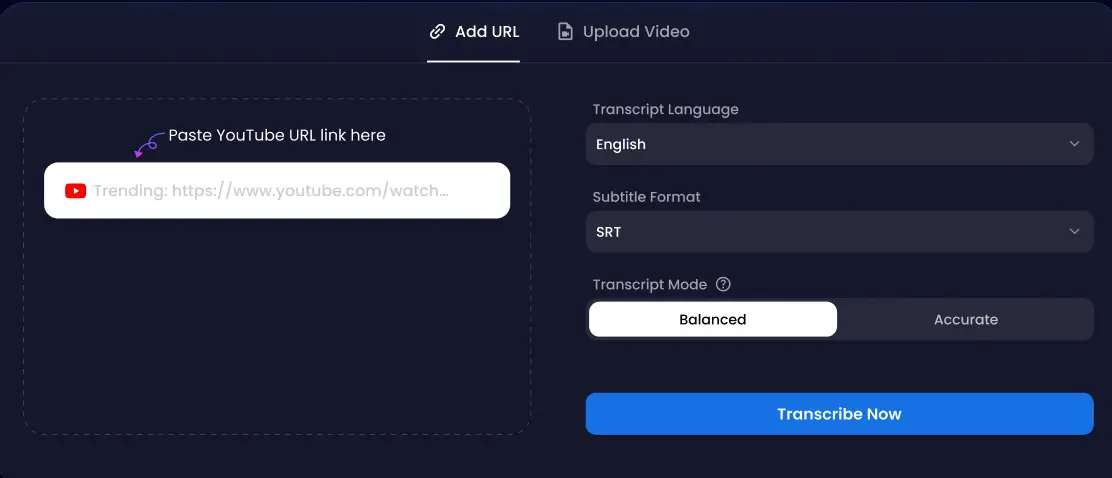
- Open Snappixify:
Start by opening the Snappixify website in your browser.
- Paste the YouTube Link:
Find the YouTube video you want to convert to SRT subtitles and copy the video URL.
- Paste the Link in the Box:
On Snappixify’s homepage, paste the copied YouTube video link into the provided text box.
- Choose Transcript Language & SRT Format:
Select the language for the transcript and ensure the output format is set to SRT.
- Choose Transcript Mode:
You can choose between two transcript modes:
Balanced (fast and efficient)
Accurate (more precise, but requires payment)
Select the mode that best fits your needs. For the most accurate subtitles, select the Accurate option.
- Click "Transcribe Now":
After selecting your preferences, click the "Transcribe Now" button to start the transcription process.
- Download Your SRT File:
Once the transcription is complete, click the "Download" button to save your newly created SRT subtitle file.
That’s it! You’ve successfully converted your YouTube video into an SRT file using Snappixify. Now you can easily add the subtitles to your video or share them with others.
How to Add SRT Subtitles to an MP4 Video
Adding SRT subtitles to an MP4 video can enhance accessibility, making it easier for viewers to understand the content, especially in different languages. Here are a few common ways to add SRT subtitles to your MP4 videos:
-
Use Video Editing Software
Many video editing software programs allow you to import and embed SRT subtitle files directly into your MP4 video. Here's how it typically works:
Import the MP4 video into the software.
Add the SRT file to the timeline as a subtitle track.
Adjust timing and appearance if needed (e.g., font, size, color).
Export the video with the subtitles permanently embedded.
This method allows you to customize the subtitle’s appearance and ensure it is perfectly synced with the video.
-
Embed Subtitles Using Command-Line Tools
For those comfortable with using command-line tools, there are open-source programs available that can embed SRT subtitles into MP4 files without the need for any video editing software. The process typically involves:
Using a command to link the MP4 video and the SRT file.
Choosing the codec that ensures compatibility with MP4 (for example, the mov_text codec).
Running the command to generate a new MP4 file with the embedded subtitles.
This method is quick and efficient, especially for users who need to handle subtitles for multiple videos.
Tips for Working with Subtitles
-
Choose the Right Subtitle Format
When adding subtitles to your video, selecting the right format is crucial. Common formats include .srt, .vtt, and .ass. .SRT is widely supported across platforms and is easy to use, while .ASS allows for more advanced styling, such as text effects and positioning. Choose the format that best suits your needs based on the platform and the level of customization you require.
-
Ensure Subtitles Are Synced with the Video
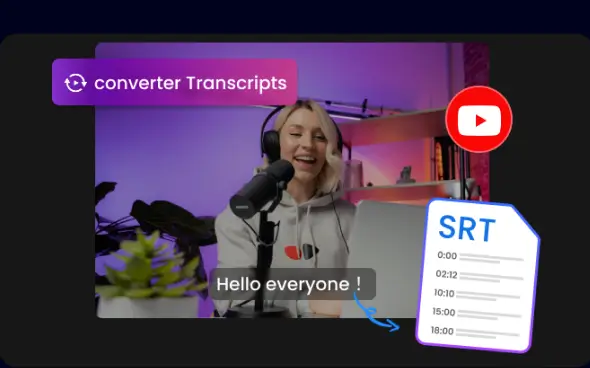
Accurate synchronization between the video and subtitles is key for a smooth viewing experience. With tools like Snappixify, you can easily check the accuracy of subtitles. Once your transcription is complete, you can view the text alongside the video on the right side of the screen. This real-time playback feature allows you to quickly review and adjust the timing, ensuring that subtitles appear at the right moment and match the speech perfectly.
-
Keep Subtitles Short and Easy to Read
Subtitles should be concise and to the point. Ideally, aim for a maximum of 42 characters per line and no more than two lines of text at a time. This ensures viewers can read them quickly without missing key parts of the video. Avoid overloading the screen with too much text, as it can be overwhelming for the audience.
-
Consider Multiple Languages for Global Reach
Adding subtitles in multiple languages helps you reach a wider audience. Tools like Snappixify offer automatic translations, making your content accessible globally. Just be sure to proofread the translations for accuracy and fluency.
-
Be Mindful of Privacy and Copyright Concerns
Subtitles can unintentionally reveal sensitive or copyrighted content. Always review your subtitles to ensure they don’t disclose private information, and be sure to follow copyright laws when creating or sharing them.
Final Thoughts
Adding subtitles to your videos is a simple yet powerful way to improve accessibility, reach a wider audience, and boost engagement. With tools like Snappixify, which offer automatic transcription and translation features, you can easily create accurate, well-timed subtitles without the hassle. Whether you're using Snappixify or editing manually, taking the time to ensure your subtitles are clear and precise will enhance the viewer experience. Keep these tips in mind, and you'll be on your way to producing more inclusive and professional content.
Frequently Asked Questions About Adding SRT to MP4
-
How do I add an SRT file to a YouTube video?
After uploading your video to YouTube, go to the Subtitles section in YouTube Studio. Select your video, then click Add Language and choose the language for your subtitles. You can then click Add and upload your SRT file directly to YouTube.
-
Can I add subtitles to an MP4 video without re-encoding?
Yes, you can add subtitles to an MP4 video without re-encoding by using tools like Snappixify. These tools allow you to embed subtitles as a separate track (soft subtitles), which won't alter the video's original quality.
-
Can I edit subtitles after adding them to a video?
Yes, you can edit subtitles after embedding them into the video. In most video editing software, you can modify the SRT file itself or adjust the subtitle timing and appearance before re-exporting the video.


