 Snappixify


In today’s digital world, we often find ourselves with various video files in formats like MOV, MKV, WebM, AVI, and more. But why do we need to change these files into MP4?
This guide will explain why MP4 is the preferred format for many users, the differences between common video file types, and how Snappixify can help you quickly convert your files to MP4.
Why Convert File to MP4?
MP4 is one of the most widely supported video formats, offering compatibility across nearly all devices and platforms. So, why is converting to MP4 often the best option? Here are a few key reasons:
Universal Compatibility
MP4 is supported by almost every device, operating system, and platform. Whether you want to share your video on social media, play it on your phone, or use it in a presentation, MP4 ensures a seamless experience.
Efficient Compression
MP4 files are great for balancing high video quality with relatively small file sizes. This makes MP4 ideal for streaming and storage.
Editing Flexibility
MP4 works well with almost all video editing software, including popular ones like Adobe Premiere Pro, Final Cut Pro, and even mobile apps like iMovie and CapCut. If you’re wondering how to change a MOV file to MP4 or how to change a MKV file to MP4, MP4 is your safest bet for compatibility with editing tools.
Ideal for Social Media
If you’re uploading videos to platforms like YouTube or Instagram, MP4 is the format they prefer, ensuring your videos maintain good quality and load quickly.
Different File Formats and Their Origins
Now let’s look at some common video file formats and why they are used:
MOV
A video format developed by Apple for use with QuickTime. You may ask, how to change a MOV file to MP4? It’s easy with Snappixify. MOV files tend to be larger and are often used by video professionals for high-quality footage.
MKV
MKV (Matroska Video) is an open-source format known for storing multiple video, audio, and subtitle tracks. It’s popular for movies and TV shows but might not work smoothly on all devices without special software. If you’re wondering how to change a MKV file to MP4, Snappixify makes it simple to convert these files while maintaining their quality.
WebM
This format is mostly used for web video streaming. It’s optimized for fast loading and web integration, but it doesn’t have as wide compatibility as MP4. If you're looking for how to change a WebM file to MP4, Snappixify can help you convert it to a more universally accepted format.
AVI
AVI (Audio Video Interleave) is an older format often used for storing high-quality video. However, AVI files are less compressed compared to modern formats like MP4, resulting in larger file sizes. To change an AVI file to MP4 quickly, Snappixify is an efficient solution for compressing and converting these files.
How Snappixify Makes File to MP4 Conversion Easy
If you're wondering how do you change an AVI file to MP4 or how do I change a MOV file to MP4, Snappixify is here to make the process simple. Here’s how it works:
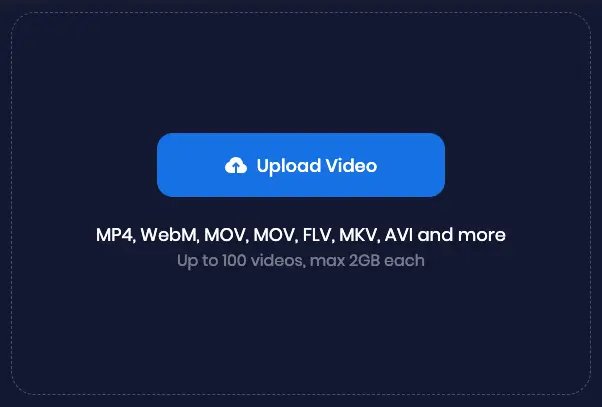
Upload Your File
Drag and drop your MOV, MKV, WebM, AVI, or other video files into Snappixify or upload them directly from your device.
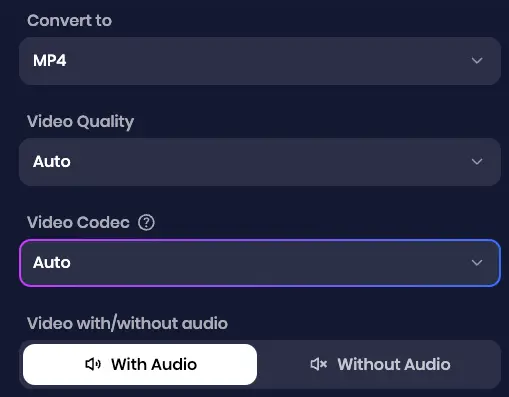
Choose MP4 as Output
Select MP4 as your output format. You can customize the quality and adjust video codec and other settings for the best results.
Convert and Download
Click the "Convert" button and let Snappixify process your file. Once the conversion is complete, you can easily download the MP4 version of your video.
Why Snappixify Stands Out for Converting Files to MP4
Snappixify offers several advantages that make converting to MP4 fast, easy, and hassle-free:
Speed and Efficiency
Whether you're converting a MOV file to MP4 or changing a MKV file to MP4, Snappixify ensures the process is completed quickly without sacrificing quality.
Ease of Use
The simple interface means you don’t need technical knowledge to convert your files. If you’re new to file conversion, you’ll find Snappixify easy to navigate.
No Software Installation
As an online platform, Snappixify requires no software installation, updates, or technical maintenance. Simply upload and convert your files from your browser.
High-Quality Output
Whether you're changing a WebM file to MP4 or converting an AVI to MP4 on your Mac, Snappixify preserves your video's quality during conversion.
Frequently Asked Questions
How do I change an MKV file to MP4?
Simply upload your MKV file to Snappixify, select MP4 as the output format, and hit Convert. Snappixify will handle the rest.
Can I convert MOV files to MP4 on Snappixify?
Yes, Snappixify allows you to convert MOV files to MP4 in just a few clicks. It’s quick, easy, and preserves the quality of your video.
Will the video quality degrade when converting from AVI to MP4?
No, Snappixify ensures that your AVI to MP4 conversion maintains the original video quality, with only minor compression if necessary.
How do I convert a QuickTime file to MP4?
You can easily convert QuickTime (MOV) files to MP4 using Snappixify. Upload your MOV file, select MP4 as the output format, and click Convert.
Does Windows have a built-in video converter?
No, Windows doesn't have a dedicated built-in video converter. For a quick and easy conversion experience, Snappixify is a great option. It’s an online tool that lets you convert videos to MP4 and other formats effortlessly, without the need for any software installation.
Conclusion
No matter if you’re looking for how to change a MOV file to MP4, how to change an MKV file to MP4, or even changing a WebM file to MP4, Snappixify provides an easy-to-use, high-quality solution.
MP4 is the go-to format for universal compatibility, smaller file sizes, and better editing flexibility, making it the ideal choice for most users.
With Snappixify, you can convert various video files to MP4 effortlessly and efficiently, no technical knowledge required. Try it today and see the difference!


