 Snappixify


SRT files are a simple yet essential tool for adding subtitles to videos. They contain text captions paired with timestamps, allowing subtitles to sync seamlessly with the video. Whether you're creating content for YouTube, social media, or educational purposes, adding SRT files enhances accessibility, boosts viewer engagement, and improves search engine visibility. With SRT subtitles, your videos become more inclusive and easier to find, making them an invaluable asset for any content creator.
What is an SRT File?
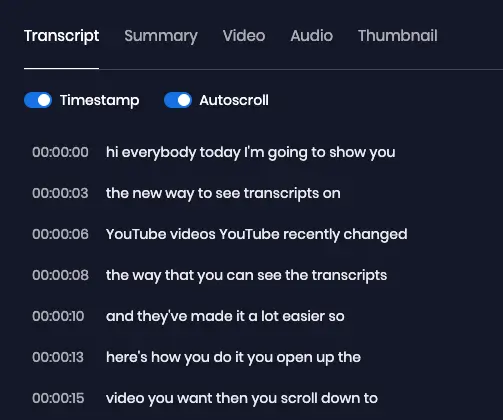
An SRT (SubRip Subtitle) file is a text file used for subtitles in video files. It contains a sequence of subtitle entries with timestamps that indicate when each subtitle appears and disappears. SRT files are widely supported across various video players, making them a common choice for adding subtitles.
The Basic Structure of an SRT File:
Sequence Number: Each subtitle is numbered sequentially starting from 1.
Timestamp: Specifies the start and end time of the subtitle (e.g., 00:00:05,000 -- 00:00:10,000).
Subtitle Text: The actual text that will be displayed during the specified timestamp.
Why Do You Need SRT Files?
SRT files are essential for improving both the accessibility and visibility of your videos. Here’s why content creators should incorporate SRT files into their videos:
-
Improved Accessibility
Adding SRT subtitles makes your videos accessible to a wider audience, including those who are deaf or hard of hearing. Subtitles also help viewers understand your content in environments where sound is not an option, such as public places.
-
Better Engagement
Subtitles can increase viewer engagement by making it easier to follow the content. Viewers are more likely to watch your video to the end if they can read along. Additionally, subtitles in multiple languages can attract international audiences and boost your reach.
-
Enhanced SEO
SRT files improve SEO because search engines like Google and YouTube index the text. This makes your videos more discoverable, increasing visibility and interaction across platforms like YouTube, Facebook, and LinkedIn.
-
Easy to Create
Creating SRT files is simple, and you don’t need advanced tools. Platforms like Snappixify allow you to automatically generate subtitles, or you can manually create them using a text editor. Either way, the process is quick and easy to manage.
-
Automatic Subtitles Aren't Always Perfect
Generating subtitles automatically on many platforms may save time, but they are often inaccurate. To ensure higher accuracy and better synchronization with your video, consider using manually created SRT files or reliable tools like Snappixify.
How to Convert Youtube video to SRT Using Snappixify
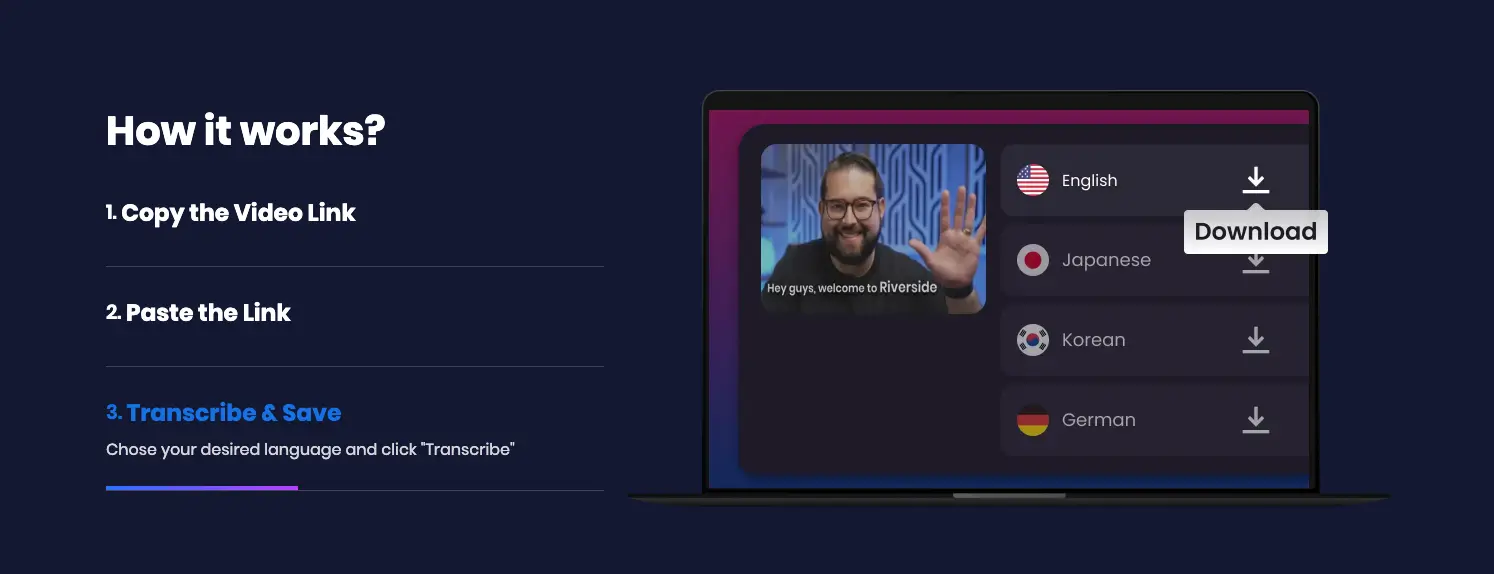
Converting your MP4 video files to SRT subtitles with Snappixify is easy and efficient. Here's a step-by-step guide to help you through the process:
-
Copy the YouTube Video Link
First, find the YouTube video you want to convert. You can either copy the URL directly from the browser's address bar or click on the "Share" button below the video and select "Copy link" to get the video URL.
-
Paste the URL into Snappixify
Head over to Snappixify’s website. In the provided field, paste the YouTube video URL that you copied earlier. Once pasted, click on the "Start Transcribing" button to begin the process.
-
Watch the Video and Generate Subtitles
After clicking "Start Transcribing," you’ll be taken to a new page where the video will load. On this page, you can watch the video while Snappixify transcribes the speech into subtitles in real time. The subtitles will be displayed on the right side of the screen.
-
Download the SRT File
Once the transcription process is completed, simply click the "Download" button to save the SRT file. You can now use this SRT file with your MP4 video for subtitles.
How to Choose the Right MP4 to SRT Conversion Tool
Choosing the right tool for converting MP4 to SRT depends on your specific needs and the type of content you're working with. Here’s how to pick the best tool for you:
-
Consider the Type of Content
For YouTube Videos: If you’re converting YouTube videos, Snappixify is a great option as it allows you to easily paste the video URL and get accurate subtitles without needing to upload the video file yourself.
For Personal MP4 Files: If you’re working with personal MP4 files, make sure the tool supports file uploads and can accurately transcribe your video.
-
Accuracy of Transcription
For precise subtitles, make sure the tool you choose provides accurate transcription. Automatic transcriptions from platforms like Snappixify are generally more reliable than others, but it's always recommended to review and adjust the subtitles afterward for better accuracy.
-
Ease of Use
A quality MP4 to SRT converter should feature a simple, intuitive interface. Tools like Snappixify are user-friendly, enabling you to copy-paste links or upload files with ease, without any technical complications.
Conclusion
SRT files are essential for improving accessibility, engagement, and SEO for your video content. With tools like Snappixify, converting MP4 videos to SRT is quick and easy, helping you reach a wider audience and boost discoverability.
Give Snappixify a try to simplify your workflow and enhance your videos with subtitles. Start converting MP4 to SRT today and take your content to the next level!
FAQ About Converting MP4 to SRT
Can I use Snappixify for free?
Yes, Snappixify offers one free transcription per day, allowing you to transcribe YouTube videos and convert MP4 files to SRT at no cost. However, if you want to transcribe more videos in a single day or access additional features, you can purchase a 7-day plan for just $1.95. This provides more flexibility for frequent users without committing to a long-term plan.
Can Snappixify transcribe non-English YouTube videos?
Yes, Snappixify can transcribe videos in various languages. You can select the language during the transcription process, and Snappixify will generate the SRT file in that language.
Can I use the subtitles on multiple platforms?
Yes, SRT files are widely supported across most video platforms, including YouTube, Vimeo, Facebook, and more. Once you’ve converted your MP4 to SRT, you can upload the file directly to these platforms to add subtitles to your videos.


