 Snappixify


In the age of digital media, we often come across a great cover song on YouTube, an insightful lecture, or a podcast uploaded as a video file. Sometimes, you just want to extract the audio to listen to it on your phone while commuting, working out, or driving, without keeping your screen on.
Converting Video to MP3 not only saves battery and data but also gives you the freedom to enjoy your favorite content purely as an auditory experience. This guide will show you exactly how to convert video to audio using online tools, computers, and mobile devices.
Why Convert Video to Audio?
Before we dive into the "how-to," here is why converting your files is a game-changer:
-
Music & Podcast Offline: Tired of burning through your cellular data plan just to stream your favorite podcast or song? Frustrated by dead zones and unreliable Wi-Fi? Converting to MP3 ensures your entertainment never stops, even offline.
-
Save Space, Share Instantly: Video files are heavy. Compressing your large video files into efficient audio formats saves massive amounts of storage space on your device and makes sharing files effortless and immediate.
-
Universal Compatibility: Your car stereo, ancient MP3 player, and smart home devices might struggle with MP4 or MOV videos, but they all demand MP3s. Stop dealing with "Format Not Supported" errors.
-
Archive and Preserve: Streaming platforms can remove content without warning. By extracting the audio, you secure your favorite songs and rare podcasts forever.
How to Convert Video to Audio?
Method 1: Snappixify (Recommended for All Platforms)
If you are looking for the easiest way to use online tools without installing heavy software, Snappixify is the top choice. It works directly in your browser.
Why use Snappixify?
-
Universal Playback: Convert modern or obscure files (like FLAC, M4A, or OGG) to the one format that plays everywhere—MP3.
-
Instant Video-to-Audio: Ever needed the sound from a YouTube clip or a movie trailer? Instantly strip the audio track from any video format and save it as a clean MP3 file.
-
Fully Compatible: Works perfectly with Chrome, Safari, and all major browsers. No app installation is needed.
Step-by-Step Guide:
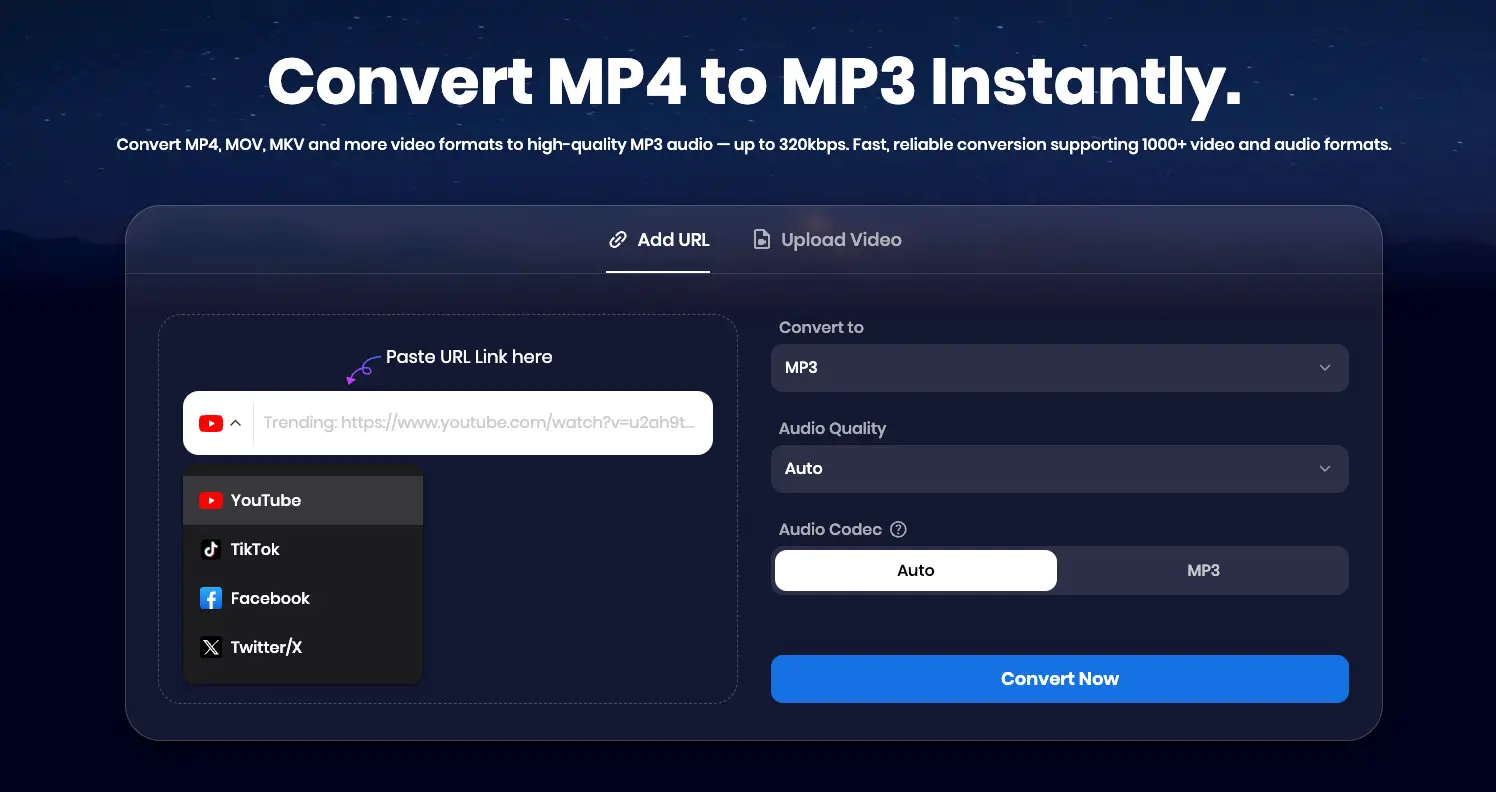
- Get your source: You have two ways to start. First, you can Paste a Link. Simply copy the URL from websites like YouTube, TikTok, Facebook, or Twitter.
 Alternatively, you can Upload a File. Click the upload button to choose a video file directly from your device storage.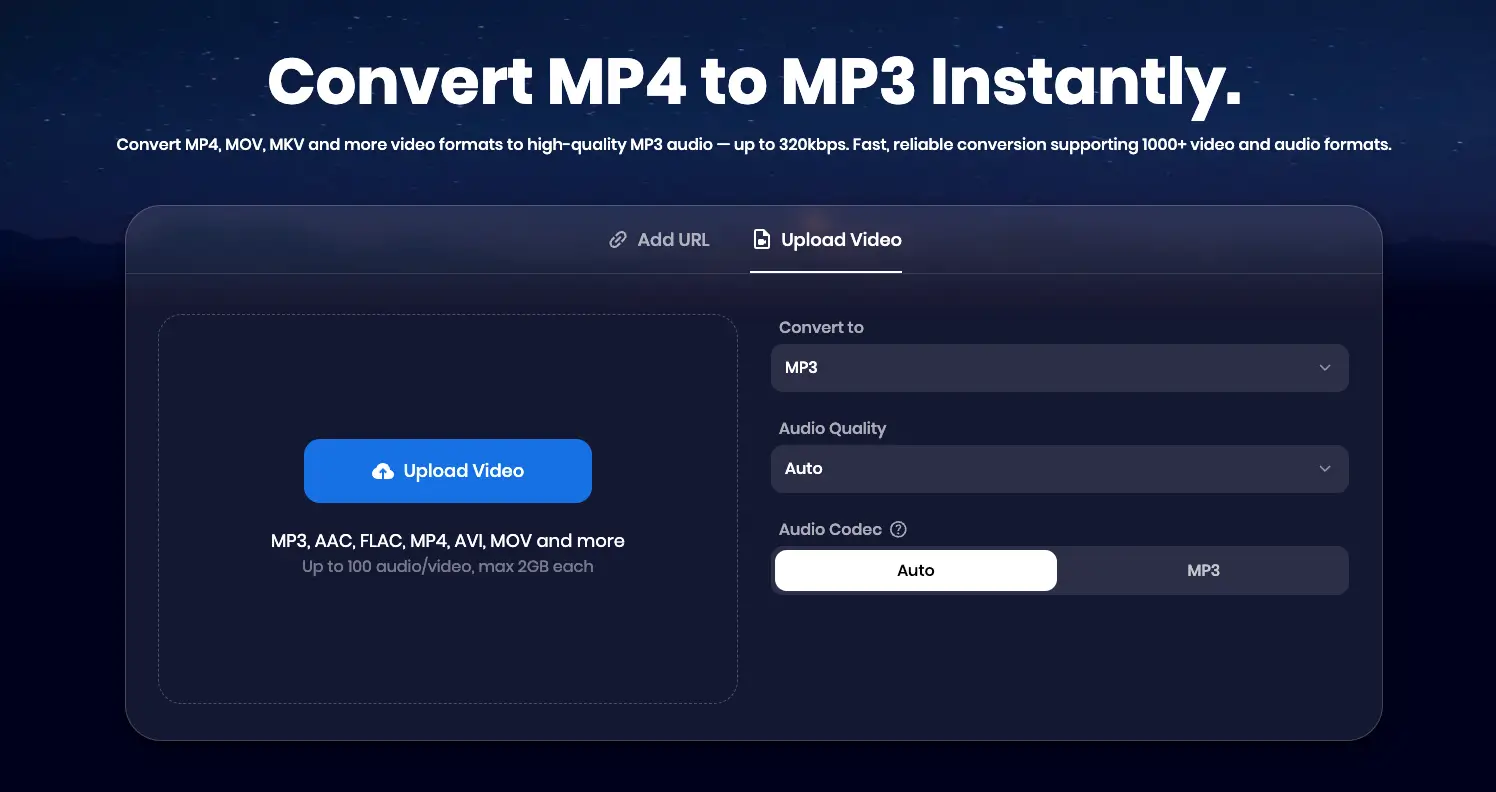
-
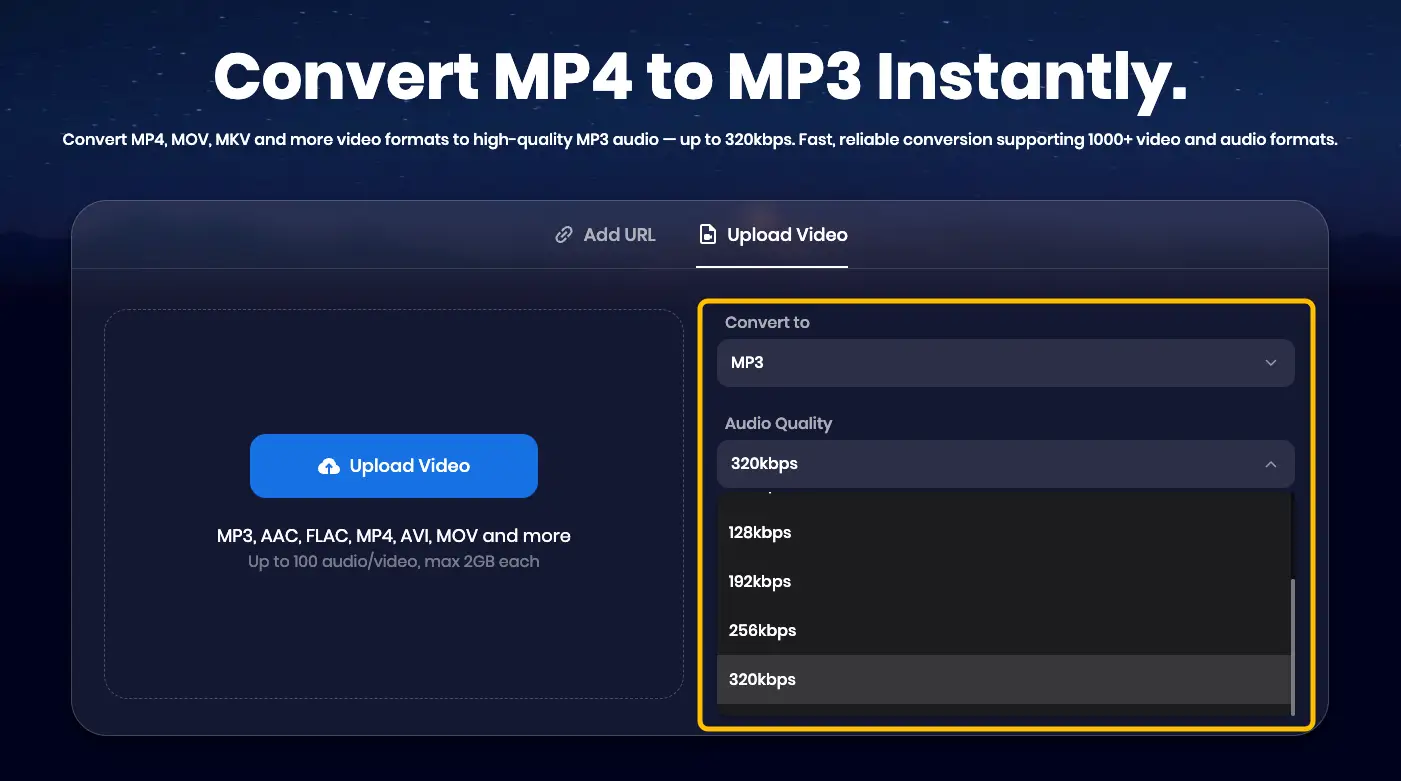
Select settings: Choose your output format (MP3 is best) and audio quality (we recommend 320kbps for the best experience).
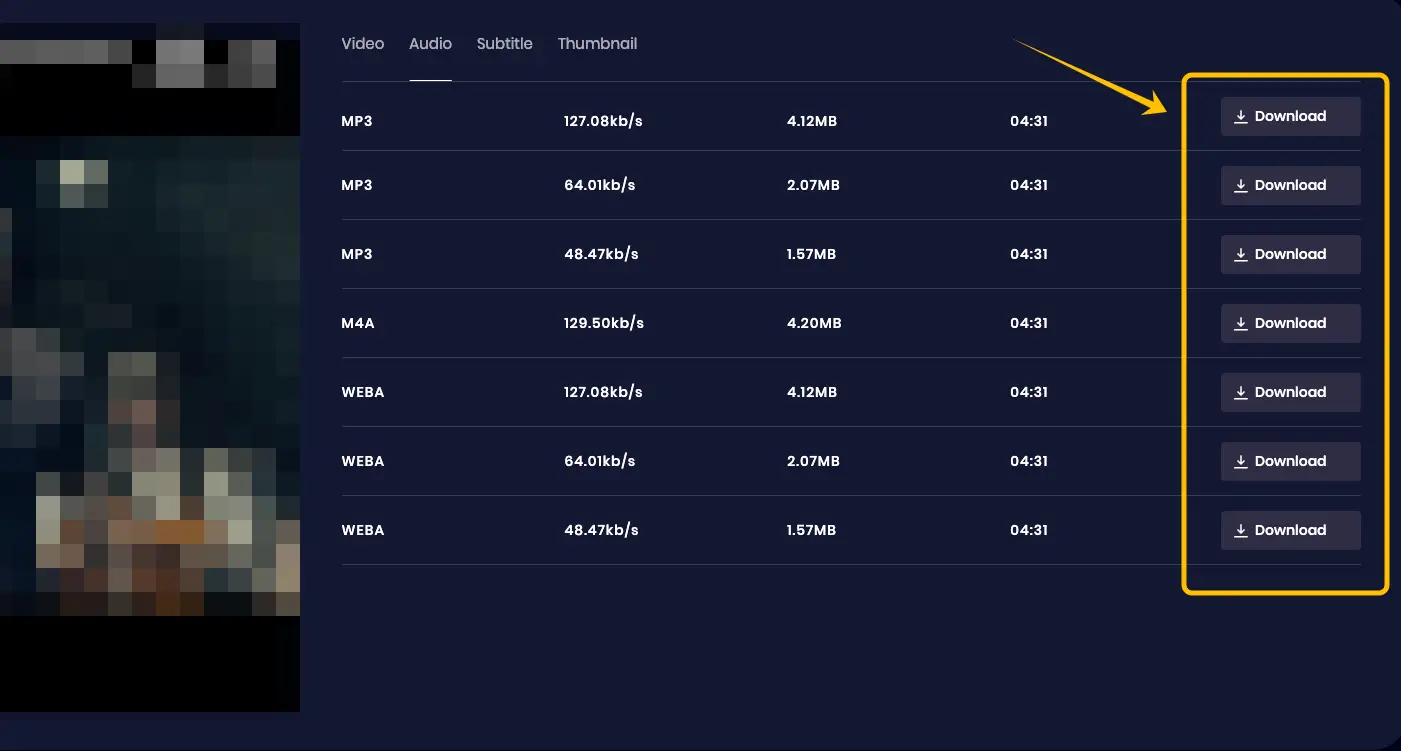
- Convert and Download: Click "Video to MP3." Wait a minute for the process to finish, then click Download to save the file to your device.
Method 2: Convert Video to Audio in Windows
Windows offers built-in tools that make extraction simple without needing third-party software. The Photos app and its integrated video editor are the most efficient choices.
Step-by-Step Guide:
-
Open your video file using the Photos app.
-
Click on the "Edit & Create" menu at the top and choose "Create a video with text."
-
In the editor, select the "Custom audio" option.
-
Pick the "Extract audio" feature to strip the sound from the clip.
-
Save the resulting audio file to your computer.
Note: This method works for most video formats, though very large files may take a bit more time to process.
Method 3: Convert on Mac
Mac users can utilize iMovie, which comes pre-installed on most Apple computers, to detach audio from video seamlessly.
Step-by-Step Guide:
-
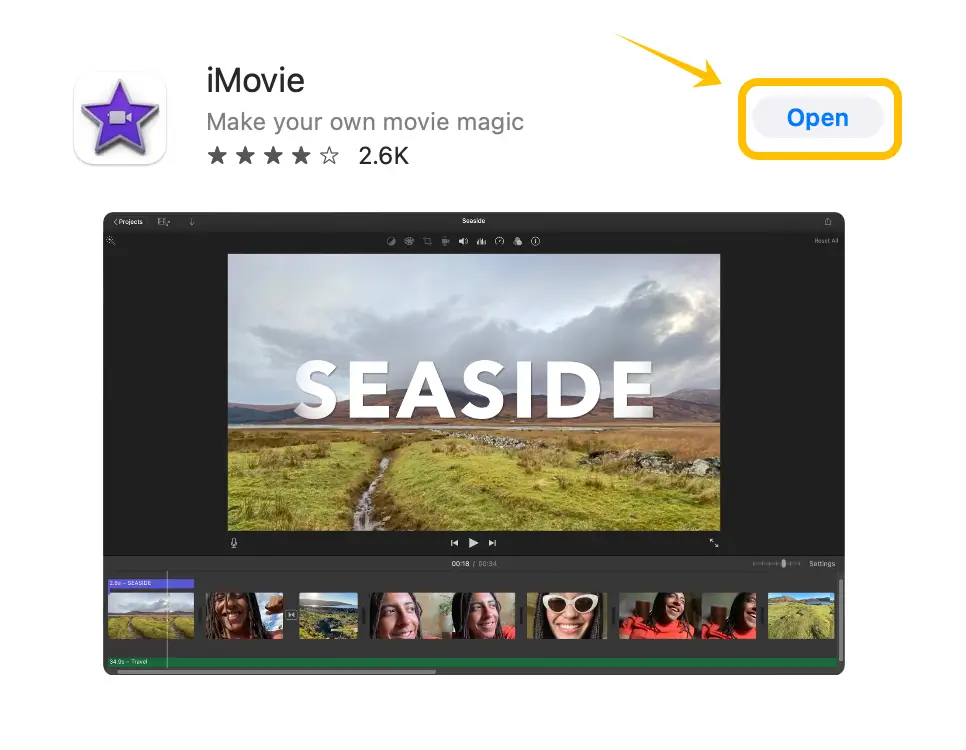
Download iMovie: Open the App Store on your Mac, search for "iMovie," and download it if it isn't already installed.
-
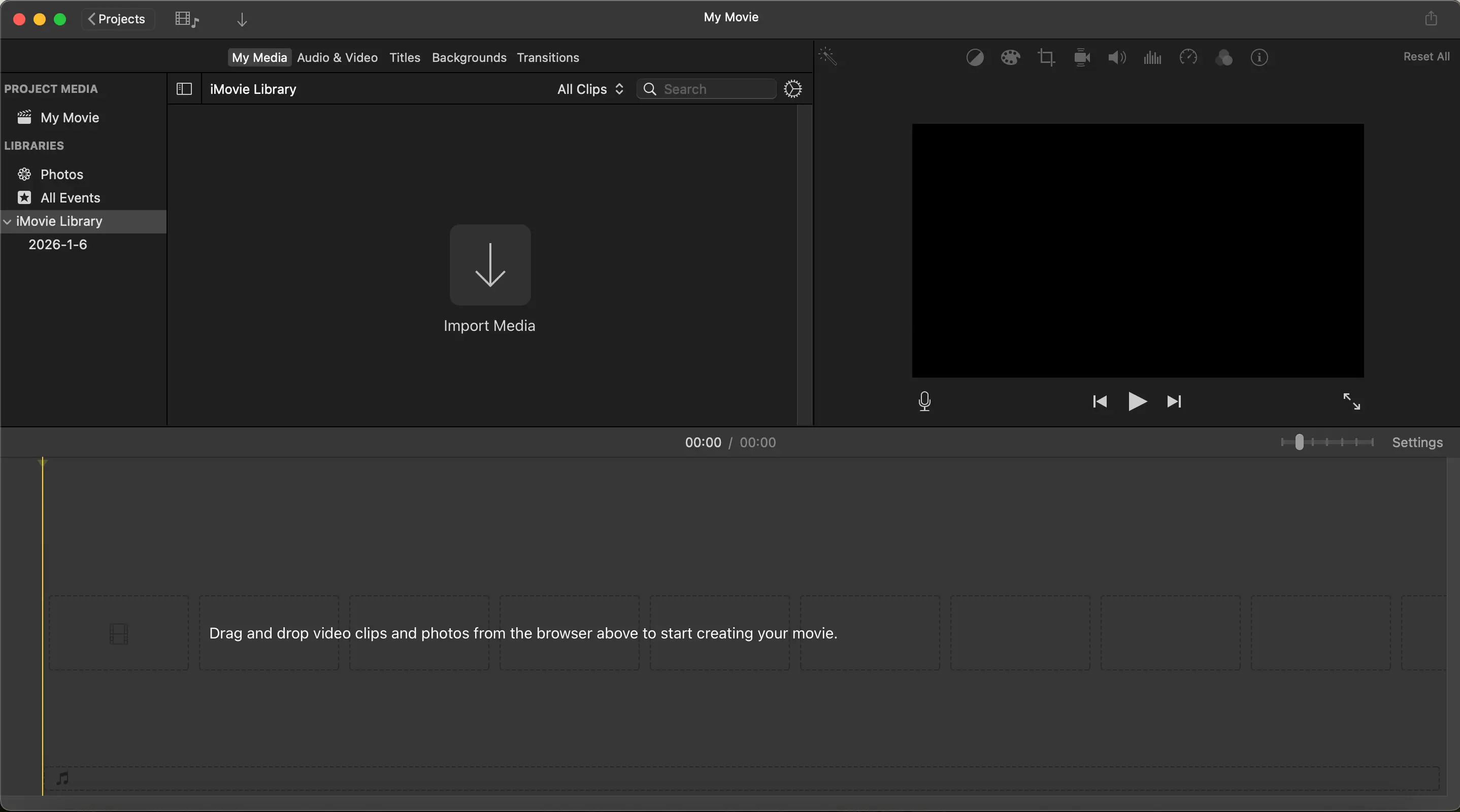
Import: Open iMovie, create a new project, and import your video file.
-
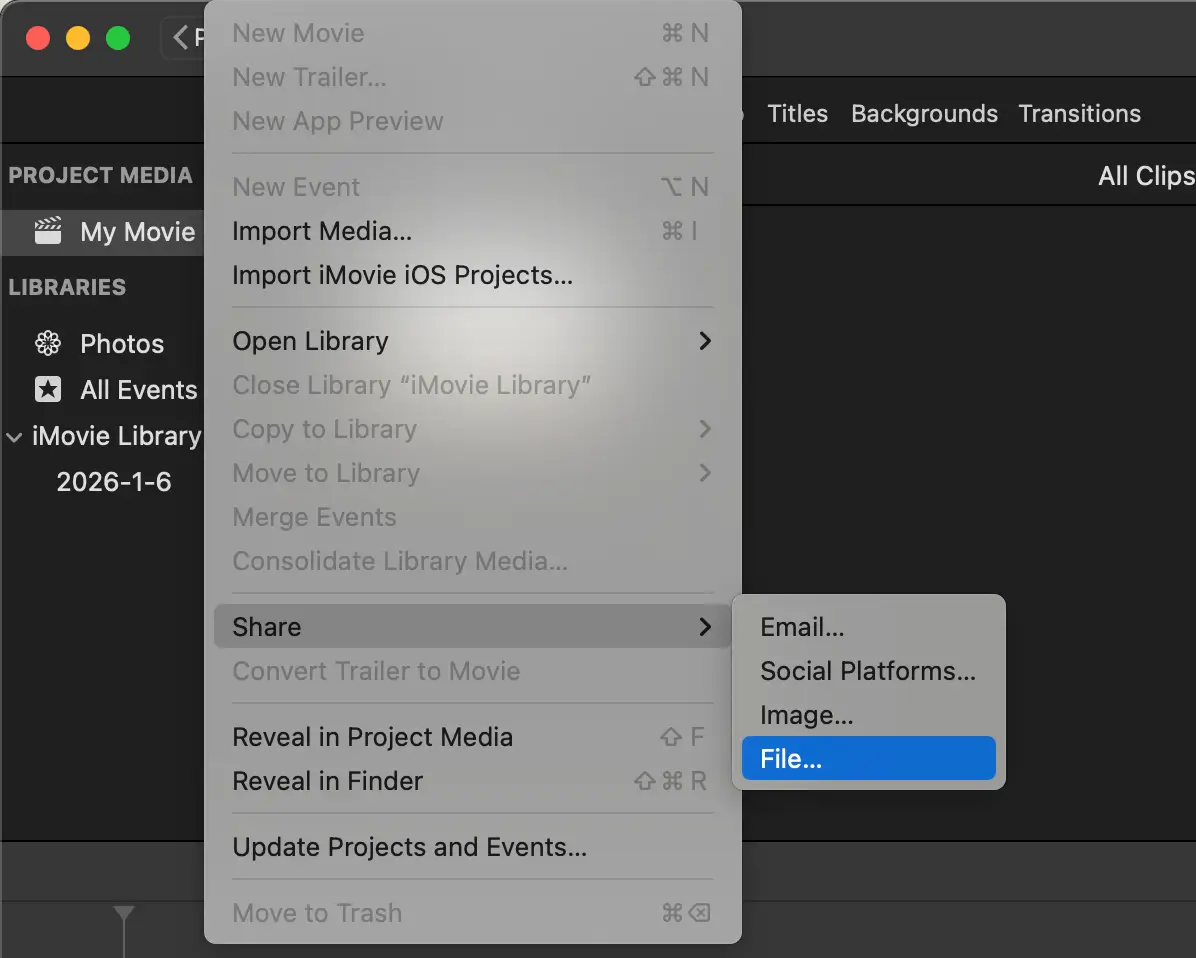
Share: Select your video, then go to the menu bar and click File ➡️ Share ➡️ File.
-
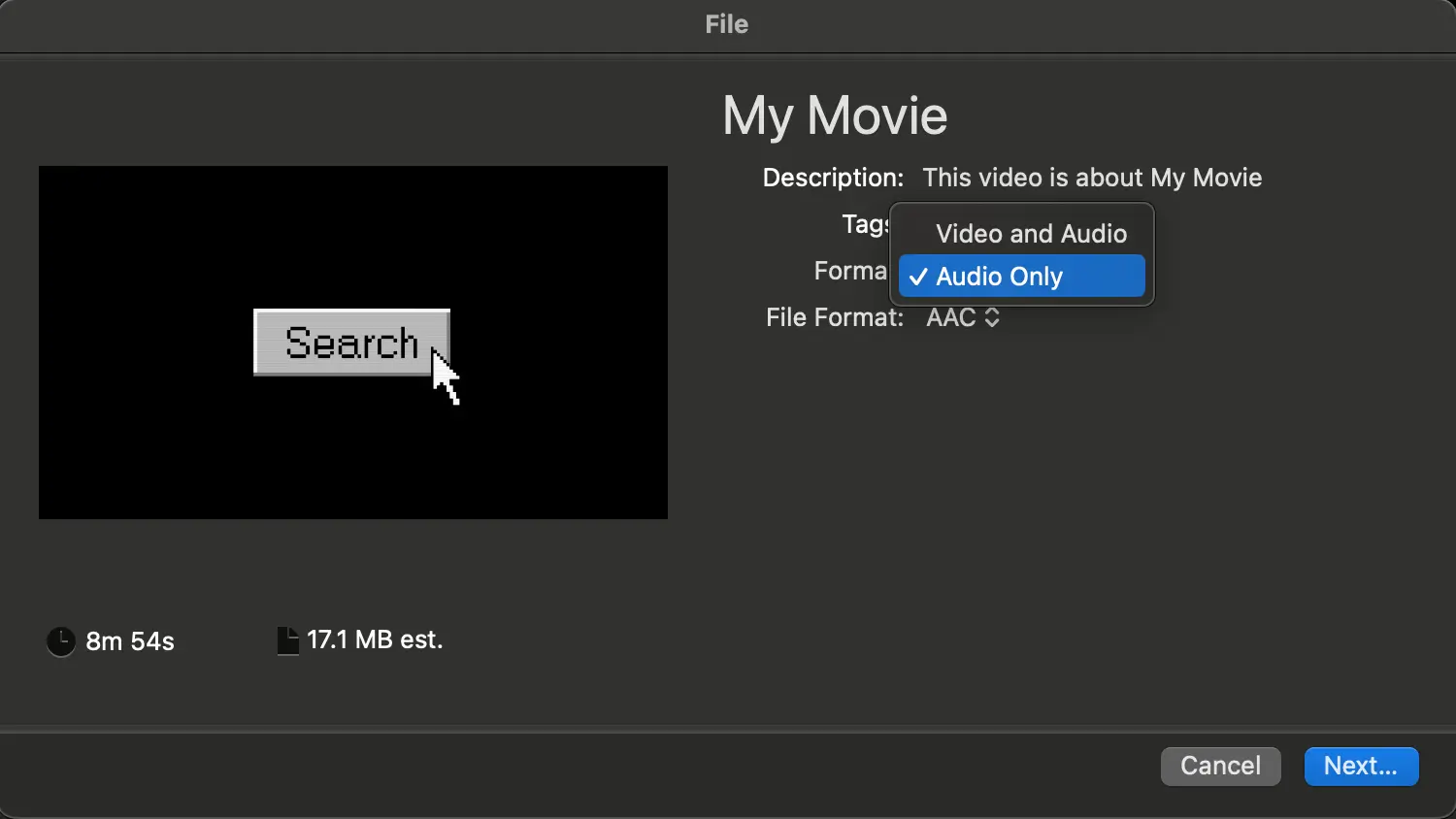
Change Format: In the export window, look for the "Format" dropdown menu. Change it from "Video and Audio" to "Audio Only".
-
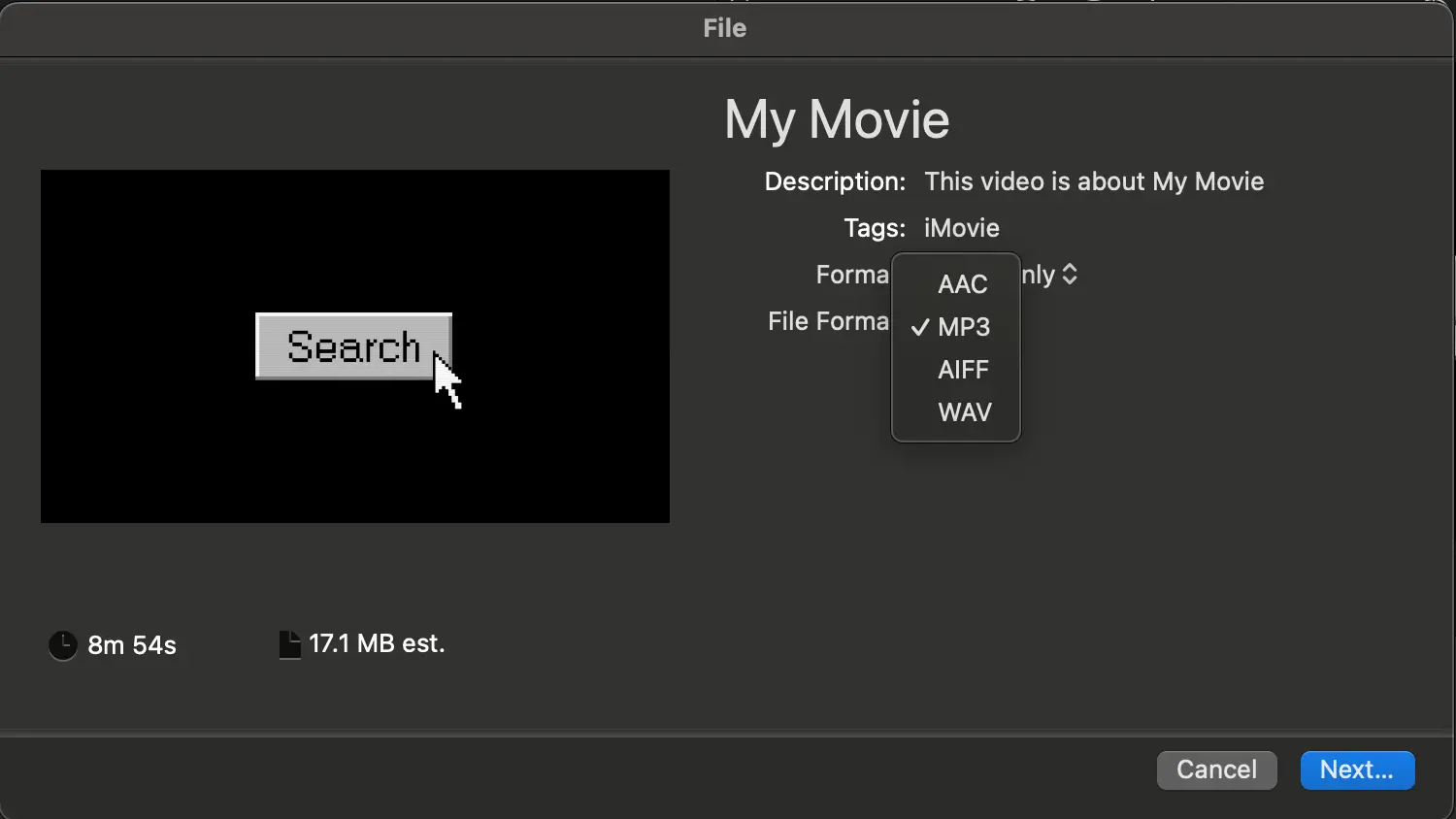
Choose Your File Format: Once you are in the Audio Only mode, click the "File Format" dropdown menu. You can choose from four options based on your needs.
-
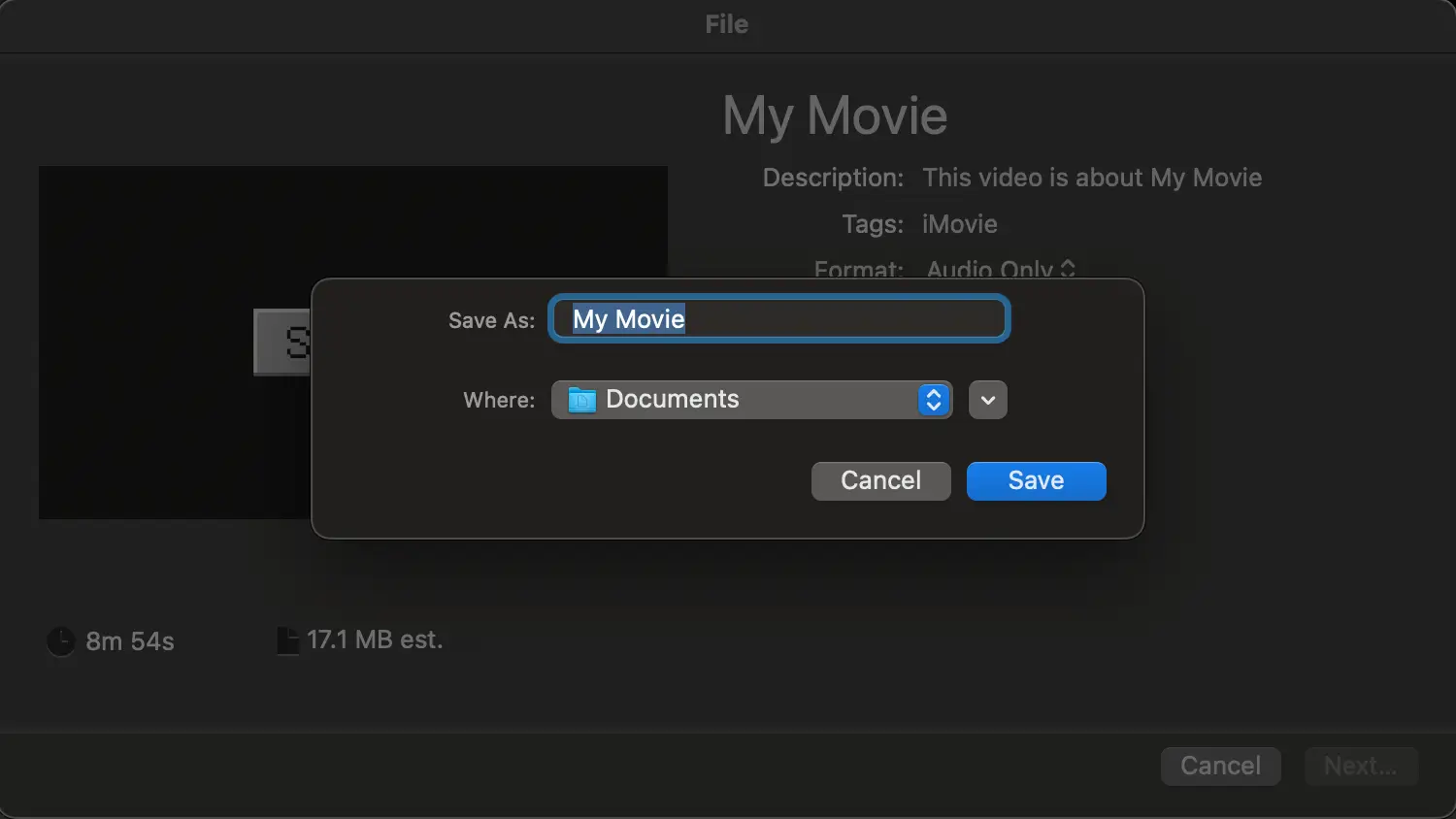
Finish: Click Next and save the file to your Mac
Method 4: Convert on iPhone
For iOS users, the cleanest method is using the Shortcuts app, avoiding ad-heavy third-party applications.
Step-by-Step Guide:
-
Get the Shortcut: Download a "Video to Audio" shortcut (you can find trusted ones like this iCloud Shortcut).
-
Select Video: Go to your Photos app, open the video, and tap the Share button.
-
Run Shortcut: Scroll down and select the "Video to Audio" shortcut. It will extract the sound and let you save the file to your Files app.
Method 5: Convert on Android
Android allows for great flexibility with file management. Using a dedicated app is often the most feature-rich method.
Step-by-Step Guide:
-
Download an App: Search the Play Store for "Video to MP3 Converter" (Recommended apps: Video to MP3 - Media Converter by InShot or VidCompact).
-
Select File: Open the app, grant file permissions, and select your video file.
-
Convert: Choose "MP3" as the output format. You can also set the bitrate here. Tap "Convert".
-
Locate: The converted MP3 will appear in your music player or the app's output folder.
How to Choose the Right Format?
When you use Snappixify or other tools, choosing the right format is key to balancing quality and file size. Here is a breakdown of the most common options:
MP3 (MPEG-1 Audio Layer III)
The most popular audio format in the world.
-
Lossy compression: Significantly reduces file size by removing data that the human ear struggles to hear.
-
Universal Compatibility: Plays on almost every device ever made, from old car stereos to smart TVs.
-
Variable Bitrate: Supports up to 320kbps for high-quality sound while staying compact.
-
Best For: Daily listening, mobile phones, and sharing online.
AAC (Advanced Audio Coding)
The successor to MP3, offering better sound at the same file size.
-
High Efficiency: Achieves better sound quality than MP3 at lower bitrates.
-
Apple Standard: The default format for iTunes, iPhone, and YouTube streaming.
-
Modern Coding: Uses more advanced algorithms for clearer high-frequency sounds.
-
Best For: iPhone/Mac users and high-quality streaming services.
WAV (Waveform Audio File Format)
The gold standard for uncompressed audio on Windows.
-
Lossless & Uncompressed: No data is lost during the process; the audio is exactly as the original recording.
-
Professional Fidelity: Provides the highest possible audio accuracy.
-
Large Files: Takes up a lot of space (roughly 10MB per minute).
-
Best For: Professional video editing and high-end studio work.
AIFF (Audio Interchange File Format)
Apple’s version of the uncompressed WAV file.
-
Studio Quality: Provides uncompressed, professional-grade sound.
-
Better Metadata: Unlike WAV, AIFF is better at holding information like album art and artist names.
-
Mac Native: Optimized for performance on Apple’s professional software.
-
Best For: Music production and audiophile listening on Mac.
FLAC (Free Lossless Audio Codec)
The favorite format for music lovers who want quality without the massive size of WAV.
-
Lossless Compression: Reduces file size (compared to WAV) without losing any sound quality.
-
Perfect Accuracy: When you play a FLAC file, it sounds identical to the original CD or master file.
-
Open Source: Free to use and supported by many high-end audio players.
-
Best For: Archiving music and high-end home audio systems.
Final Thoughts
Converting video to audio gives you control over your media library. Whether you use the instant convenience of Snappixify, the built-in tools on your computer, or mobile apps, extracting audio is simple once you know the steps. Start building your offline playlist today!


