 Snappixify


YouTube Clips are a hidden gem that many users often overlook or confuse with Shorts. This unique feature allows you to pinpoint specific highlights, a tool rarely seen in such a seamless way on other social platforms.
But what exactly are YouTube Clips, and why should you start using them? Whether you are on mobile or PC, learning how to create, find, and — most importantly — how to download this clip for offline use is a total game-changer.
Keep reading to master everything you need to know about saving your favorite video moments!
What Are YouTube Clips?
Simply put, a YouTube Clip is a 5 to 60-second segment taken from an existing long-form video or a past live stream.
Unlike Shorts, which are separate vertical video uploads, Clips are just "bookmarks" of the original content. When you share a clip, you are directing people to a specific high-energy moment without forcing them to watch the entire video.
Here are the key characteristics of this feature:
-
Length: Clips must be between 5 seconds and 60 seconds long.
-
Source Requirement: To enable this feature, the original video must be longer than 2 minutes.
-
Looping: When someone opens a clip, the specific segment loops continuously.
-
Attribution: The clip always links back to the original creator's channel and full video.
It is a seamless way to highlight a specific tutorial step, a funny gaming fail, or a quote from a podcast without any heavy editing.
Why Should You Use YouTube Clips?
In an era of information overload, long-form content often contains only a few minutes of "gold." Whether you are a student, a professional, or a content creator, using YouTube Clips is a game-changer for productivity.
Here is a more concise version of the English content, focusing on brevity and impact:
1. For Personal Use: Efficiency & Focus
-
End the Search: Stop wasting time dragging the seek bar. Clips let you jump straight to the "gold" without hunting through a 30-minute video.
-
Save Space: Don't clog your hard drive with a 5GB video when you only need a 50MB segment.
-
Effective Review: Create a "highlight reel" of key lessons or moments for quick, repeated viewing.
2. For Creators: Speed Up Your Workflow
-
No More Waiting: Why download an entire 2-hour video just for a 5-second snippet? Clipping saves you from long download times and massive, unused files.
-
Instant Assets: Get exactly the B-roll or reaction shot you need. It’s the ultimate way to keep your editing timeline clean and your workflow fast.
3. For Sharing: Direct Impact
-
Frictionless Sharing: Don't send a link with a "skip to 10:42" note. Send a clip so your audience sees the point instantly.
How to Create Your Own YouTube Clips
Creating a clip is a quick process that works almost identically across all devices. Whether you are using the mobile app or a desktop browser, you can capture a highlight in just a few clicks.
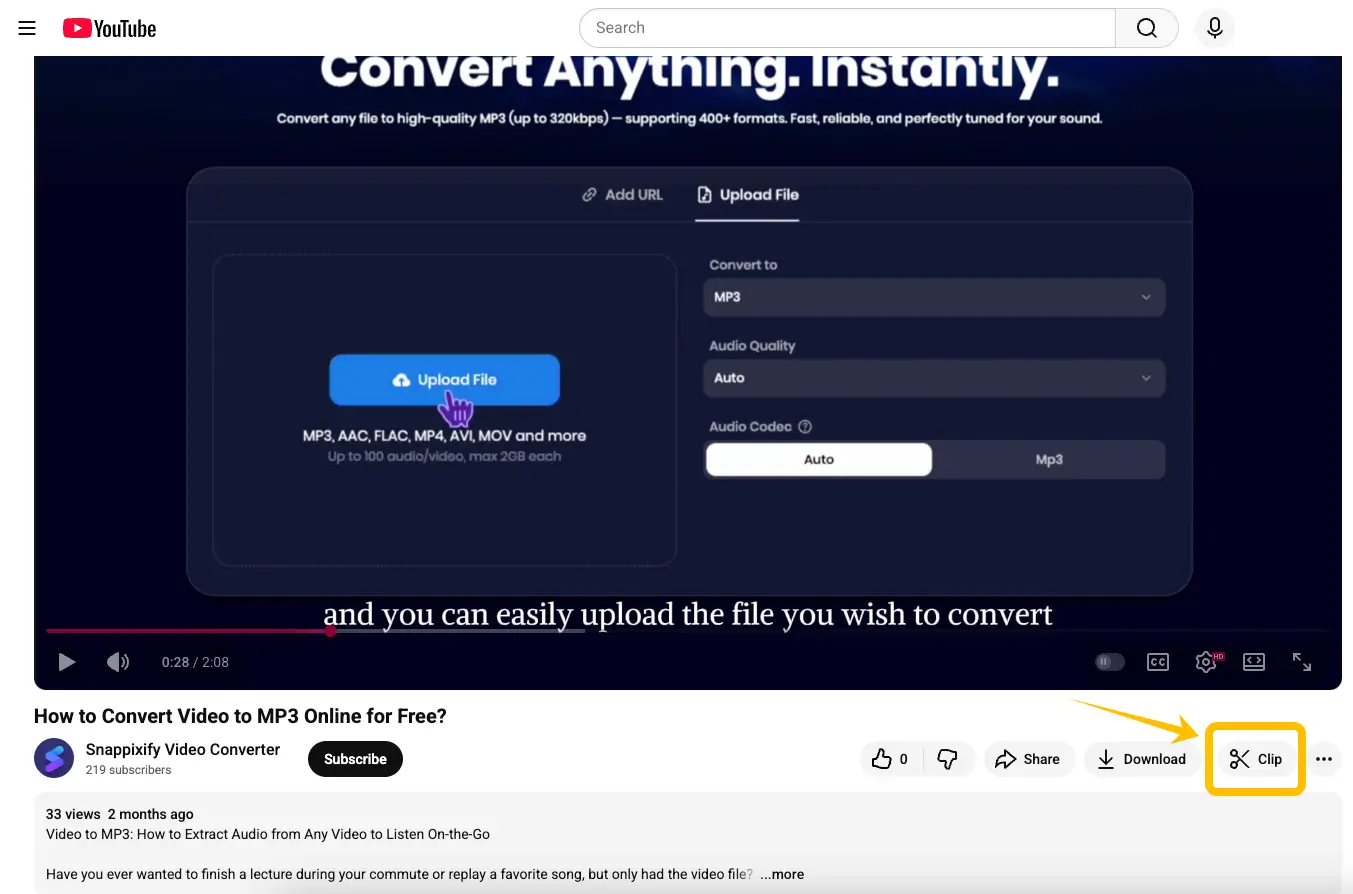
Step 1: Locate the Clip Icon
Open a video longer than 2 minutes. Under the video player, look for the toolbar containing Like and Share. Click or tap the Clip icon (scissors symbol).
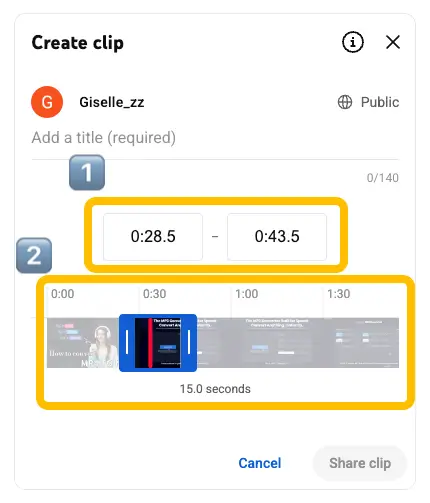
Step 2: Select Your Timeframe
A selection box will appear on the timeline. Drag the blue sliders to choose the specific part of the video you want to keep. Remember, it must be between 5 and 60 seconds.
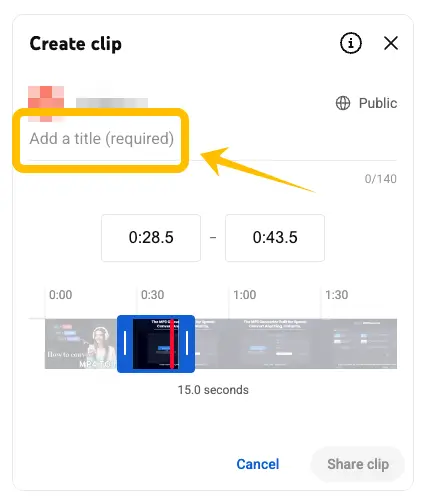
Step 3: Add a Title
You must give your clip a descriptive name (up to 140 characters) before the share button becomes active.
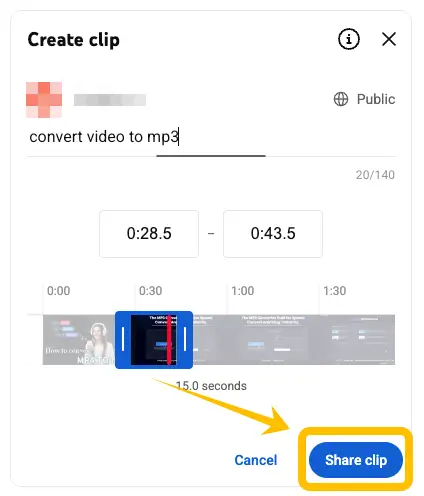
Step 4: Share Your Clip
Once the title is entered, hit the Share Clip button.
How to Find YouTube Clips and Copy the Clip URL
Once you have created several clips, you might want to revisit them or copy their links again to share with more friends. YouTube stores all your highlights in one organized place.
Step 1: Access Your Library On a computer, look at the left-hand sidebar menu. On mobile, tap your profile icon or the "You" tab at the bottom. Find and click on the Your Clips section.
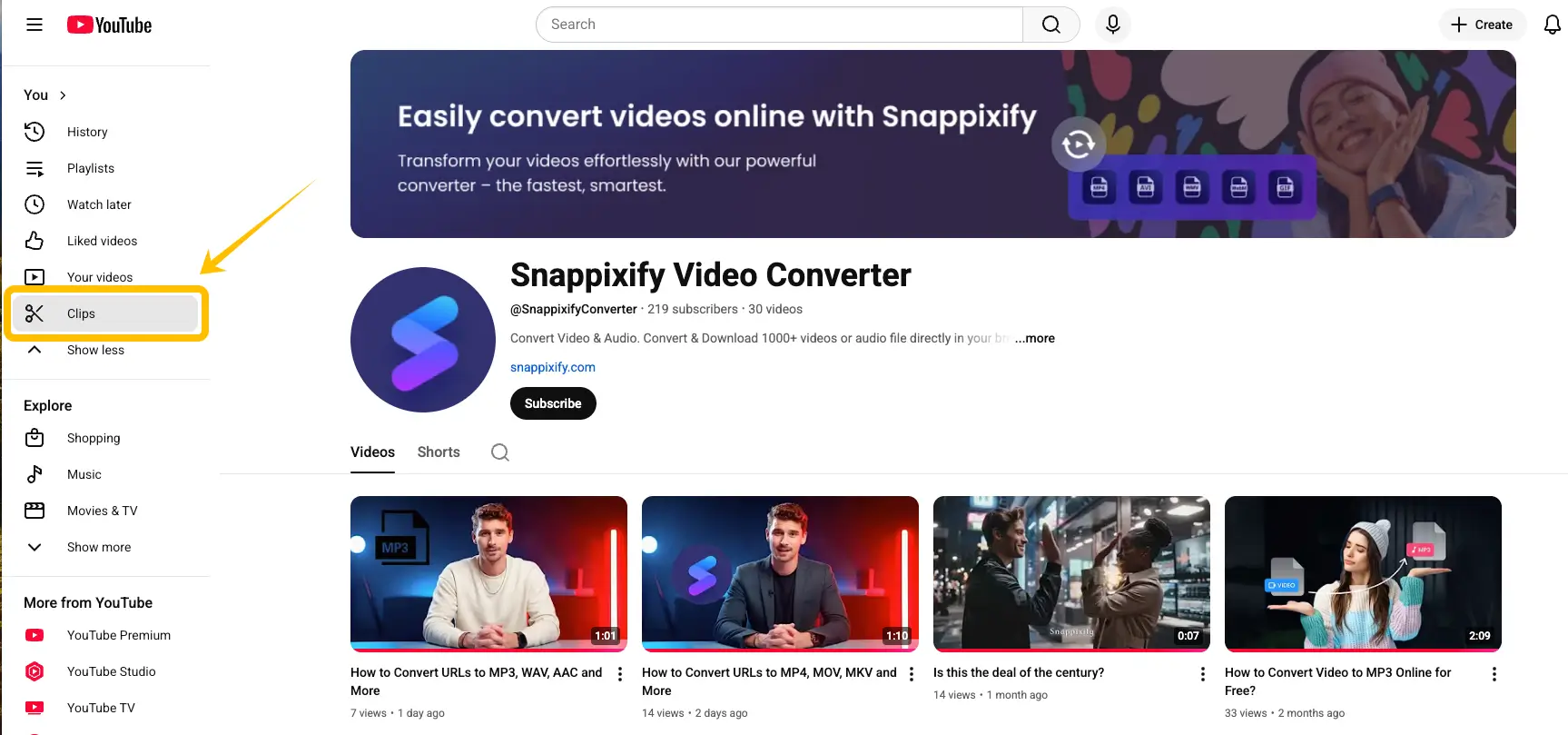
Step 2: Select the Clip You will see a list of all the clips you have ever created. Browse through the thumbnails and click on the one you want to use. This will open the specific clipped segment in a looping player.
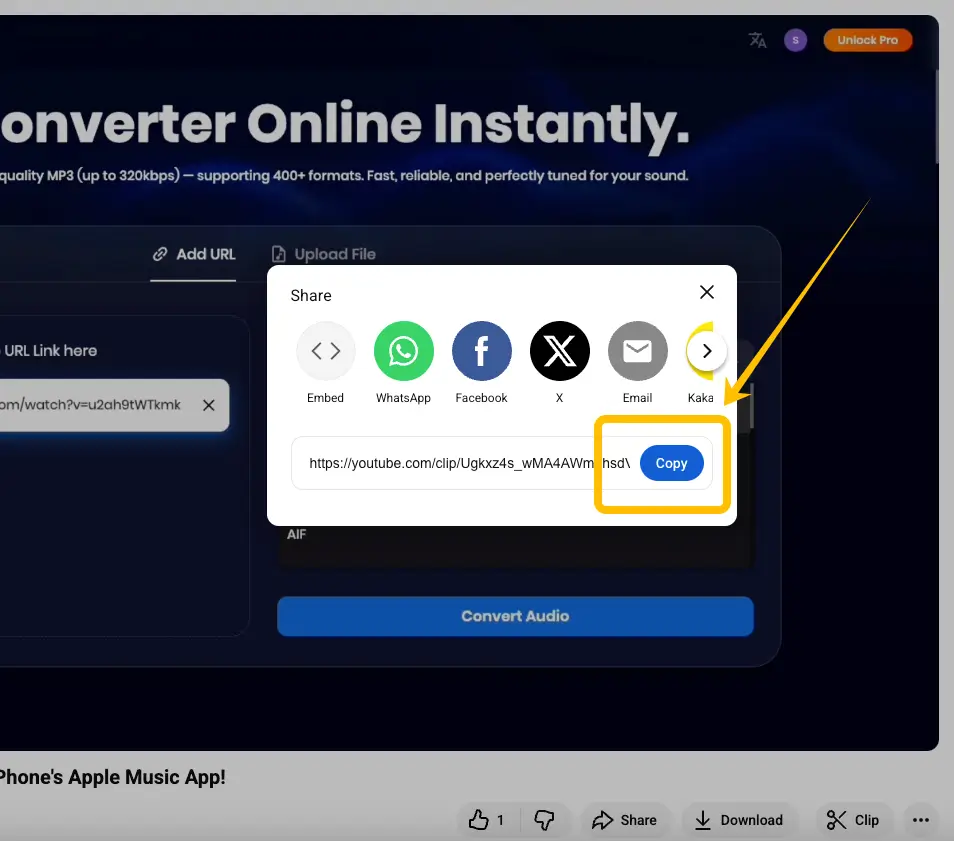
Step 3: Copy the Clip URL To get the link, click the Share button located next to the clip title. A pop-up will appear with the unique URL. Simply click Copy to save the link to your clipboard.
How to Save Clip from YouTube?
While YouTube allows you to create and share clips within its platform, it doesn't provide a direct "Download" button to save these snippets to your local storage. If you want to keep a highlight for offline viewing or use it in your own creative projects, you need a reliable tool like Snappixify.
Why Use Snappixify for YouTube Clips?
Snappixify is a powerful, free online tool designed to bridge the gap between streaming and offline access. It simplifies the process of converting online links into high-quality media files without requiring any software installation.
Key Features:
-
Customizable Formats: Whether you need a video or just the audio, you can choose between various formats like MP4, AVI, or MP3.
-
High-Quality Resolution: Don't sacrifice clarity. Snappixify allows you to select the specific video quality that suits your needs, including HD and 1080p.
-
Convert to 500+ Videos Effortlessly: The platform is designed for speed and versatility, supporting a massive range of sources including YouTube, Instagram, and Facebook.
-
No Registration Needed: You can start saving your clips immediately without creating an account or providing personal information.
Steps to Download Your YouTube Clip
Saving your favorite moments only takes a few seconds. Follow these simple steps:
Step 1: Copy the Clip URL
Go to your "Your Clips" section on YouTube or create a new one. Click the Share button and copy the unique URL provided.
Step 2: Paste into Snappixify
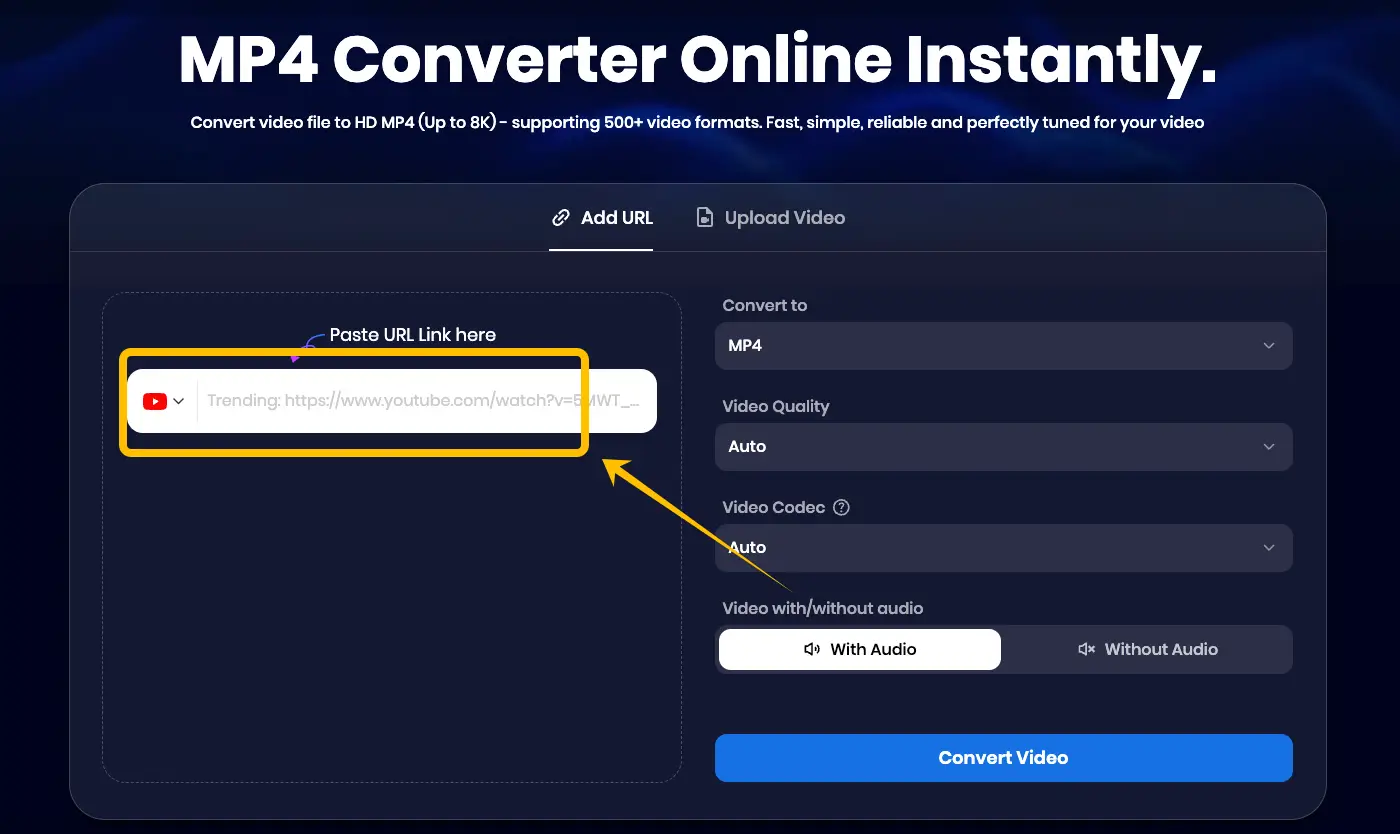
Open the Snappixify website in your browser. Paste your copied link into the search bar.
Step 3: Select Format, Quality, and Codec Once the link is processed, you can choose your preferred format (e.g., MP4) and video quality (e.g., 1080p). Additionally, you can select the video codec and decide whether you want the file with audio or without audio.
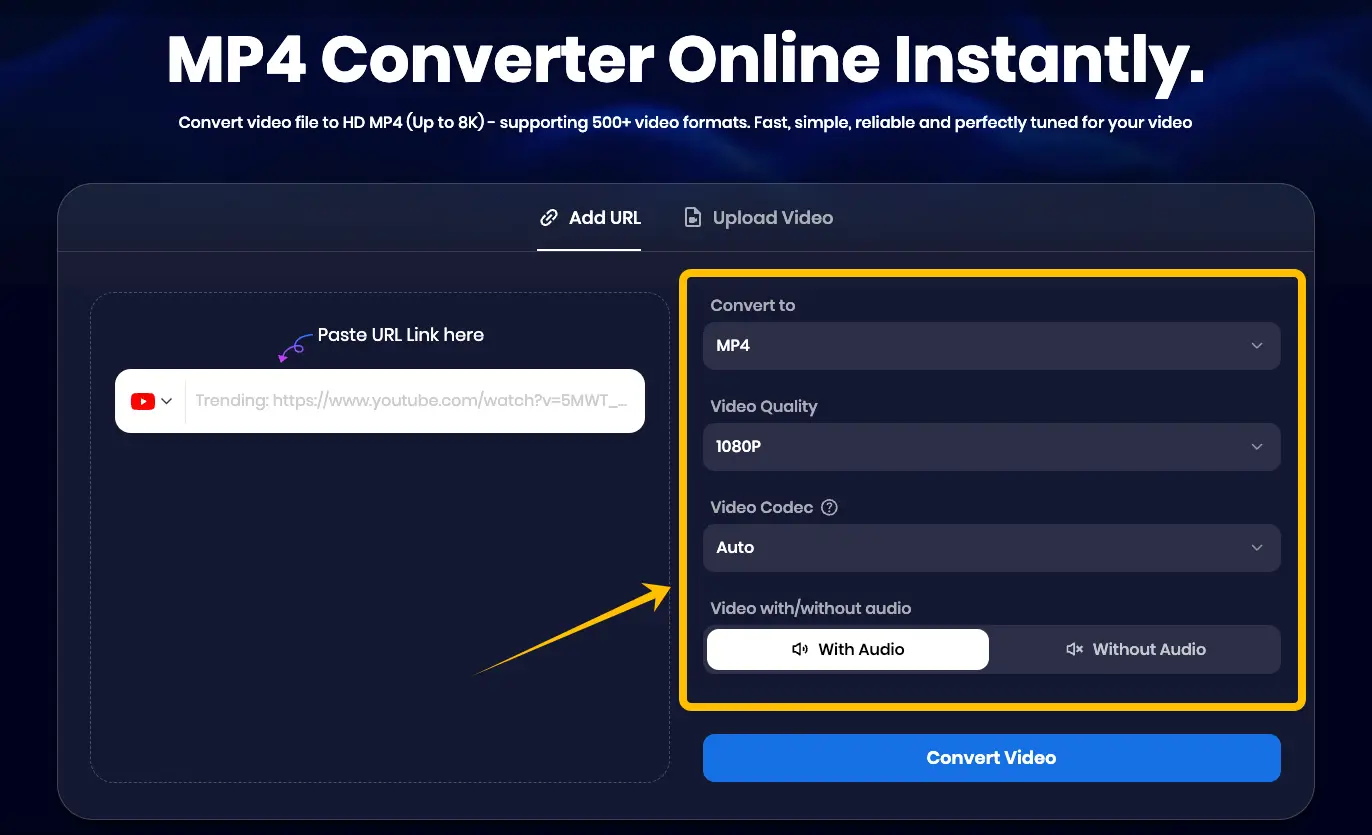
Step 4: Convert Video After making your selections, click the Convert Video button. The system will begin processing your clip according to your specific requirements.
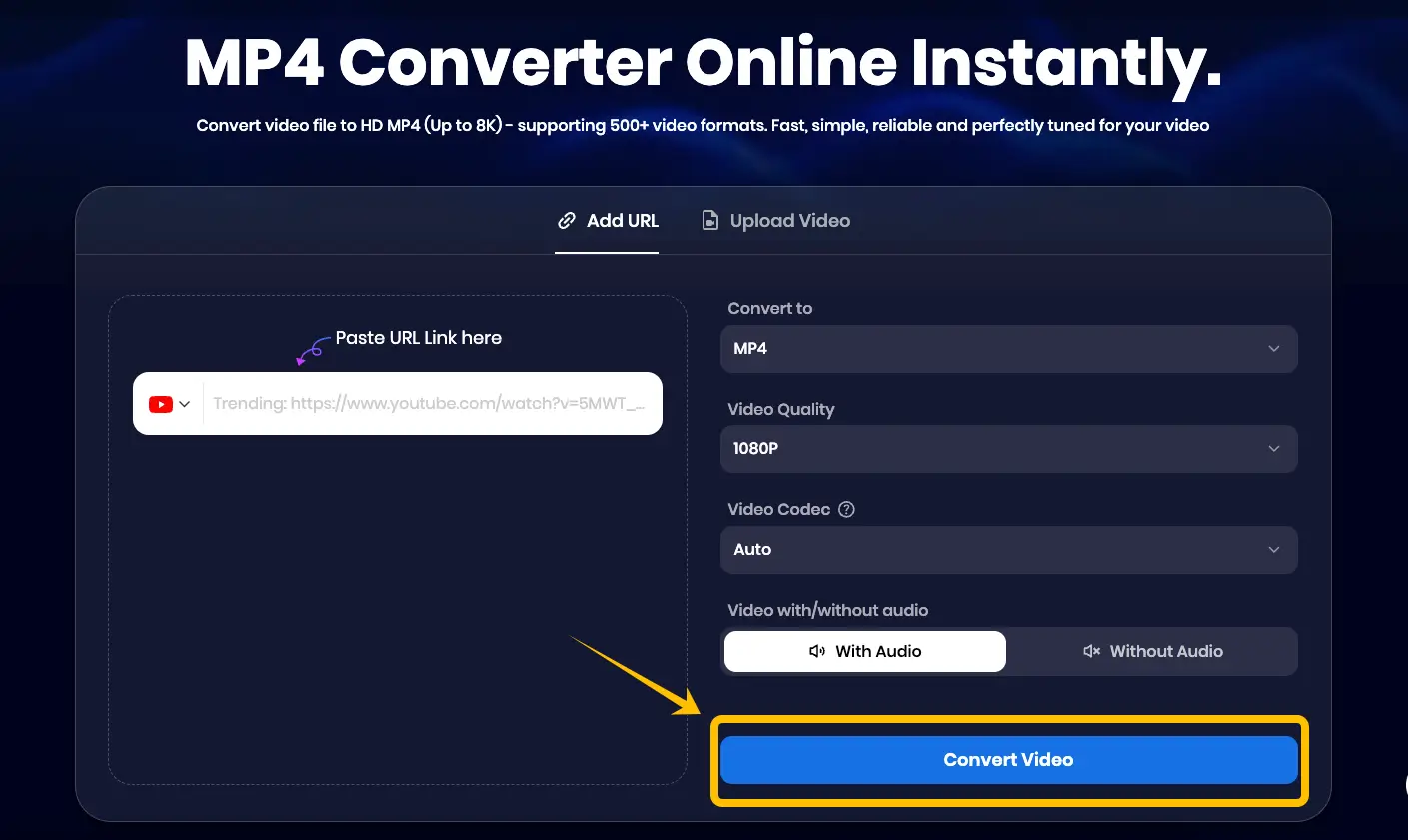
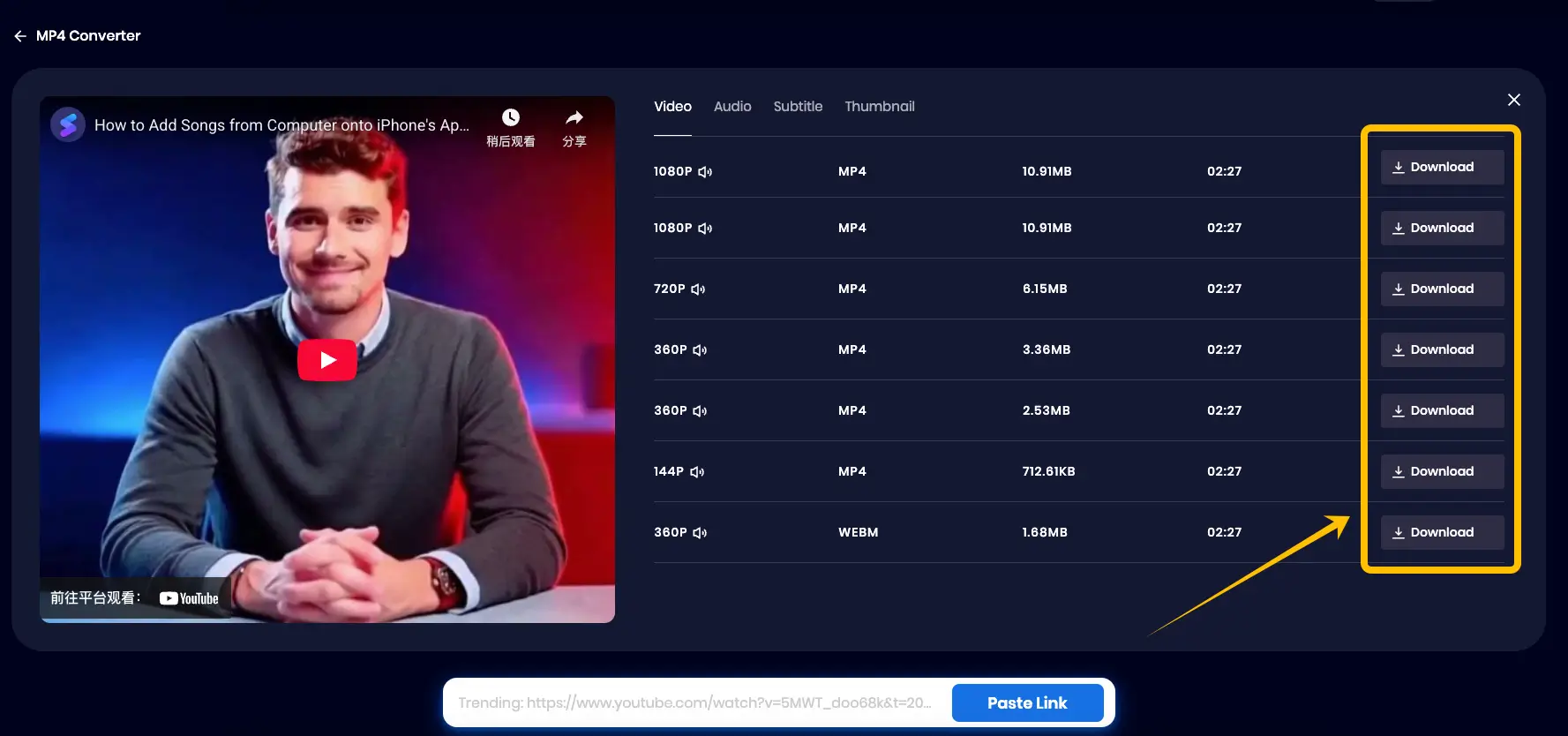
Step 5: Wait and Download Wait a few moments for the conversion to finish. The site will automatically redirect you to the final download page. Click the Download button to save the file directly to your device.
Frequently Asked Questions
Q1: Can I download YouTube clips without software?
Yes! Snappixify is a 100% web-based online tool. You don't need to install any heavy software or risky plugins. It works seamlessly across all devices, whether you are using a mobile phone or a PC. You can access it from any browser, including Chrome, Firefox, Safari, and Edge.
Q2: Are YouTube clips downloadable without using a download tool?
Not for local use. While YouTube Premium allows you to "download" videos for offline viewing within the YouTube app, these files are encrypted and cannot be moved, edited, or used in other applications. To truly save a clip to your local storage (gallery or folder), you must use a tool like Snappixify. It is a reliable choice for getting the actual file onto your device.
Q3: What is the difference between a YouTube clip and a Shorts video?
It is easy to mix them up, but they serve very different purposes:
-
YouTube Shorts: These are independent, vertical videos (9:16 aspect ratio) up to 60 seconds long. They are uploaded as separate content, similar to TikToks or Reels.
-
YouTube Clips: These are not new uploads. They are simply "segments" or "highlights" of an existing long-form video. Think of a clip as a shared timestamp that loops. It always remains attached to the original video and helps drive traffic back to the full-length content.
Conclusion
YouTube Clips are a powerful yet overlooked tool for sharing specific highlights. They save time and make video sharing much more efficient.
While YouTube keeps these moments on its platform, using Snappixify allows you to save them locally for offline use or editing. Start clipping your favorite moments today to build your own high-quality video library!


