 Snappixify


Video content doesn’t have to stay on video platforms forever. If you’ve recorded YouTube videos, online courses, interviews, or tutorials, you can repurpose them and turn them into podcasts.
Do you know how to convert a video into an audio file? Fortunately, it is easy: all you need is to find a video converter and upload the video to it. Then you will get the converted audio. You can even paste the social media video link and get the audio directly.
This article will show you how to convert video to audio step by step on desktop, mobile, and online.
TL;DR - Convert Video to Audio
By converting video content to audio content like a podcast, you can get a larger audience for the content.
You can convert video to audio using Snappixify, VLC, Audacity, Video to MP3, and FFmpeg to convert video to audio.
Different audio formats display various qualities. File parameters can also impact audio quality.
Can You Convert Video to Audio?
Of course. In most cases, you can convert a video file into an audio-only format without affecting the original content. Before we dive into the steps on how to convert a video file into an audio file, let's see what converting a video to audio means.
What does converting video to audio mean?
Extracting the audio track from a video file
Video files contain both visual and audio data, and tools like Snappixify Video to MP3 Converter allow you to extract the audio track separately. Therefore, you can reuse the sound from a video as a standalone audio file, such as MP3, WAV, or AAC.
Common use cases of converting video to audio
-
Podcasts and voice recordings
Creators often turn YouTube videos, webinars, or recorded talks into podcast episodes and upload them to audio-only platforms and RSS feeds.
-
Music or interviews from videos
Live performances, interviews, or speeches captured on video can be converted into clean audio files for streaming, archiving, or sharing.
-
Saving storage space
Audio files are significantly smaller than video files. If you like the sound or music of a video and the visuals aren't necessary, converting the video to audio is a practical way to store or share content.
Extracting audio vs re-recording audio
Extracting audio directly from a video is usually faster and more efficient than re-recording. It keeps the original sound intact, avoids quality loss, and eliminates background noise that can occur during re-capture. Re-recording may only be necessary if the original audio is distorted or poorly recorded.
The background information may not be used anywhere, but make you ready to convert video to audio without facing any problems.
Ways to Convert Video to Audio (Overview of Methods)
Before starting the steps, let's quickly scan the methods of converting video to audio. Different methods are suitable for different devices, usage scenarios, and technical levels.
|
Tools |
Best For |
Platforms |
Pros |
Cons |
|
Snappixify |
Fast, online conversion |
Windows, macOS, Chromebook, Mobile browsers |
No install, beginner-friendly, quick results |
Requires upload, file size limits |
|
VLC Media Player |
Offline & simple conversion |
Windows, macOS, Linux |
Free, no internet needed, supports most formats |
Basic audio controls, UI not intuitive |
|
Audacity |
Audio editing after extraction |
Windows, macOS, Linux |
Powerful audio cleanup, great for podcasts |
Extra steps, not ideal for quick conversion |
|
Media Converter – Video to MP3 |
iPhone users |
iOS |
Easy to use, works with Photos & Files |
Ads, limited advanced settings |
|
Video to MP3 – Video to Audio |
Android users |
Android |
Fast conversion, batch support |
UI varies, ads in free version |
|
FFmpeg |
Advanced users & automation |
Windows, macOS, Linux |
Full codec control, no quality loss |
Command-line only, learning curve |
4 Methods to Convert Video to Audio
Using an Online Video-to-Audio Converter
The first method to convert video to audio is to use online converters, because you can use them on any device, and they don't take up space on your device. Online converters are the fastest way to extract audio from a video, especially if you don't want to install software.
The best Online Video-to-Audio Converter: Snappixify
According to our test, the top video converter on the market is Snappixify. It is a free online tool to convert local/online videos to audio.
For online videos, Snappixify supports converting YouTube, Instagram, TikTok, Telegram, and X videos to audio. All you need to do is paste the link and download the audio. For local videos, you can upload videos of any popular format and convert them to audio into any popular format.
How to convert video to audio with Snappixify
Step 1. Visit Snappixify Video to MP3 Converter. To convert online videos, paste the online video link in the link area. Alternatively, you can simply upload the local video resource you have.
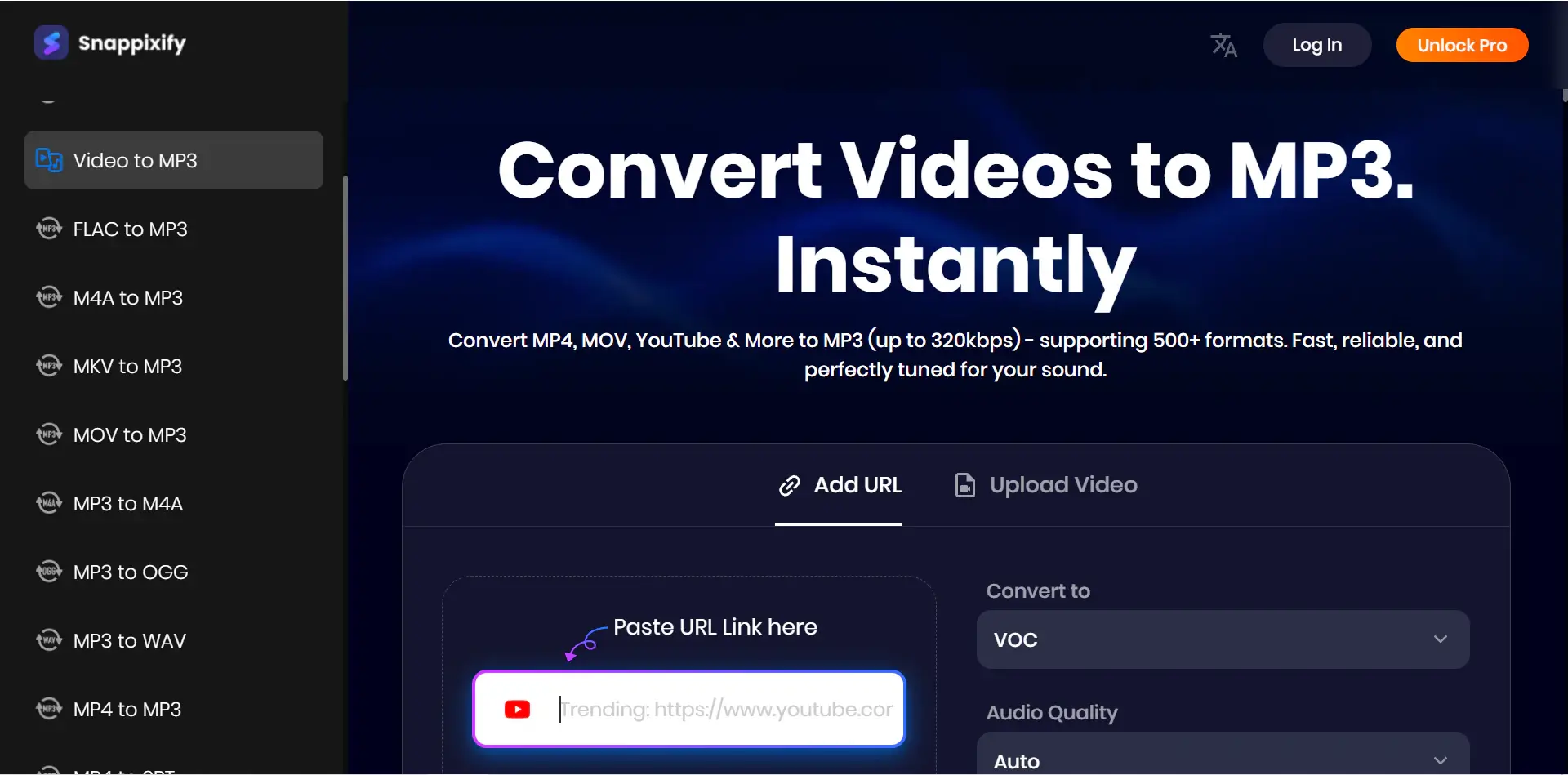
Step 2. Select an audio output format (MP3 as the default, and the other 17 audio formats). You can also customize the audio codec.
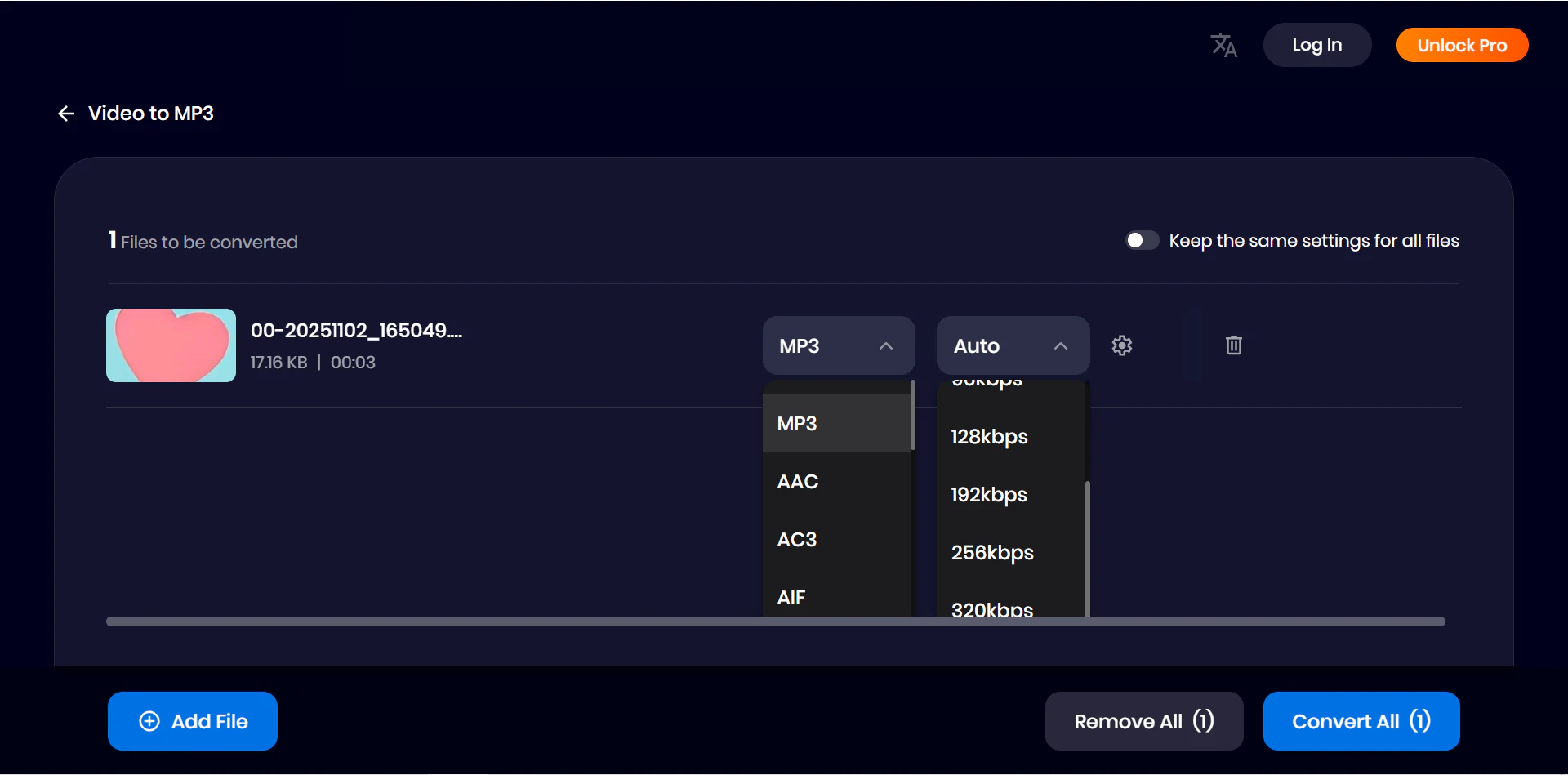
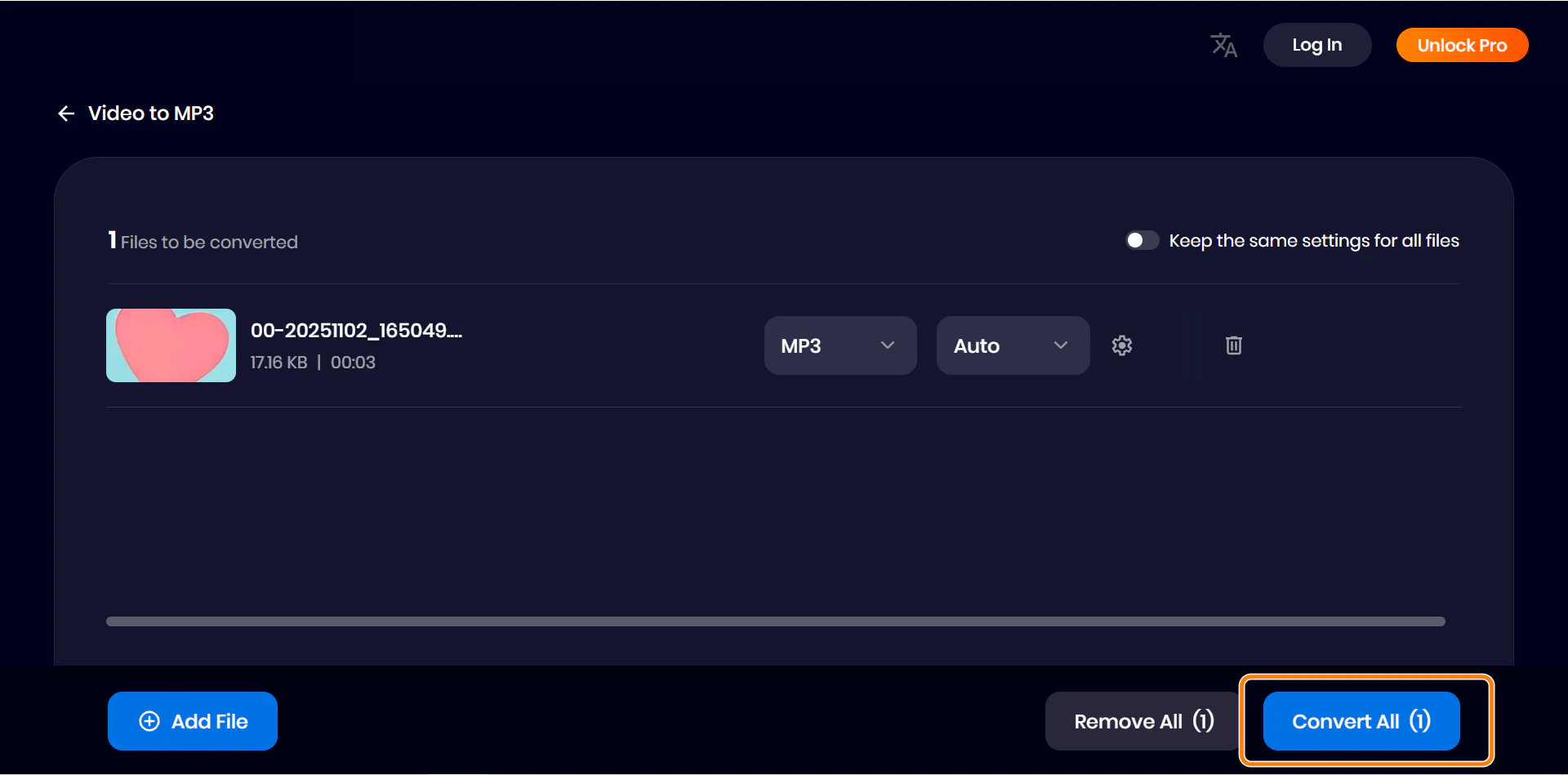
Step 3. You can add multiple videos and convert them at one time. Just click the Convert All button and download the audio.
Using Desktop Software (Free & Offline)
VLC Media Player
VLC Media Player is a free, open-source desktop tool that allows you to convert video to audio completely offline, and it supports multiple formats. Therefore, if you have many videos in various formats, even if they are not common or large in size, you can try VLC to convert them into audio.
How to convert video to audio with VLC Media Player
Step 1. Open VLC and go to Media on the top ➡️ click Convert / Save.
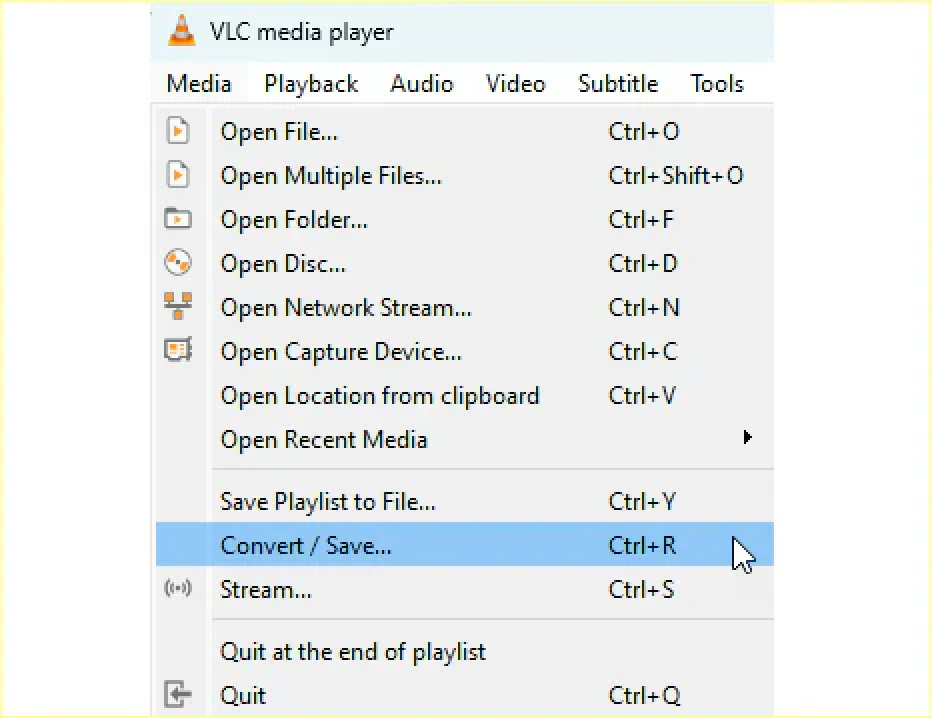
Step 2. In the pop-up window, click the Add button to specify the video. Then, click the Convert / Save button at the bottom again.
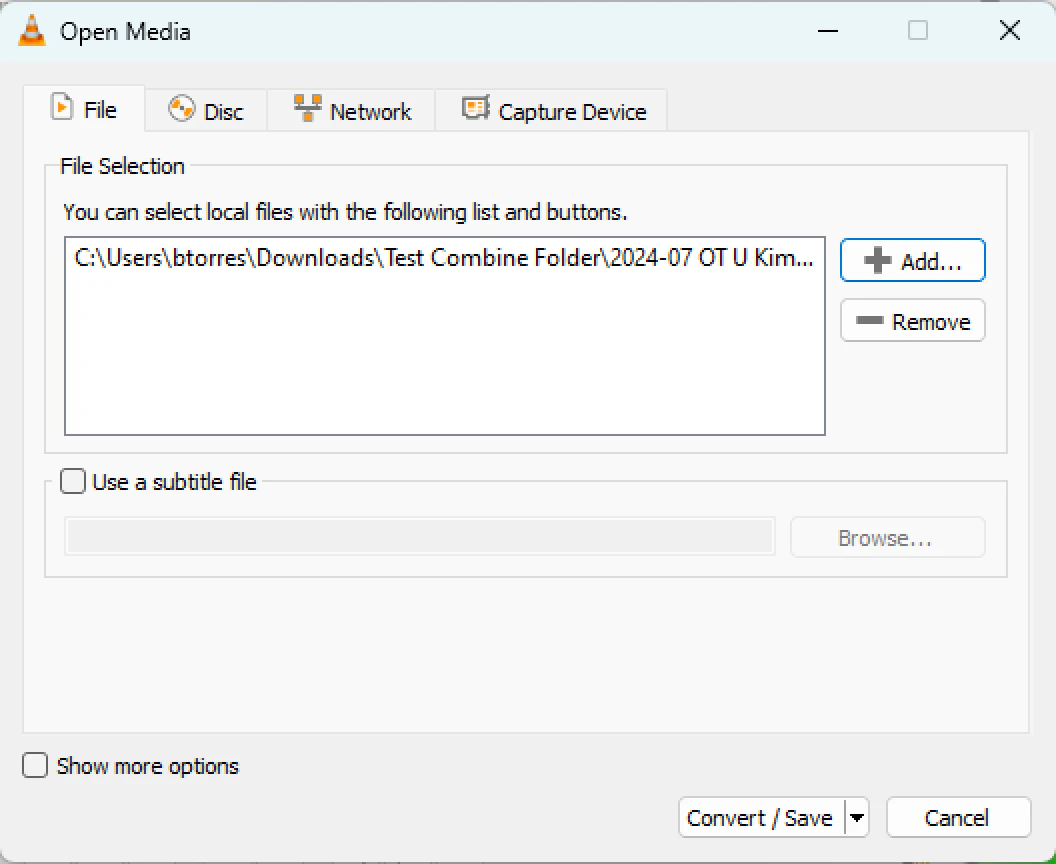
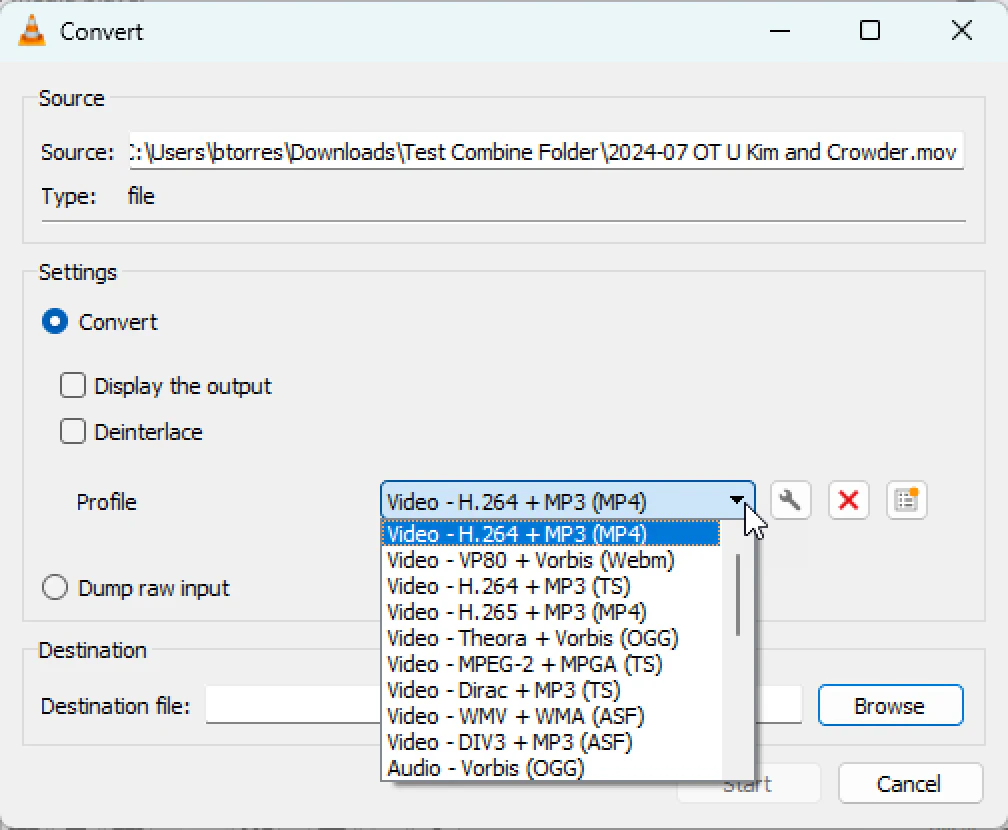
Step 3. Choose the format as an audio format under the Settings ➡️ Convert section. Then, set the output destination and click Start. The converted audio will be in the output folder when the conversion finishes. audio output profile (MP3, WAV, etc.)
Audacity
Audacity is an audio editing tool that many audio editors love to use. It's more advanced. When you need more control over the extracted audio, such as cleaning noise, adjusting volume, or editing downloaded Spotify podcast, Audacity is a good choice.
Instead of one-click conversion, Audacity requires importing a video or audio stream first. This extra step makes it less convenient for simple tasks but far more powerful for audio post-production.
How to convert video to audio with Audacity
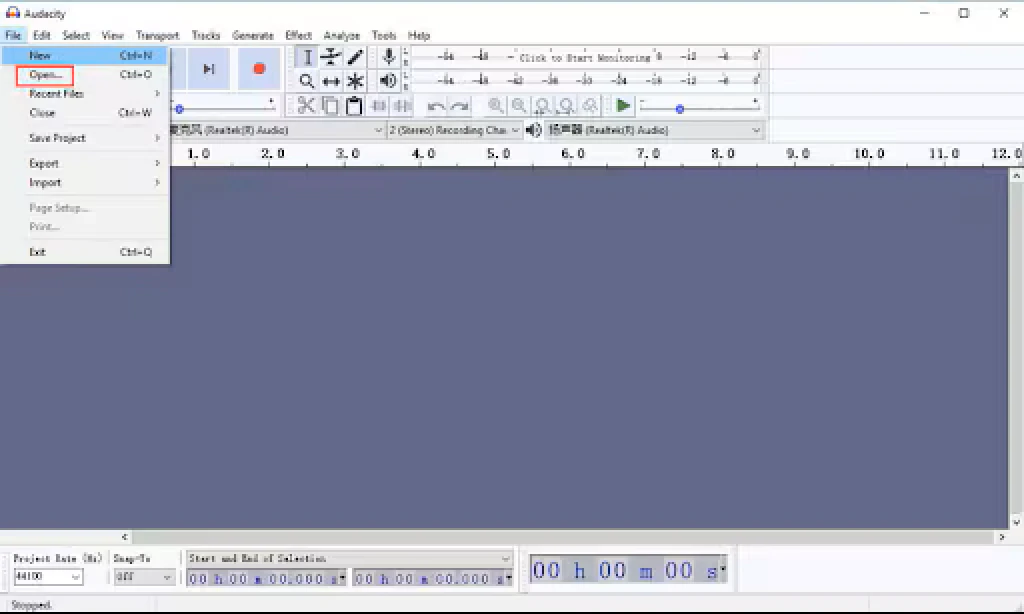
Step 1. Launch Audacity on your computer. Click File ➡️ Open. Select the video that you want to extract audio from.
Step 2. Once the video is uploaded, click File ➡️ Export ➡️ Export as [audio format].
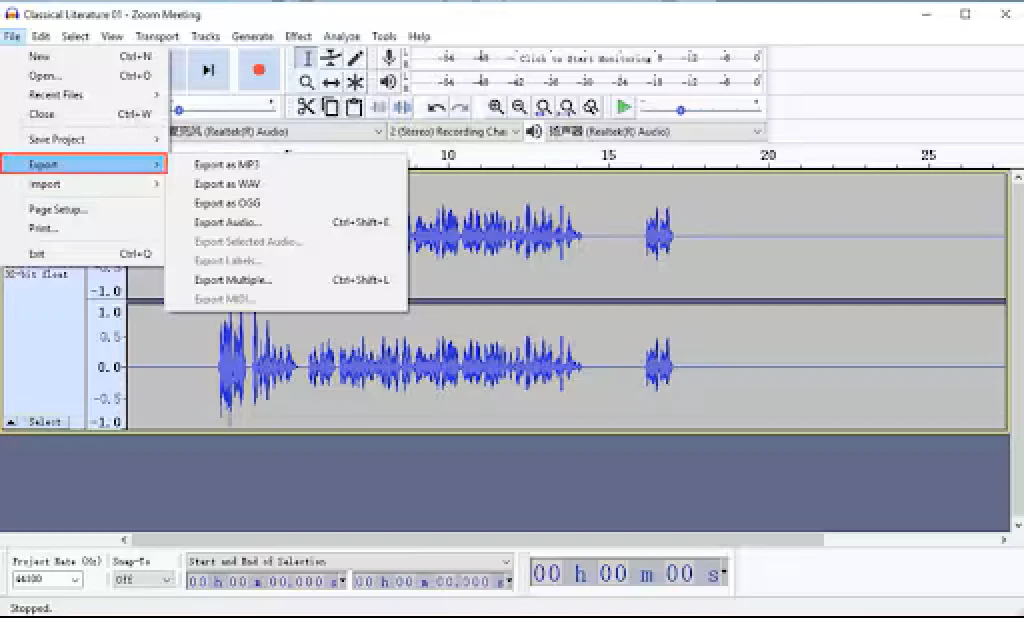
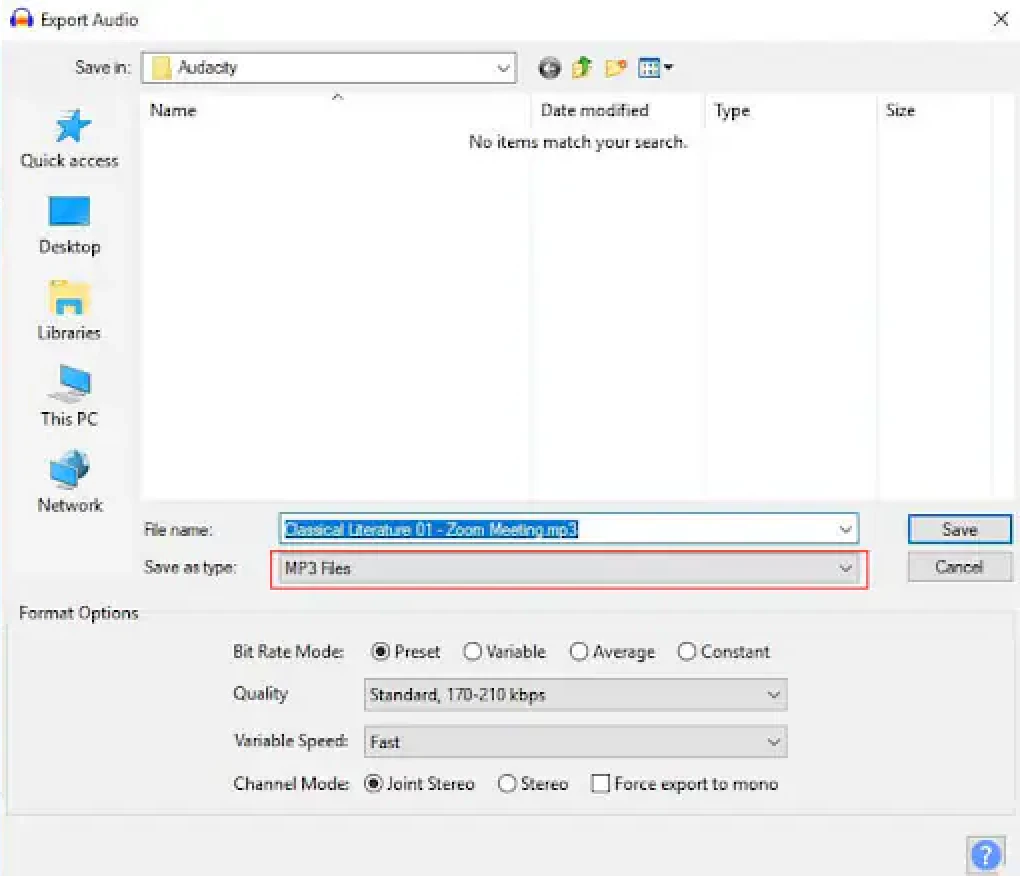
Step 3. In the pop-up file explorer window, select the output folder and the Save as type. Finally, click Save.
Convert Video to Audio on Mobile (iPhone & Android)
iPhone: Media Converter – Video to MP3
How to convert a video into an audio file iPhone? You need this app - Media Converter – Video to MP3. It is a commonly used option. It works with videos stored in Photos or Files and supports popular audio formats like MP3 and AAC.
This app is designed for convenience rather than advanced control. Many users report that it is suitable for quick conversions on the go.
How to convert video to audio on iPhone
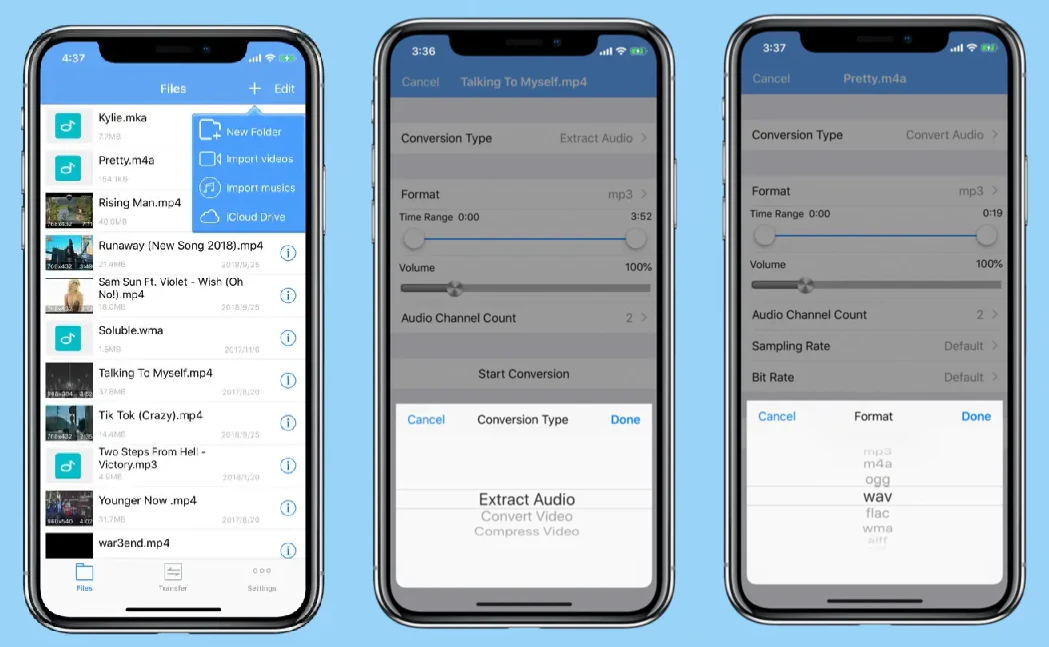
Step 1. Search Media Converter - video to mp3 application on your App Store, install and open it on your iPhone.
Step 2. Tap the add icon in the top-right corner of your screen. Choose Import videos to upload your video file.
Step 3. In the edit menu, choose Extract audio in Conversion Type.
Step 4. Choose a suitable audio file type to export and tap Done.
Android: Video to MP3 – Video to Audio
On Android devices, Video to MP3 – Video to Audio is a popular app for extracting audio from video files. It supports batch conversion and basic audio settings such as bitrate. It is practical for users who need to convert multiple videos at once directly on their phone.
How to convert video to audio on Android
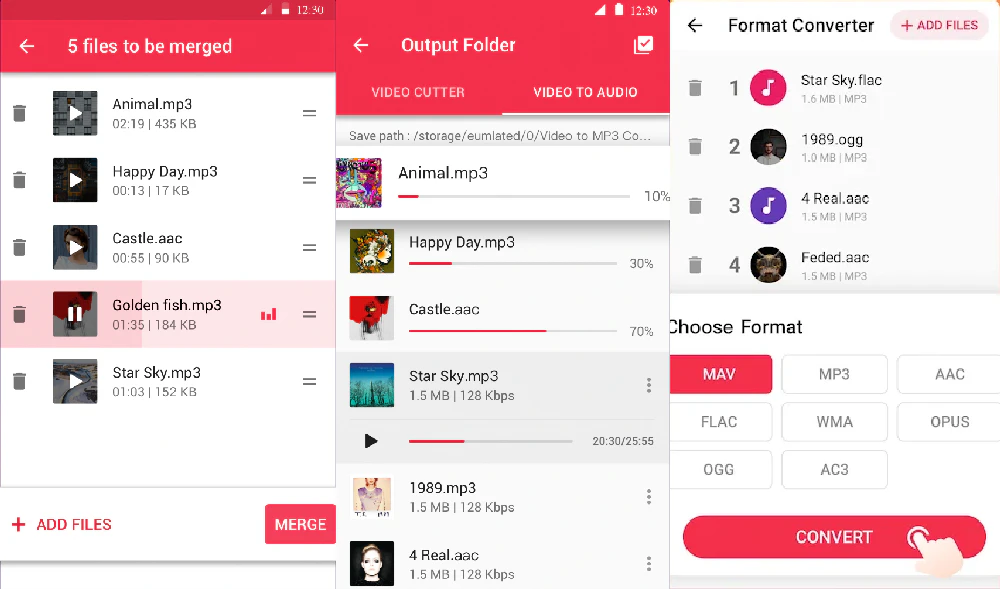
Step 1. Search Video to MP3 – Video to Audio application on your Google Play, install and open it on your Android device.
Step 2. Tap the Add Files button at the bottom of your screen.
Step 3. Go to the Output Folder and select Video to Audio.
Step 4. Choose a suitable audio file type to export and tap Convert.
Using FFmpeg (Command Line)
If you have FFmpeg on your computer, you can also convert video to audio using the command line. It doesn’t have a graphical interface, but it offers full control over audio codecs, bitrate, and channels. Because FFmpeg extracts audio directly from the video stream, it can convert video to audio without quality loss when configured correctly. However, it can't download social media videos from links, so you can only convert local videos.
How to convert video to audio using FFmpeg
Step 1. Install FFmpeg on your computer and add it to your system path. Therefore, if you are new to code, we suggest you use other methods.
Step 2. Open the terminal or command on your Windows or Mac computer.
Step 3. Run a basic audio extraction command:
ffmpeg -i input.mp4 -vn -acodec copy output.m4a
You can change the video name and audio name in the code.
Choosing the Right Audio Format
Choosing the right audio format matters a lot because different formats affect file size, compatibility, and sound quality. Especially if you convert them for podcasts, interviews, and voice recordings.
MP3
MP3 is the most widely supported audio format. It produces small file sizes and works on almost every device and platform. However, it uses lossy compression, which means some audio detail is removed during conversion. But it is hard to tell by human ears. So, MP3 is always the first audio format if you are not sure which to use.
WAV
WAV files are uncompressed and preserve original audio quality. They're ideal for editing, but the file size is much larger.
AAC / M4A
AAC (often stored as M4A) offers better audio quality than MP3 at the same or lower bitrates. And fortunately, it is also widely supported now. It is a good choice for recording people's voices, like podcasts.
FLAC
FLAC uses lossless compression, meaning it reduces file size without losing audio quality. It's commonly used for archiving or high-quality editing. Accordingly, not all devices support it.
Tips for Getting the Best Audio Quality
Extracting audio is only part of the process. To increase the audio quality, make sure you follow these tips:
-
Avoid re-encoding when possible – the original is always the best.
-
Match the sample rate and bitrate to the original source – don't decrease them.
-
Use the most suitable formats for editing – lossless format is not always the best if the sound is not high quality.
Final Thoughts
There’s no single "best" way to convert video to audio. The right method depends on the device you are using, the file size limitations, the original video sound quality, etc.
For most people, starting with a simple Snappixify or VLC tool is enough, especially if you wonder how to convert a YouTube video into an audio file or other social media videos into an audio file. As your needs grow - such as higher quality, batch processing, or automation - you can always move to more advanced tools later.
Frequently Asked Questions
Can I convert a video to audio for free?
Yes. Many desktop programs and online converters allow you to convert video to audio for free. All the tools we recommend are free: Snappixify, VLC, Audacity, Video to MP3, and FFmpeg.
Can I convert videos on my phone?
Yes, you can convert videos on mobile devices using apps on iPhone and Android. They are convenient if you want to convert the video recorded by your phone camera.
Is converting better than recording audio separately?
If you use a lossless format like FLAC to record audio separately, the output audio will be better than the converted audio. Otherwise, it will be hard to say. It depends on the quality needs and original source.


