 Snappixify


To convert YouTube to MP4, you need to use an online or desktop MP4 converter. Paste the YouTube video link or upload the local video to the converter, and then download the MP4 video.
However, when you search for YouTube to MP4 converters, you may have to try some fake tools that deliver nothing or even can't process the YouTube link. That is a waste of time.
If you also have the same troubles, take a look at this article. We have selected 4 tools online, on desktop, and using the command line that 100% work transferring YouTube to MP4 1080P and even HD.
TL;DR - Convert YouTube to MP4
-
An online or desktop YouTube to MP4 converter can transfer YouTube to MP4.
-
YouTube link can be transferred to MP4 directly.
-
Pay attention to the safety and video quality.
What Is YouTube to MP4 and Why People Convert YouTube Videos to MP4
"YouTube to MP4" means saving a YouTube video/link as an MP4 local file, so that you can store, play, or use outside of YouTube and without the network limitation. Moreover, MP4 is one of the most widely supported video formats. It plays smoothly on Windows, macOS, iOS, Android, and most smart TVs. What's more, nearly all video editors and media players can process MP4.
People convert YouTube videos to MP4 for several common reasons:
-
Offline viewing
If you want to enjoy a long YouTube video anytime, converting it to an MP4 will be the best choice. This is especially useful when you travel or when the network is unstable.
-
Content editing and creating
Users can convert YouTube videos to MP4 so they can trim clips, create highlights, or reuse parts of a video for presentations or personal projects. MP4 is the default format for most editing tools.
-
Archiving and backup
Play online videos on YouTube alone means you don't fully control access to a video. Saving them to MP4 copies allows you to keep important clips for long-term reference.
-
Educational and personal use
Students, teachers, and casual learners often download videos for study, review, or sharing in environments where constant internet access isn't guaranteed.
For ordinary users, converting YouTube videos to MP4 isn't about technical complexity. It's about convenience, flexibility, and having control over how and where you watch your videos. Therefore, in the next sections, we'll look at the most common ways to convert YouTube videos to MP4. They are all easy to start and also customizable.
Overview of Common Ways to Convert YouTube to MP4
We tested 31 YouTube to MP4 downloaders. Some of them totally can't be used, while a few of them are free and give pretty good results. In this article, we will list the best 4 of them: 2 online tools, 1 desktop tools for Windows and Mac, and one advanced command line tool.
The reason we chose the four downloaders is that the four tools can nearly cover all cases when converting YouTube to MP4. Quickly scan their features below.
|
Tool |
Type |
Best For |
Platforms |
Key Advantages |
Main Limitations |
|
Snappixify |
Web-based |
Everyday users who want fast, simple downloads |
Any device with a browser |
No installation, supports YouTube links directly, beginner-friendly |
Requires internet connection |
|
Y2Mate |
Web-based |
Quick, one-off conversions |
Any device with a browser |
Easy to use, multiple resolution options |
Ads and pop-ups, limited advanced controls |
|
4K Video Downloader |
Desktop software |
Users who want higher quality and batch downloads |
Windows, macOS, Linux |
Stable downloads, high-resolution support |
Requires installation, free version has limits |
|
yt-dlp |
Command line |
Advanced users and automation |
Windows, macOS, Linux |
Full control, highly reliable, no UI limits |
Steeper learning curve, terminal-based |
Do you have an idea that which tool suits you best? If not yet, don't worry. In the following sections, we'll take a closer look at each tool, including its key features and step-by-step guides for converting YouTube videos to MP4.
Tool 1. Snappixify [Web]
Key Features of Snappixify
Snappixify MP4 Converter is an online YouTube to MP4 converter. This is probably the most straightforward converter of all we test – you just paste the video link or upload the video, click the button, and then get the video. No installation, no logging in, no watermark on the result.
Key features include:
-
Input: support YouTube links and local YouTube videos; batch uploading is also supported
-
Output: support MP4 format in 1080P and HD
-
Usage: No registration, no purchase, and no watermark in the output
-
Flexibility: Simple editing is allowed before exporting the MP4 video output
Steps to Convert YouTube to MP4 with Snappixify
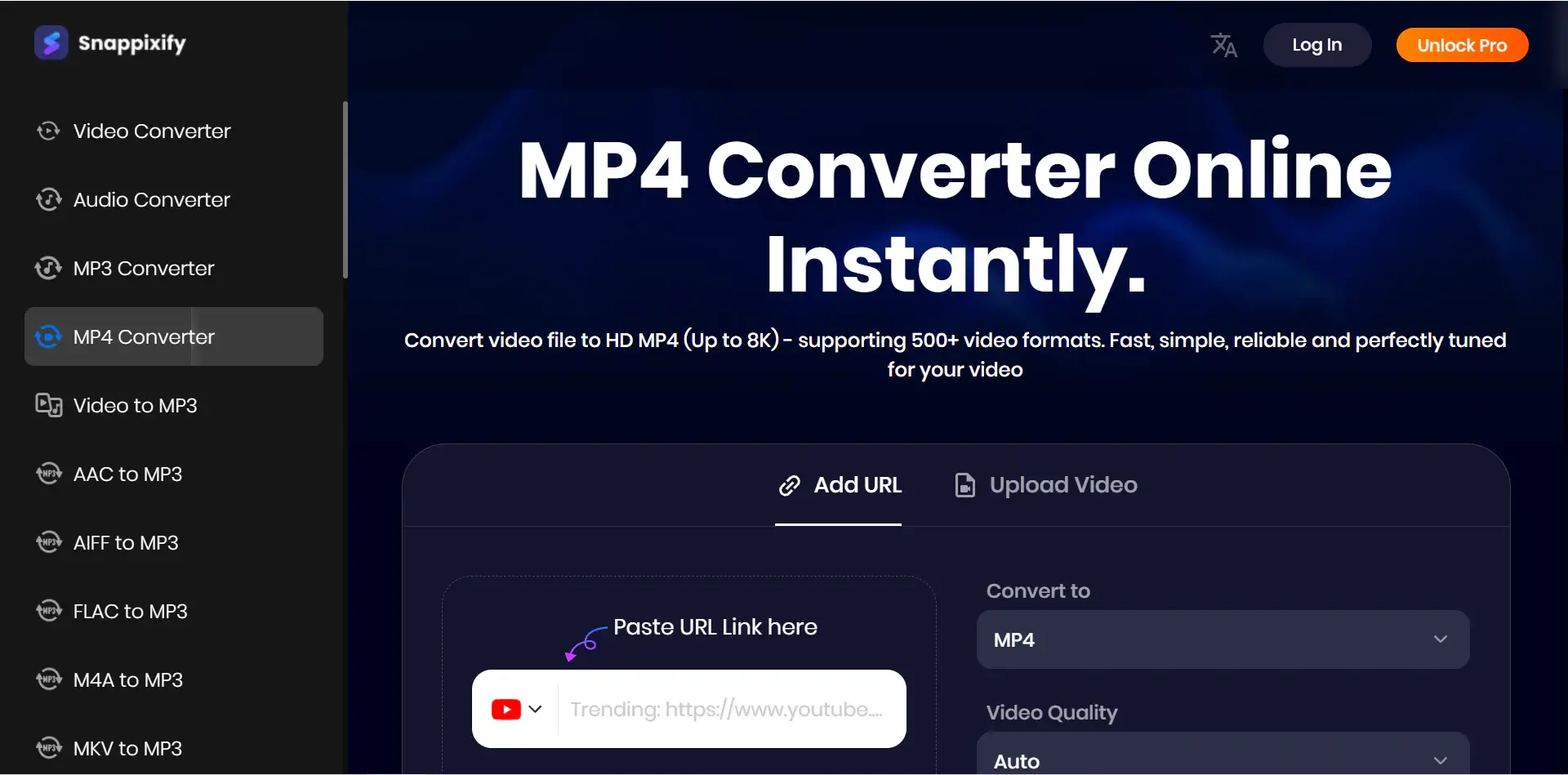
Step 1. Visit the Snappixify MP4 Converter page, where you can see the entrance to convert YouTube video directly.
Step 2. Paste the YouTube video link into the input box. Or you can also choose any local YouTube videos on your computer. Batch converting is allowed.
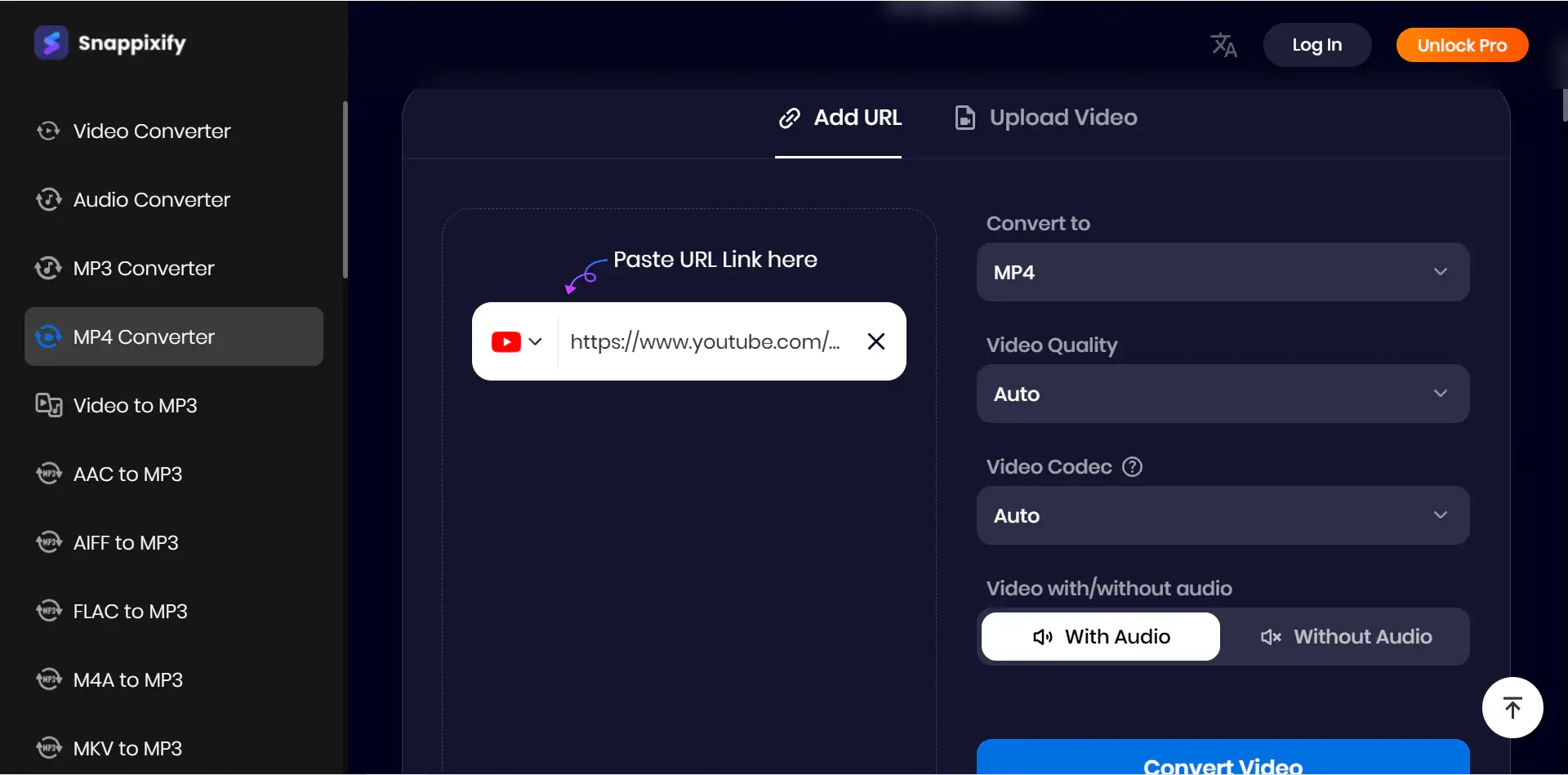
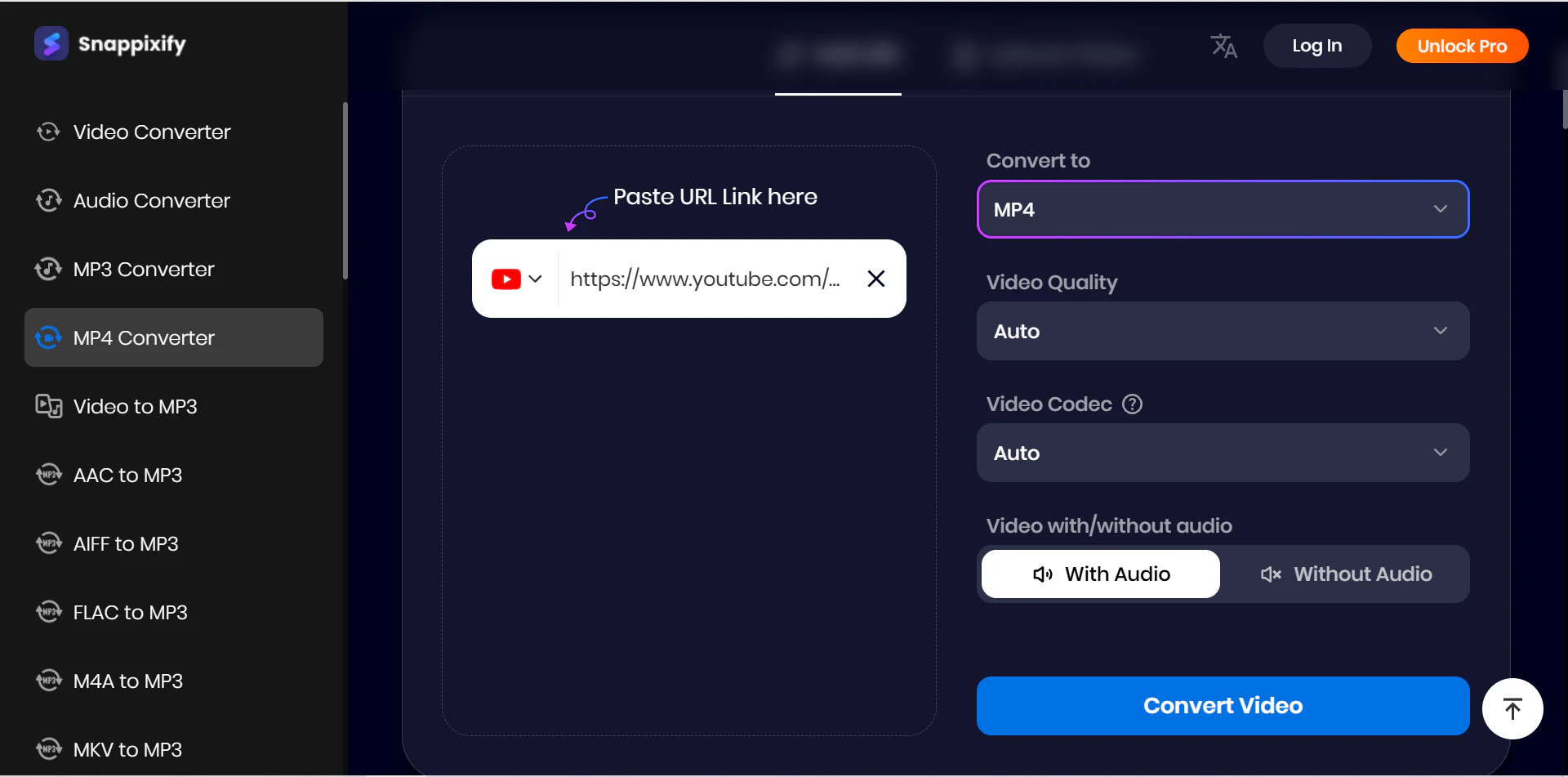
Step 3. Select MP4 as the output format and choose a resolution. You can also customize the video quality, video codec, and even whether downloading the video with/without audio.
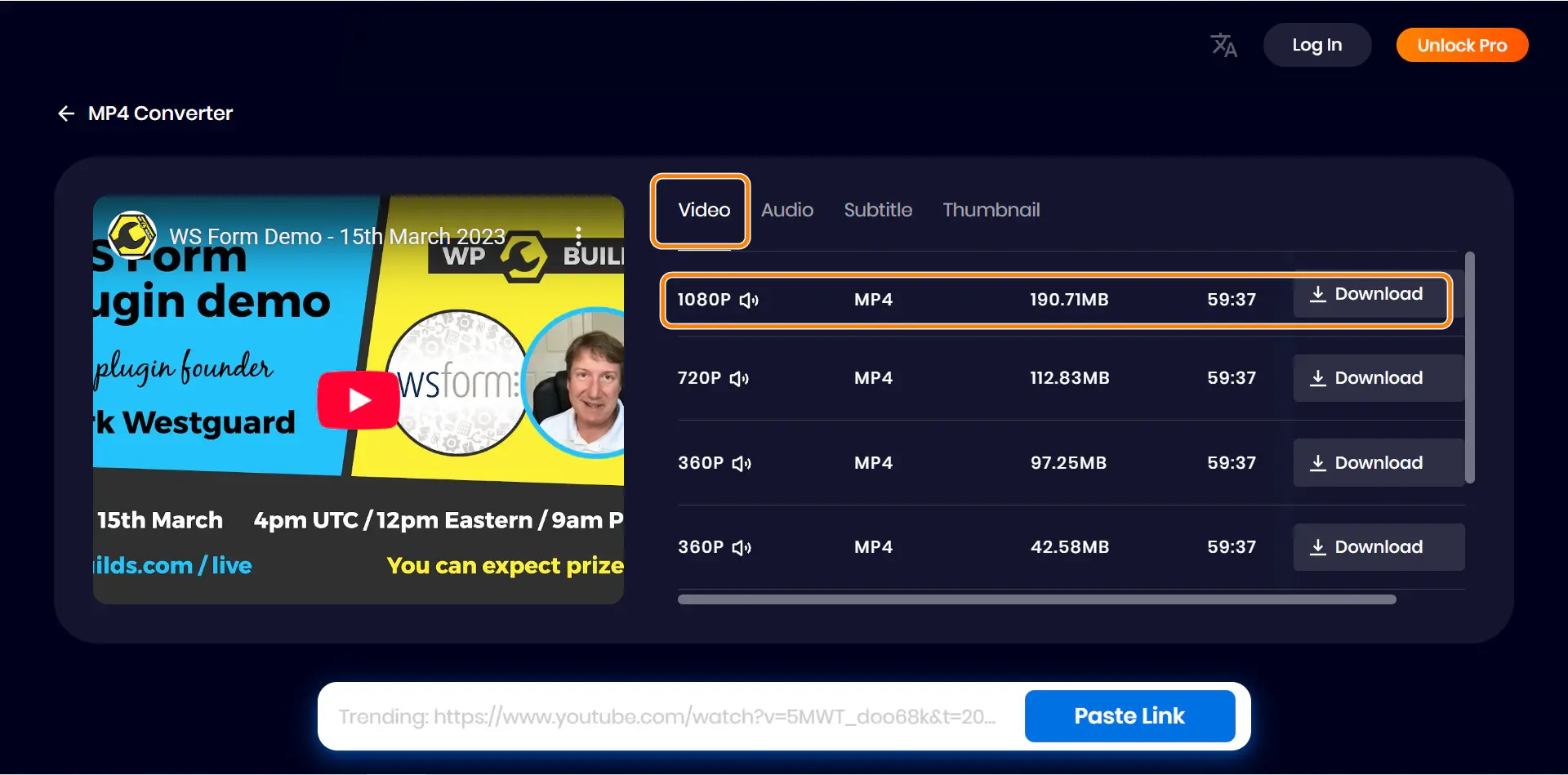
Step 4. Click the Convert button and you will be led to the next page. Here, click the Video tab and then the Download button beside MP4.
Tool 2. Y2Mate [Web]
Key Features of Y2Mate
Y2Mate is a popular online YouTube downloader that allows users to convert YouTube videos to MP4 without installing software. However, the developers no longer run it. Many fake websites claim they are Y2Mate and can convert videos, but actually can't. Famous addresses like y2mate.co.com, v6.www-y2mate.com, or v1.y2mate.nu don't work.
After our test, en1.y2mate.is still working and works easily. All you need is one click, and the MP4 video will be downloaded directly. In turn, it can't do any customized settings. It is suitable for people who just want to download the whole video with original quality.
Key features include:
-
Web-based, no installation required
-
Easy workflow, video is downloaded automatically
-
Works on both desktop and mobile browsers
Steps to Convert YouTube to MP4 with Y2Mate
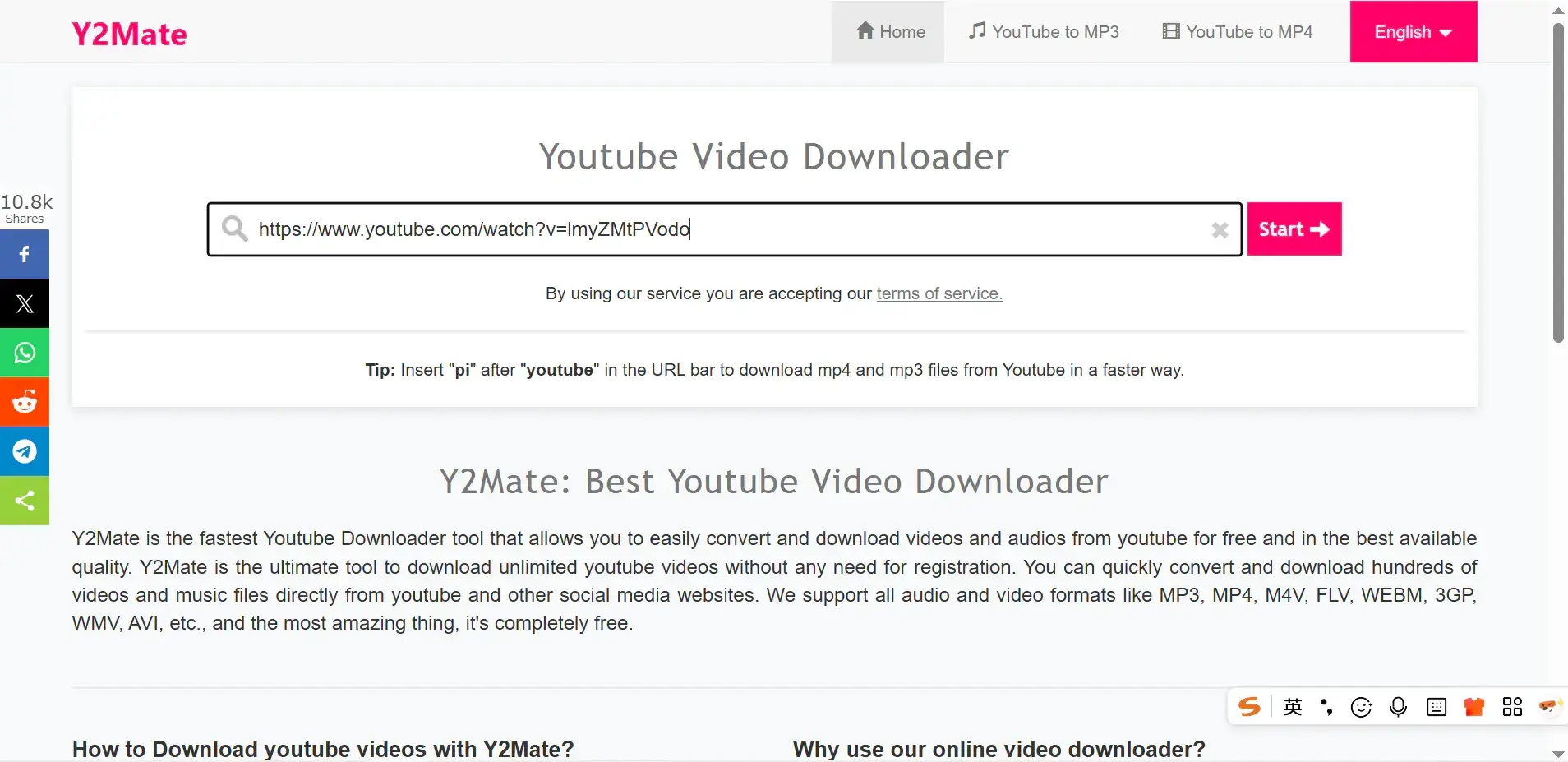
Step 1. Open the Y2Mate website in your browser, and then paste the YouTube video link. Click Start.
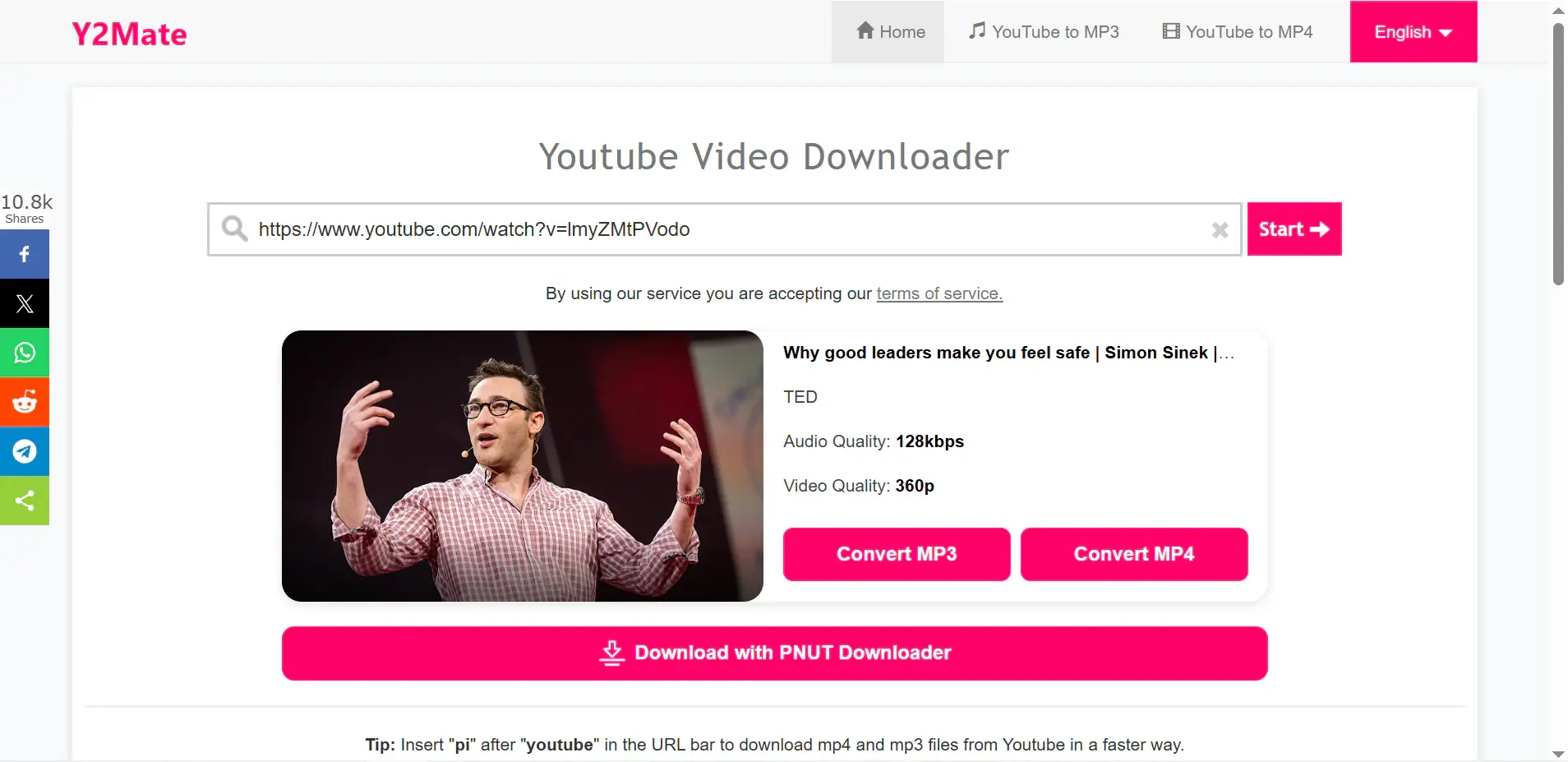
Step 2. Click the Convert MP4 button. And the video will be downloaded. All done.
Tool 3. 4K Video Downloader [Desktop]
Key Features of 4K Video Downloader
4K Video Downloader is a desktop application. Different from web converters, you need to download and install 4K Video Downloader before using it. This makes it cumbersome to use, but also stable when converting YouTube to MP4. It provides more control over video downloads. It's well-suited for users who need stable downloads, higher resolutions, or batch processing.
Key features include:
-
Available on Windows and macOS
-
Supports high-resolution videos, including 4K
-
Batch downloads and playlist support
-
More stable for large files compared to web tools
Steps to Convert YouTube to MP4 with 4K Video Downloader
Step 1. Install and open 4K Video Downloader on your computer.
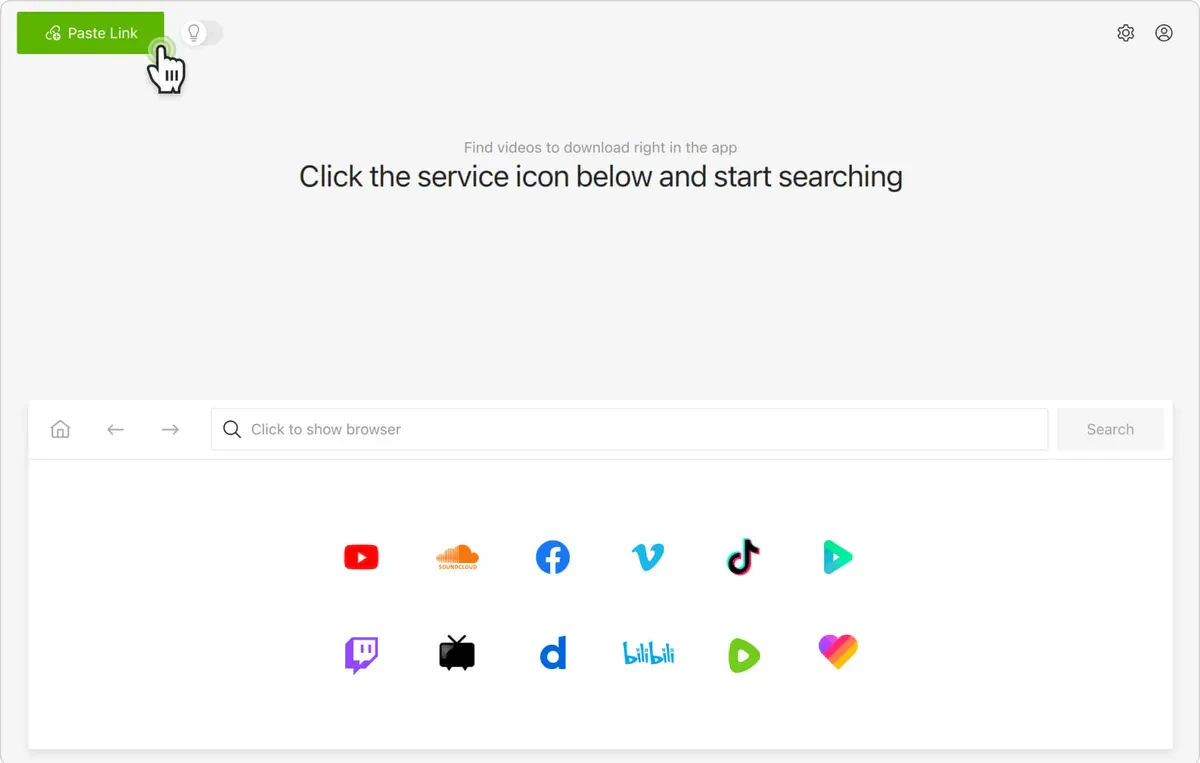
Step 2. Copy the YouTube video link and click the Paste Link button; the link will be pasted automatically.
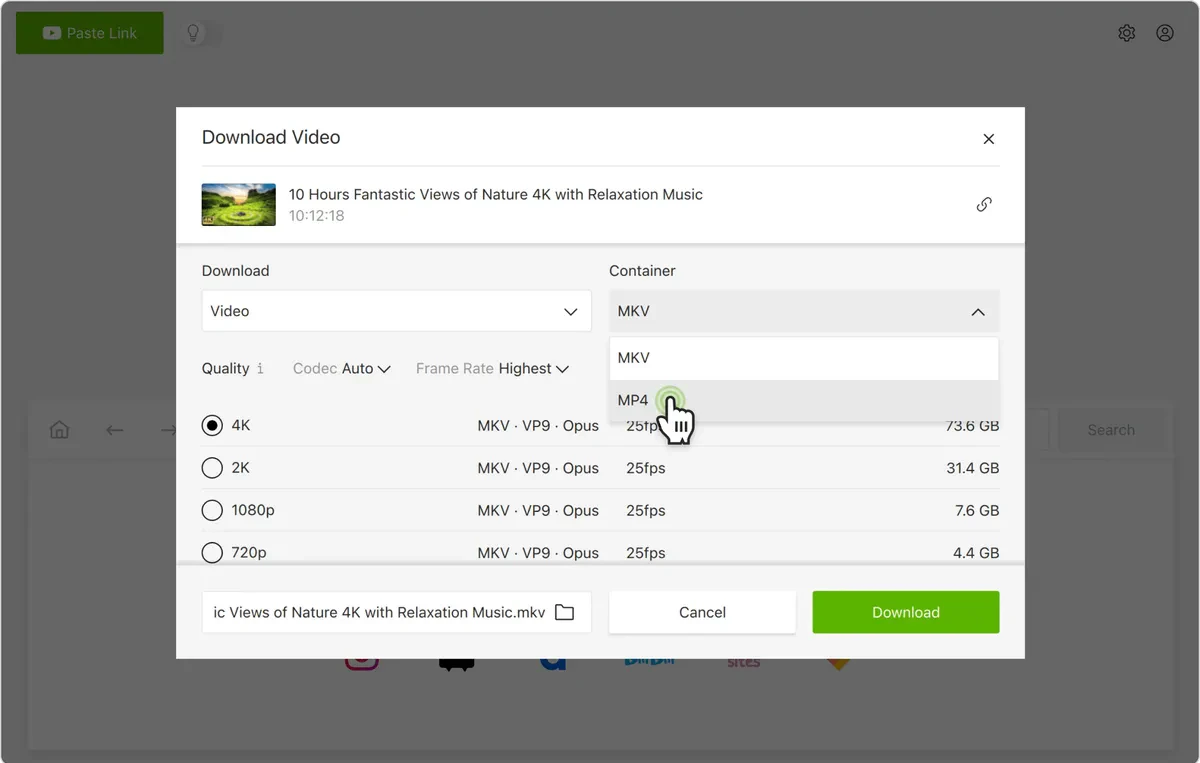
Step 3. Choose MP4 as the format and select video quality.
Step 4. Click the Download button, start the download, and wait for the MP4 file to finish saving.
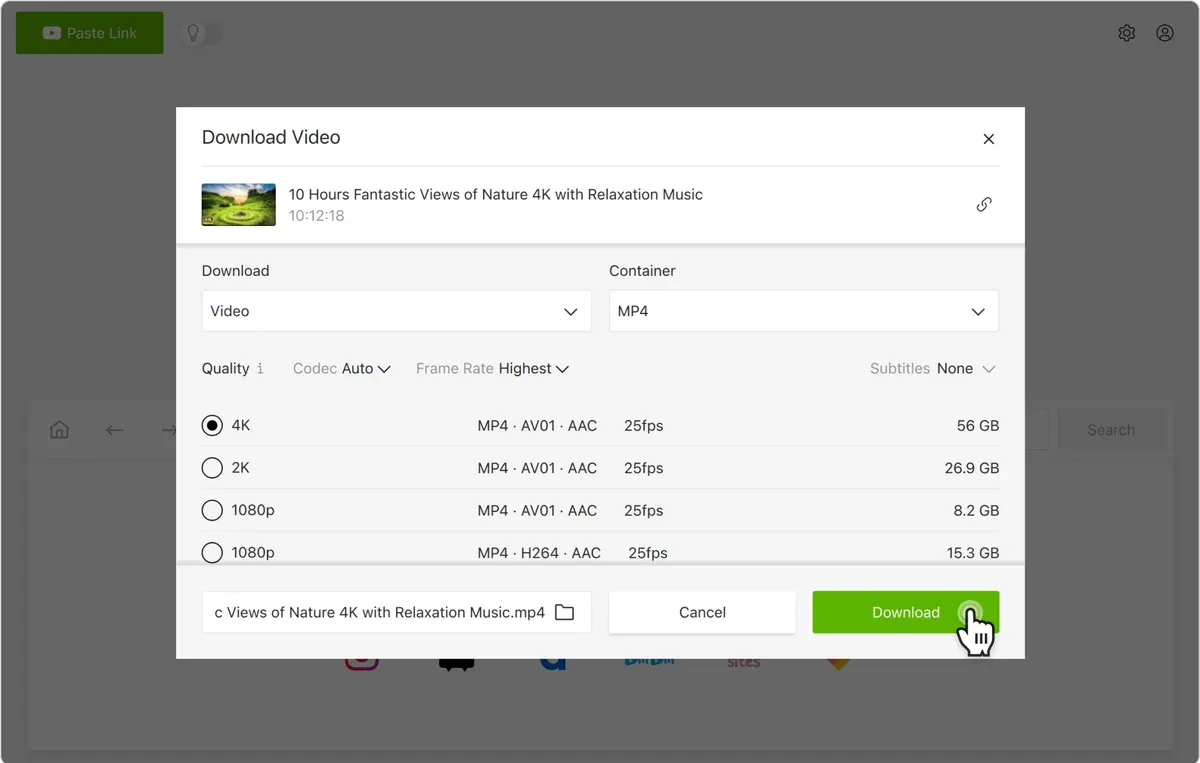
Tool 4. yt-dlp [Command Line]
Key Features of yt-dlp
yt-dlp is a command-line tool widely used by advanced users and developers. Also, you can use it as a YouTube to MP4 converter. You can control the flexibility using the powerful command when downloading and converting YouTube videos to MP4.
Key features include:
-
Works on Windows, macOS, and Linux
-
You can fully control the format, codec, resolution, etc.
-
Highly reliable and frequently updated
-
Ideal for automation and batch processing
Steps to Convert YouTube to MP4 with yt-dlp
Step 1. Install yt-dlp on your computer system. See the detailed steps to install yt-dlp.
Step 2. Open a terminal or command prompt. Then input the command line:
yt-dlp --output "%(title)s.%(ext)s" --embed-thumbnail --add-metadata --merge-output-format mp4 "https://www.youtube.com/watch?v=duZDsG3tvoA"
All you need to do is replace the YouTube link with the link you desire to download.
YouTube to MP4 Resolution Options Explained
When converting YouTube videos to MP4, resolution is an essential factor to consider. Choosing the right resolution helps you get the video quality you want while keeping the file size from being too large. But it is one of the most misunderstood settings. This section will help you understand the setting better.
Common YouTube Resolutions Explained (720p, 1080p, 4K, UHD)
Let's first learn more about common resolutions:
720p: It is standard high definition (HD), widely supported, and has relatively small file sizes. It may not be enough for films.
1080p: 1080p is the full high definition (FHD). Most modern YouTube videos are uploaded in at least 1080p, and many tools support downloading MP4 files at this resolution (except Y2Mate).
4K (2160p): 4K videos, or UHD videos, provide significantly more detail and are best suited for large screens or professional use, and keep a large file size. Quite a large part of devices in our daily life don't support 4K. Therefore, if you play 4K videos on a device that doesn't support 4K video, you will see the same quality as 1080p. Therefore, be careful when choosing 4K.
What "Supported Resolution" Really Means in Converters
When a converter claims it converts YouTube to MP4 1080p or 4K, it means the tool is capable of downloading and converting videos that are already available at those resolutions on YouTube. It does not mean the tool can magically turn a low-resolution video into a high-resolution one.
This distinction is important because:
-
Converting 720p to 1080p does not improve quality
-
Upscaling is complex, resource-intensive, and rarely offered by simple converters
-
Most tools focus on extracting the original video stream as-is
In practice:
-
Many web-based converters only support up to 720p, regardless of the original YouTube video quality
-
Desktop tools often support 1080p and sometimes 4K, depending on the codec and stream type
-
Advanced tools can access higher-quality streams but require more setup
If a tool only offers 720p as the highest option, it means the converter limits the resolution it can process, even if the original resolution is 1080p. For ordinary users, the safest approach is to choose the highest resolution offered by the converter, knowing that it reflects what the tool can extract—not an upgrade of the original video quality.
Online YouTube to MP4 Converters vs Desktop Downloaders
Online converters are usually easy to use. Some of them, like Snappixify, offer simple editing functions that are generally enough for daily use. See more advantages and disadvantages of online YouTube to MP4 converters:
Advantages
-
No software installation
-
Quick and easy
-
Cross-platform
Limitations
-
Internet-dependence
-
File size limits
-
Ads and pop-ups
-
No advanced controls
Desktop downloaders are applications that you install on your computer. They usually allow batch converting and generally offer more editing functions. See more advantages and disadvantages of desktop YouTube to MP4 converters:
Advantages
-
Offline processing
-
Higher resolution support
-
Batch downloads
-
More control
Limitations
-
Requires installation
-
Not easy to start
-
System requirements
Why Snappixify MP4 Converter Is Different from Other YouTube to MP4 Tools
Snappixify is an online YouTube to MP4 converter that is easy to use. However, to improve user experience, it offers functions more than that. See more Snappixify features:
-
Allow batch converting: Although Snappixify is an online MP4 converter, it allows batch downloads. Users can convert multiple YouTube links to MP4 videos in a short period of time.
-
Totally safe: In Snappixify website, you don't have to worry about being led to untrusted websites. You can't even see an ad. It focuses on a clean and secure conversion process.
-
High speed and stable: Even when converting longer videos or multiple links, Snappixify performs well without frequent failures or interruptions.
-
Support downloading social media videos more than just YouTube: Apart from YouTube, Snappixify is also a good Instagram video downloader, and X, TikTok, and more social media platforms.
Is It Legal to Convert or Download YouTube Videos to MP4
The legality of converting YouTube videos to MP4 depends on how the video is used and who owns the content. Downloading your own videos or videos that are clearly allowed by the creator is always OK. However, downloading copyrighted videos may violate YouTube’s Terms. It is recommended to use converters only for personal or educational uses.
Safety and Privacy Tips When Using YouTube to MP4 Converters
Not all YouTube to MP4 converters are safe, especially free online tools like the fake Y2Mate websites. Therefore, if you don't have special requirements, you can always choose from the four converters we provide in this article. If you need other converters, never trust those websites that will lead you to other addresses.
Final Thoughts on Converting YouTube Videos to MP4
Hope you have found the best way to convert YouTube videos to MP4. If you still can't decide yet, we suggest trying one by one: Snappixify, Y2Mate, 4K Video Converter, and yt-dlp. After all, there is no best converter, but the most suitable one for you.
Frequently Asked Questions About YouTube to MP4
Can I convert YouTube videos to MP4 for free?
Yes, many YouTube to MP4 converters are free to use. Online tools and some desktop software allow free downloads, though they may have limits on speed, file size, or resolution.
What is the best YouTube to MP4 converter?
The best converter depends on your needs. For ease of use, online tools work well. For higher quality or frequent downloads, desktop or command-line tools are often more reliable.
How do I convert YouTube to MP4 1080P or 4K?
First, make sure the original YouTube video is available in 1080p or 4K. Then use a converter that supports those resolutions. Not all tools do, especially online ones.
Can I convert YouTube videos to MP4 on any device?
Yes. You can convert YouTube videos to MP4 on desktops, laptops, tablets, and phones, as long as the converter supports your device and browser.


