 Snappixify


Facebook is overflowing with high-quality content: from deep-dive podcast interviews and exclusive live music performances to valuable tutorial videos. However, this content is usually locked in a video format, which isn't always convenient for users who just want to "listen."
With so many conversion tools available, we have summarized the three mainstream methods for converting Facebook videos to MP3: Efficiency-focused Online Tools, Quality-first Desktop Software, and Feature-rich Video Editors. This guide compares the pros and cons of each to help you find the perfect tool for your needs.
Why Extract Audio from Facebook Videos?
Imagine you are commuting, or you want to listen to a lecture while working out at the gym. You don't want to keep your screen on, nor do you want to waste precious mobile data streaming high-definition video. In these scenarios, converting Facebook videos into lightweight MP3 audio files is the best solution.
The main advantages of extracting audio include:
-
Save Data & Space: MP3 files are significantly smaller than videos. This saves download bandwidth and frees up massive amounts of storage space on your device.
-
Background Play: You don't need to keep your screen active. This allows for true background playback, letting you listen while using other apps.
-
Offline Listening: Whether you are on an airplane or in an area with poor signal, your downloaded MP3s are always available.
-
Focus on Content: Removing visual distractions allows you to focus entirely on the auditory experience of the lecture, interview, or music.
Method 1: Speed First — Online "Direct Link" Tools
If you are looking for the ultimate efficiency of "paste link, download immediately," then online converters are your top choice. They require no installation and work on any device browser (PC or mobile).
Note: Regarding Private VideosOnline tools generally cannot download videos set to "Private" by the author or videos posted in private groups. Due to permission restrictions, if the publisher has not set the video to "Public," the server cannot read the link, resulting in a download failure.
Recommended Online Tools
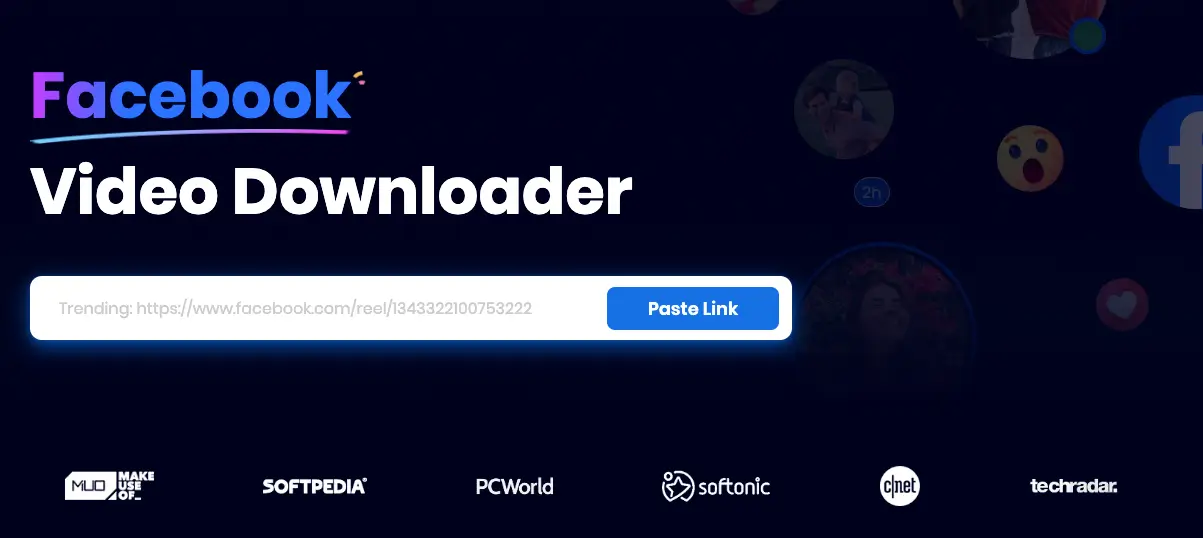
1. Snappixify (Top Recommendation)
-
Core Advantages: No registration or login required. The process is extremely simple and completely free. Most importantly, the interface is clean and refreshing with NO ADS or pop-ups, offering the best user experience in its class.
-
Best For: Users who want zero barriers and zero distractions, finishing the conversion in seconds.
2. SnapSave

-
Core Advantages: Fast conversion speed with good adaptation for mobile browsers.
-
Limitations/Cons: Fewer audio quality options, and the interface contains ads.
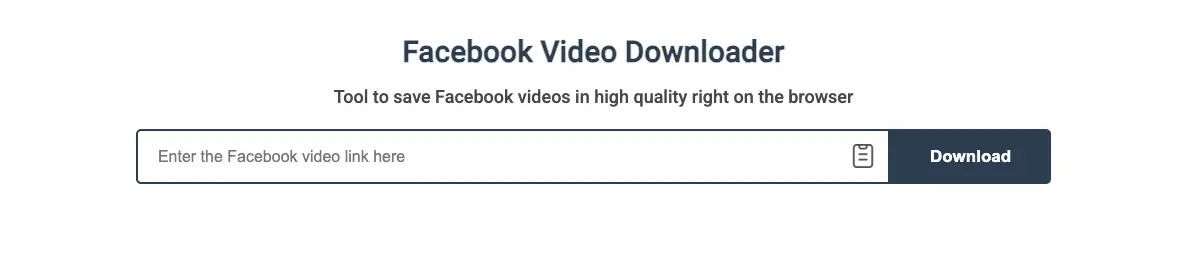
3. FBDown.to
-
Core Advantages: Simple interface, specifically optimized for Facebook video downloading with a high success rate.
-
Limitations/Cons: The interface contains ads which may affect the user experience.
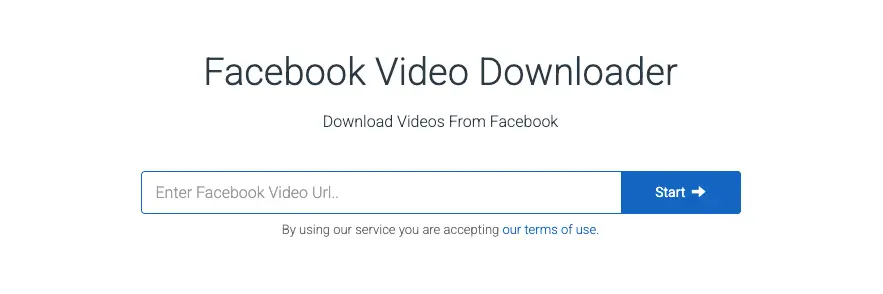
4. F2MP
-
Core Advantages: A lightweight tool with fast conversion speeds and a minimalist design.
-
Limitations/Cons: Features are quite basic, and the interface contains ads.
Step-by-Step: Using Snappixify
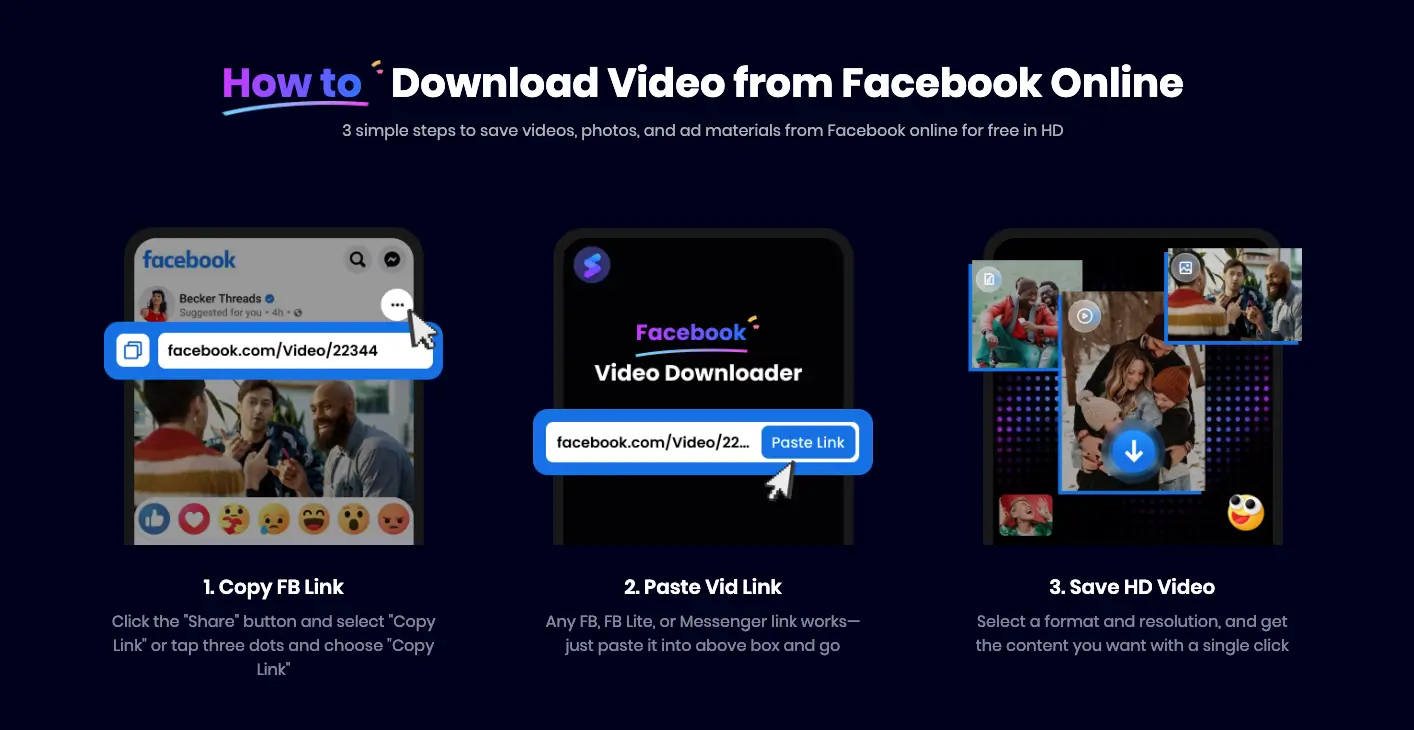
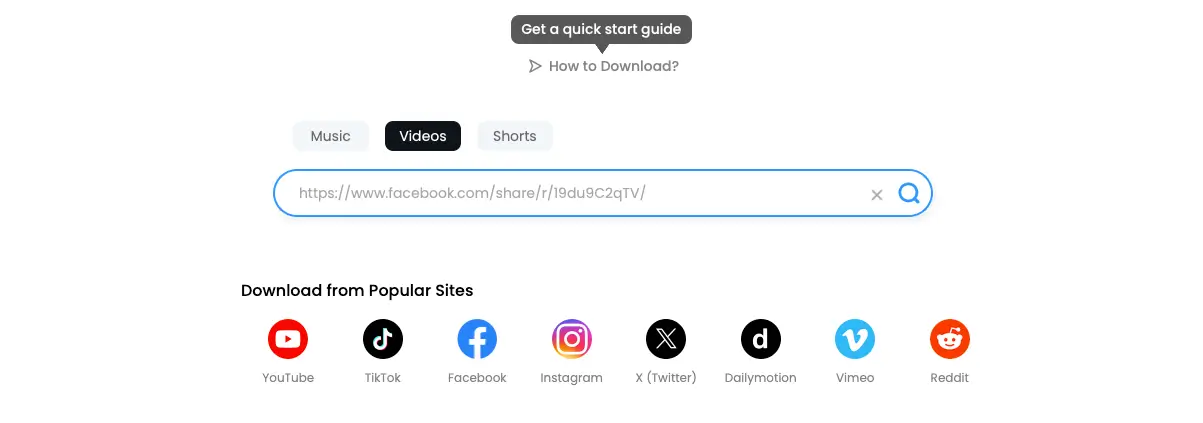
The operation of online tools is similar, highlighting the efficiency of "Direct Link Conversion":
-
Copy Link: Find the Facebook video you want to convert and copy its URL.
-
Paste Link: Open the Snappixify homepage, paste the URL into the input box, and click "Paste link".
-
Select Quality: In the pop-up options, choose your desired MP3 quality (e.g., 128kbps, 320kbps).
-
Download: Click the download button, and the MP3 file will automatically save to your device.
Method 2: Quality & Function First — Desktop Software
For users seeking the highest audio stability, or those who want to bypass certain network restrictions (such as downloading without logging into an account), professional desktop software is the reliable choice.
Desktop Software Comparison
|
Tool Name |
Core Advantages |
Limitations/Cons |
|
AceThinker Aqua Clip |
Can parse and download without logging into Facebook. High stability and supports various audio formats. |
Requires a paid subscription or license to unlock all premium features. |
|
HitPaw Video Converter |
Supports lossless audio extraction with very fast conversion speeds. |
Requires installation and local storage space; still needs to download data packets despite direct conversion. |
Step-by-Step: Using AceThinker Aqua Clip
AceThinker Aqua Clip integrates "Download" and "Conversion" into one seamless workflow:
-
Copy Link: Copy the link of the video you want on Facebook.
-
Launch Software: Open AceThinker Aqua Clip and enter the "Download" interface. The software usually auto-detects the link in your clipboard and begins parsing.
-
Specify Format:
-
Once parsing is complete, a format selection window will appear.
-
Locate the "Audio" section.
-
Select MP3 or M4A format, and check your desired bitrate (Recommended: 320k for best quality, though 192k or 128k are available).
-
-
Start Download: Click the Download button. The software will extract the audio track directly and export the final file.
Method 3: Ultimate Refinement — Using Filmora
If your goal is not just to get an MP3 file, but to trim redundant segments, remove background noise, or adjust volume, then the professional video editor Wondershare Filmora is the most powerful tool.
Important: Filmora cannot convert directly via a Facebook link. You must follow the "Download Video First, Separate Audio Later" process.
Conversion & Editing Steps with Filmora
-
Prep (Download First): Use an online tool mentioned in Method 1 (like Snappixify) to download the Facebook video as a local MP4 file.
-
Import & Detach:
-
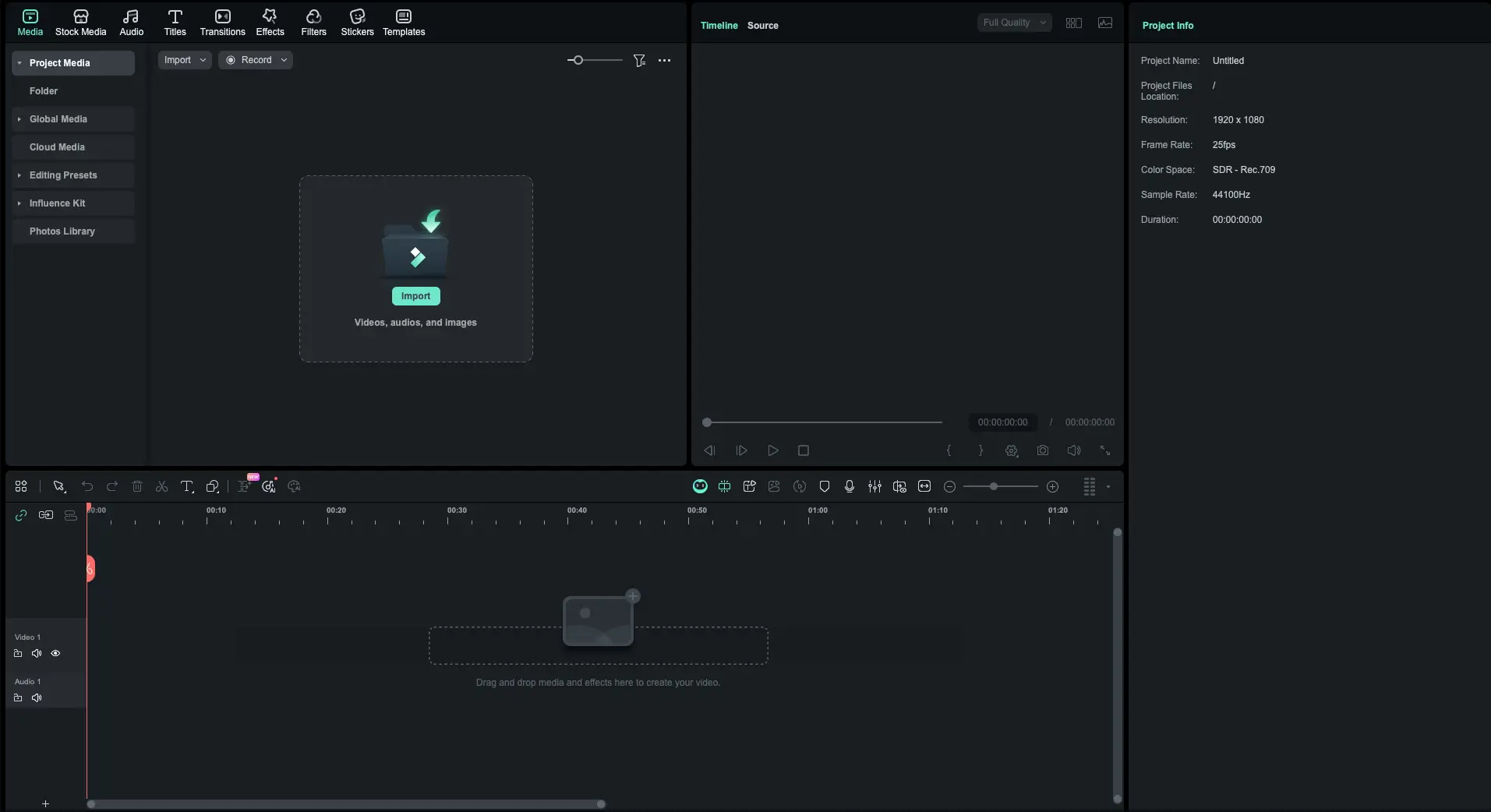
Drag the downloaded MP4 file into the Filmora timeline.
-
Right-click on the video clip in the timeline and select "Detach Audio". The video and audio tracks will now be completely separated.
-
-
Refine (Key Step):
-
Trim the audio track precisely to remove unwanted intros or outros.
-
Double-click the audio track and use the professional "Denoise" feature to eliminate background hiss or noise, significantly improving the purity of the final MP3.
-
-
Export:
-
Click the "Export" button at the top of the interface.
-
Switch to the "Audio" tab and select MP3 format.
-
In the settings, ensure the bitrate is set to 320 kbps (High Fidelity), then click Export.
-
Legal & Copyright Disclaimer
When using any download or conversion tool, copyright issues are a crucial prerequisite that cannot be ignored. We explicitly remind readers that downloading or converting copyright-protected Facebook videos owned by others may involve legal risks.
Please strictly adhere to the following principles:
-
Personal Work: Only download and convert videos that you created or own the copyright to.
-
Authorized Content: Only process content where the copyright owner has explicitly granted permission for download (e.g., Creative Commons content).
-
Personal Use: Downloaded MP3 files are for your personal offline listening only. They are strictly prohibited for commercial use, re-uploading, or public dissemination.
Summary & Recommendations
Which method is right for you? Here is a quick review of the scenarios for the three modules:
-
Snappixify (Online Tool):
-
Best Scenario: Fast, Temporary, Free, Ad-Free. You need an audio file immediately, don't want to install anything, and don't want to be annoyed by ads.
-
-
AceThinker / HitPaw (Desktop Software):
-
Best Scenario: Stable, High Quality, No Login Required. Suitable for users with strict audio quality requirements or those who want to download videos stably without logging into a Facebook account.
-
-
Filmora (Editing Software):
-
Best Scenario: Refining, Denoising, Creating. Suitable for scenarios where you need post-processing on the audio (such as removing background noise or cutting out highlights).
-
We hope this guide helps you find the most convenient and efficient way to turn your favorite Facebook content into portable MP3s!


